
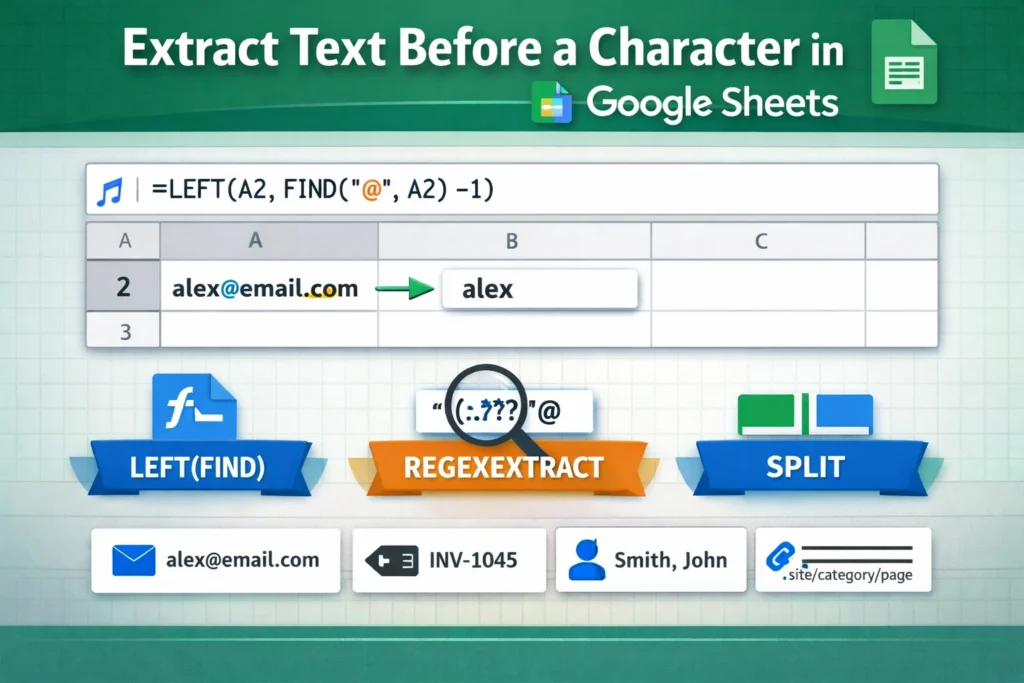
When you’re working with spreadsheets, it’s extremely common to need only part of a cell’s text. Email usernames before the “@” symbol, product codes before a dash, names before a comma, or URLs before a slash are everyday examples. The core idea behind google sheets text before character is simple: identify where a specific character appears in a string and return everything that comes before it.
Google Sheets doesn’t have a single “TEXTBEFORE” button like some newer spreadsheet tools, but it gives you several powerful functions that can accomplish the same goal. Once you understand how they work together, you can extract text before almost any character reliably and at scale.
This guide walks through the most practical approaches, explains when to use each one, and highlights common mistakes so your formulas stay clean and dependable.
Which Google Sheets functions are used to get text before a character?
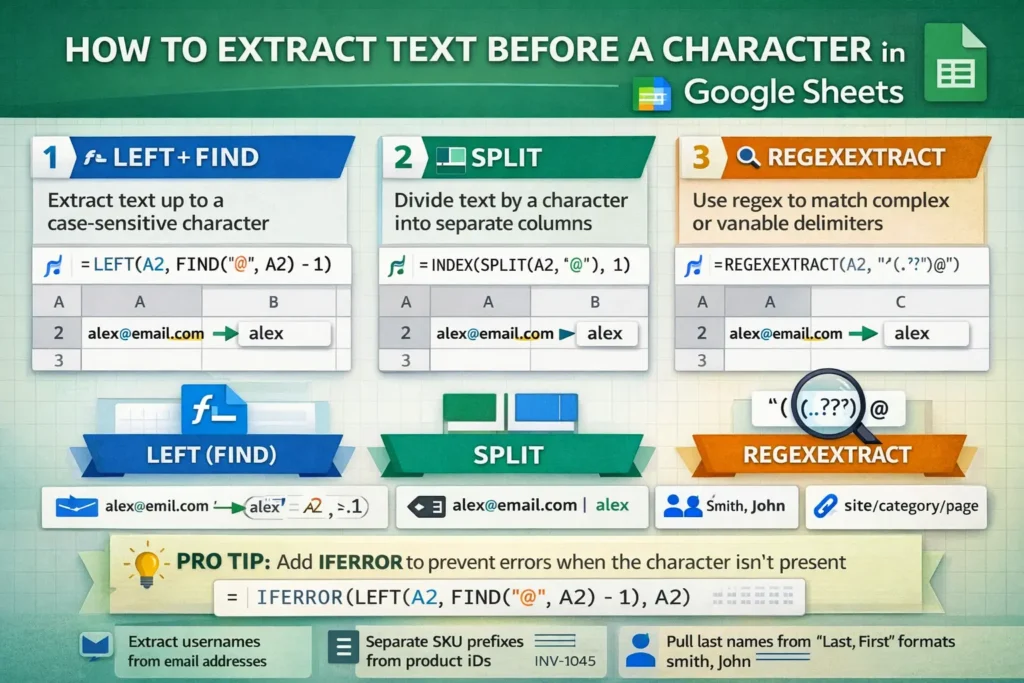
Extracting text before a character relies on three main concepts: finding the position of a character, slicing text up to that position, and handling errors when the character doesn’t exist. In Google Sheets, this is typically done with combinations of LEFT, FIND, SEARCH, SPLIT, and REGEXEXTRACT.
Each option has strengths depending on your data. Some are better for simple cases, others are more flexible with messy or inconsistent text. Understanding these differences will help you choose the right formula instead of forcing one that breaks later.
When should you use LEFT and FIND together?
The LEFT and FIND combination is the most classic solution and works best when the character you’re searching for always exists in the text and is case-sensitive.
LEFT returns a specific number of characters from the beginning of a string. FIND locates the position of a character within that string. When you subtract one from the FIND result, you get exactly the number of characters before the character you’re targeting.
LEFT + FIND formula examples
Extract text before a dash (-):
=LEFT(A2, FIND("-", A2) - 1)If A2 contains INV-1045, the result will be INV.
Extract text before an @ symbol:
=LEFT(A2, FIND("@", A2) - 1)If A2 contains alex@email.com, the result will be alex.
This approach is fast and efficient, but it has two important limitations. First, FIND is case-sensitive, which can cause unexpected results if your character varies in case (such as letters instead of symbols). Second, the formula will return an error if the character doesn’t exist in the text.
How do you handle case-insensitive characters using SEARCH?
SEARCH works almost exactly like FIND, but it’s case-insensitive. This makes it more forgiving when you’re dealing with inconsistent capitalization.
LEFT + SEARCH formula examples
Extract text before a word regardless of case:
=LEFT(A2, SEARCH("ID", A2) - 1)If A2 contains orderid123, OrderID123, or ORDERid123, the formula still works.
SEARCH is ideal when the delimiter is a word or letter rather than a symbol. However, it shares the same drawback as FIND: if the character or text isn’t found, the formula will throw an error.
How can you prevent errors when the character doesn’t exist?
One of the most common frustrations with text extraction formulas is error handling. If even one cell doesn’t contain the character you’re searching for, your entire column may fill with errors.
Wrapping your formula in IFERROR allows you to control what happens when the character isn’t found.
Error-safe formula example
=IFERROR(LEFT(A2, FIND("-", A2) - 1), A2)In this version, if the dash doesn’t exist, the formula simply returns the original text instead of an error. This is especially useful when you’re cleaning imported data or user-generated content where formatting isn’t guaranteed.
A practical rule of thumb is to always use IFERROR when applying text-before-character formulas to large datasets.
When is SPLIT a better option than LEFT?
SPLIT divides text into multiple parts based on a delimiter and returns each part into separate columns. If you only need the first portion of the text, SPLIT can be simpler and more readable than LEFT and FIND.
SPLIT formula examples
Extract text before a comma:
=INDEX(SPLIT(A2, ","), 1)If A2 contains Smith, John, the result will be Smith.
Extract text before a slash:
=INDEX(SPLIT(A2, "/"), 1)This works well for URLs, file paths, or category structures.
SPLIT is not case-sensitive and doesn’t require character position math, which makes it easier for beginners. However, it does create multiple columns internally, so it’s best suited for situations where that behavior won’t interfere with nearby data.
How do you extract text before a character using REGEXEXTRACT?
REGEXEXTRACT is the most flexible option and can handle complex patterns that other formulas can’t. It uses regular expressions to define what you want to capture.
To get text before a character, you define a pattern that captures everything up to (but not including) that character.
REGEXEXTRACT formula examples
Extract text before a dash:
=REGEXEXTRACT(A2, "^(.*?)-")Extract text before an @ symbol:
=REGEXEXTRACT(A2, "^(.*?)@")REGEXEXTRACT shines when:
- The delimiter varies
- The text structure isn’t consistent
- You need advanced matching rules
The tradeoff is readability. Regular expressions can be intimidating, so this method is better for intermediate users or reusable templates where flexibility matters more than simplicity.
What are the most common mistakes people make with these formulas?
One frequent mistake is forgetting to subtract 1 from FIND or SEARCH. Without that subtraction, the extracted text includes the delimiter itself.
Another issue is assuming the character always exists. This leads to unnecessary errors when data changes. Using IFERROR or validating data beforehand prevents this.
Users also often overlook case sensitivity. FIND may fail silently when SEARCH would succeed, especially when working with imported or user-entered text.
Finally, applying complex regex formulas when a simple SPLIT would do makes sheets harder to maintain. Choosing the simplest formula that works is usually the best long-term decision.
How do these methods behave in ARRAYFORMULA setups?
When working with entire columns, combining text extraction with ARRAYFORMULA allows your formula to auto-fill as new data is added.
ARRAYFORMULA example with LEFT and FIND
=ARRAYFORMULA(IF(A2:A="", "", IFERROR(LEFT(A2:A, FIND("-", A2:A) - 1), A2:A)))
This version skips blank cells, handles errors gracefully, and processes an entire column at once.
Not all functions behave identically in arrays. REGEXEXTRACT and SPLIT are generally array-friendly, but you should always test performance on large datasets, especially when using complex regex patterns.
What are practical real-world use cases for extracting text before a character?
This technique shows up constantly in real spreadsheets. Common examples include:
- Extracting usernames from email addresses
- Separating SKU prefixes from product IDs
- Pulling last names from “Last, First” formats
- Isolating domain categories from URLs
- Cleaning CRM exports where multiple values are stored in one cell
For Sheetrix-style templates, this logic is especially useful in dashboards, trackers, and import-cleanup sheets where users paste raw data and expect it to format automatically.
How does Google Sheets compare to Excel for this task?
Google Sheets relies on combinations like LEFT, FIND, and REGEXEXTRACT, while Excel has introduced TEXTBEFORE in newer versions. The good news is that Google Sheets formulas are more flexible when paired with regex and ARRAYFORMULA.
The limitation is that Google Sheets doesn’t yet have a single native function dedicated to this task. However, once you understand these patterns, you can replicate TEXTBEFORE behavior easily and often with more control than Excel provides.
Which method should you choose?
If the delimiter is consistent and always present, LEFT with FIND or SEARCH is efficient and fast. If you want simplicity and readability, SPLIT is often the best option. If your data is messy or inconsistent, REGEXEXTRACT provides unmatched flexibility.
A useful strategy is to start simple, then upgrade to more robust formulas only when your data demands it. This keeps your spreadsheets easier to understand and maintain over time.
Final thoughts on extracting text before a character in Google Sheets
Mastering how to get text before a character is a foundational spreadsheet skill that pays off in almost every project. Whether you’re cleaning imports, building trackers, or creating reusable templates, these formulas help you turn messy text into structured data.
By understanding when to use LEFT, SEARCH, SPLIT, or REGEXEXTRACT—and how to protect your formulas from errors—you’ll create spreadsheets that scale smoothly as your data grows. If you’re building Google Sheets templates for real-world use, this is one of those techniques that quietly does a lot of heavy lifting behind the scenes.





