If you’ve ever needed to combine names, addresses, or dynamic labels in Google Sheets without messy extra spaces or complex formulas, the Google Sheets TEXTJOIN function is built for exactly that job. Unlike older text-combining methods, TEXTJOIN gives you precise control over separators, empty cells, and scalable ranges—making it one of the most practical text functions in Sheets.
This guide explains what TEXTJOIN does, how it works, when to use it instead of alternatives, and how to avoid common mistakes. It’s written for beginners but includes enough depth for intermediate users building real-world spreadsheets.
What is the TEXTJOIN function in Google Sheets?
TEXTJOIN is a function that combines text from multiple cells or values into a single string using a delimiter you define. Its key advantage is that it can ignore empty cells automatically, which makes results cleaner and formulas easier to maintain.
Instead of manually adding spaces, commas, or symbols between values, TEXTJOIN inserts them consistently—no matter how large your dataset grows.
At a high level, TEXTJOIN answers this question: “How do I join text from many places, using one separator, without extra clutter?”
How does TEXTJOIN work in Google Sheets?
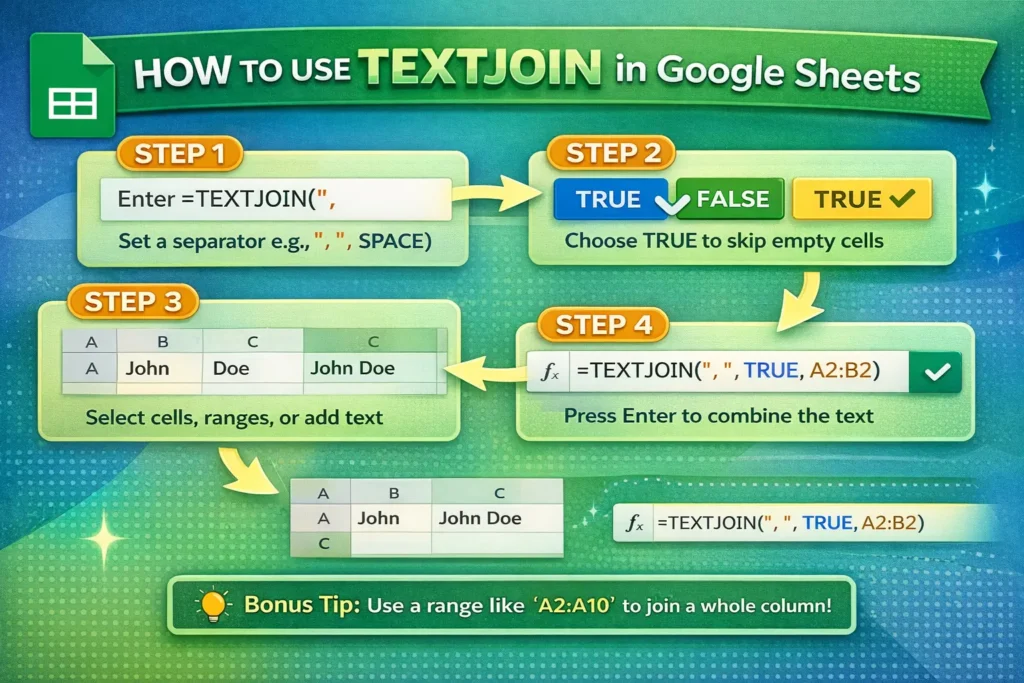
TEXTJOIN uses three core components: a delimiter, a setting for empty cells, and one or more text ranges or values.
TEXTJOIN Syntax
TEXTJOIN(delimiter, ignore_empty, text1, [text2, …])
- delimiter: The character or text placed between joined values (such as
" ",", ", or" | "). - ignore_empty: TRUE or FALSE. TRUE skips blank cells; FALSE includes them.
- text1, text2, …: Cells, ranges, or text values to combine.
TEXTJOIN evaluates everything in order, joins only valid text values, and outputs a single string.
When should you use TEXTJOIN instead of CONCAT or CONCATENATE?
Google Sheets offers several ways to combine text, but TEXTJOIN is usually the best choice when working with real datasets.
- TEXTJOIN vs CONCAT: CONCAT only combines two values at a time. TEXTJOIN can handle entire ranges.
- TEXTJOIN vs CONCATENATE: CONCATENATE is older, more verbose, and does not ignore blanks automatically.
- TEXTJOIN vs ampersand (&): Using
&becomes unreadable and error-prone in larger formulas.
If your data may expand, include blanks, or require consistent separators, TEXTJOIN is the most future-proof option.
TEXTJOIN Formula Examples
Basic TEXTJOIN example
Combine first and last names with a space:=TEXTJOIN(" ", TRUE, A2, B2)
This avoids extra spaces if one name is missing.
Joining a range with commas
Create a clean list from multiple cells:=TEXTJOIN(", ", TRUE, A2:A10)
Blank cells are ignored automatically.
Adding text labels
Build dynamic labels like reports or headers:=TEXTJOIN(" - ", TRUE, "Report", C2, TEXT(D2,"mmmm yyyy"))
This is useful for dashboards and printable summaries.
Using TEXTJOIN with line breaks
Create multi-line text inside a single cell:=TEXTJOIN(CHAR(10), TRUE, A2:A6)
Enable “Wrap text” to display each value on its own line.
Can TEXTJOIN handle numbers and dates?
Yes—but formatting matters. TEXTJOIN converts everything to text, so numbers and dates should be formatted explicitly when precision matters.
For example:=TEXTJOIN(" | ", TRUE, A2, TEXT(B2,"$#,##0.00"), TEXT(C2,"mm/dd/yyyy"))
This ensures consistent display regardless of sheet formatting.
What are common TEXTJOIN mistakes to avoid?
One common issue is setting ignore_empty to FALSE, which often results in repeated delimiters like extra commas or spaces. In most real-world use cases, TRUE is the better choice.
Another mistake is forgetting that TEXTJOIN outputs text, not values. If you plan to calculate with the result later, TEXTJOIN may not be appropriate.
Users also sometimes overuse TEXTJOIN where a simple A1 & " " & B1 would be clearer. TEXTJOIN shines with ranges and dynamic inputs—not always with two fixed cells.
How does TEXTJOIN behave with ARRAYFORMULA?
TEXTJOIN does not return multiple rows on its own. When used inside ARRAYFORMULA, it typically produces one combined result, not row-by-row output.
For row-level concatenation, TEXTJOIN is best used within each row, often alongside helper columns or BYROW (for advanced users). This limitation isn’t obvious in most tutorials but becomes important in scalable template design.
Is TEXTJOIN available in Excel and other platforms?
TEXTJOIN is available in:
- Google Sheets (fully supported)
- Excel (modern versions only)
However, older Excel versions may not support TEXTJOIN, which can break compatibility if you share files. If cross-platform use matters, test before distributing templates.
When should you use TEXTJOIN in real spreadsheets?
TEXTJOIN is especially useful for:
- Creating full names or addresses
- Building dynamic titles and labels
- Generating readable summaries from lists
- Preparing export-ready text fields
- Cleaning up user-entered data with optional blanks
In templates, TEXTJOIN reduces formula complexity and prevents formatting issues as users add or remove data.
Key takeaways for using Google Sheets TEXTJOIN effectively
TEXTJOIN is more than a convenience—it’s a reliability upgrade. By handling separators and empty cells correctly, it produces cleaner outputs with fewer edge-case errors. Use it when working with ranges, optional values, or dynamic text that needs to scale gracefully.
If you build trackers, dashboards, or downloadable templates in Google Sheets, mastering TEXTJOIN will save time and reduce support issues down the road.