
VLOOKUP is one of the most commonly used lookup functions in Google Sheets, especially for users who are organizing data across multiple tables. If you’ve ever needed to pull a value from another sheet based on a matching ID, name, or category, VLOOKUP is often the first function people learn. While it’s powerful, it also has limitations that can confuse beginners and frustrate intermediate users.
This guide explains how VLOOKUP works in Google Sheets, when to use it, common errors to avoid, and when alternative functions like XLOOKUP or INDEX and MATCH are a better choice. By the end, you’ll know exactly how to use VLOOKUP confidently and efficiently in real-world spreadsheets.
What is VLOOKUP in Google Sheets and what does it do?
VLOOKUP stands for “vertical lookup.” It searches for a value in the first column of a table and returns a related value from another column in the same row. The function always looks down the first column vertically, which is where it gets its name.
In Google Sheets, VLOOKUP is often used to connect datasets such as pulling prices from a product list, names from an employee directory, or categories from a reference table. The key requirement is that the value you are searching for must exist in the leftmost column of the lookup range.
One important thing to understand early is that VLOOKUP does not modify data. It only retrieves existing values. If the lookup value changes, the returned result updates automatically, making it ideal for dynamic spreadsheets.
When should you use VLOOKUP in Google Sheets?
VLOOKUP is best used when your data is structured in a simple, consistent way. If your lookup value is on the left and the value you want to return is somewhere to the right, VLOOKUP can be a fast and readable solution.
It works especially well for:
• Small to medium-sized tables
• One-time lookups or dashboards
• Templates where column order will not change
• Beginner-friendly spreadsheets
However, if your dataset is frequently changing, very large, or requires looking up values to the left, you may want to consider alternative functions discussed later in this article.
How does the VLOOKUP function syntax work?
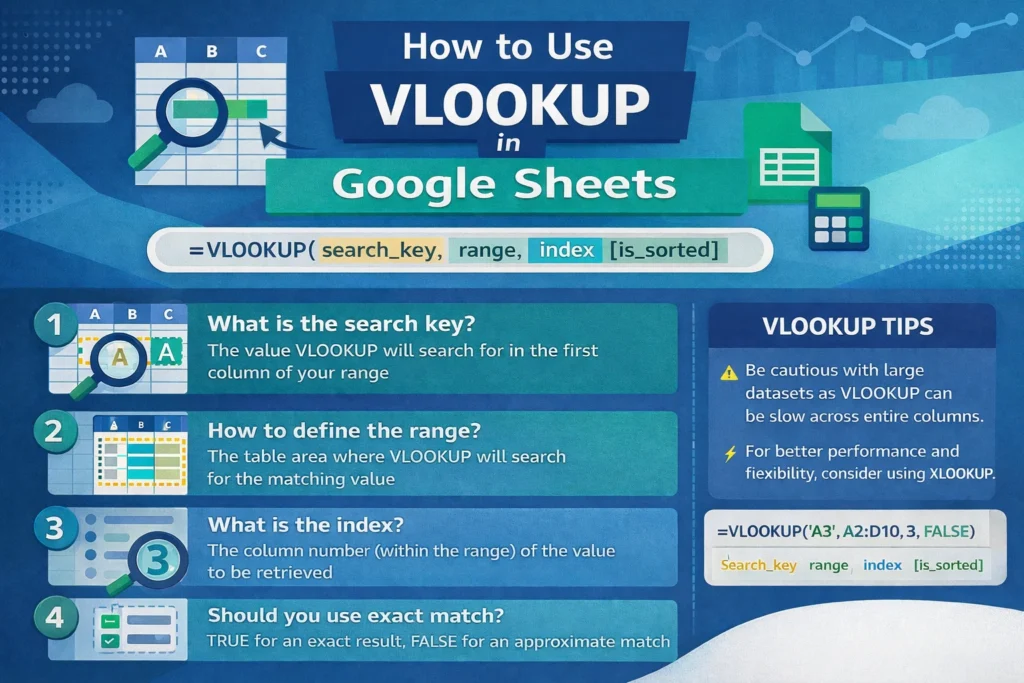
Understanding the syntax of VLOOKUP is the key to using it correctly. Every VLOOKUP formula follows the same structure, and once you understand what each part does, building and troubleshooting formulas becomes much easier.
VLOOKUP uses four arguments:
- The value you are searching for
- The table or range that contains the data
- The column number to return
- Whether the match should be exact or approximate
Each of these arguments plays a specific role, and mistakes in any one of them can cause errors or incorrect results.
VLOOKUP Formula Examples
Basic exact-match lookup
=VLOOKUP(A2, A:B, 2, FALSE)
This formula looks for the value in cell A2 within the first column of the range A:B. When it finds a match, it returns the corresponding value from the second column.
Lookup using a named range
=VLOOKUP(A2, Products, 3, FALSE)
Using named ranges improves readability and reduces errors, especially in templates or shared spreadsheets.
Approximate match example
=VLOOKUP(A2, A:B, 2, TRUE)
Approximate matches are commonly used for grading scales or commission tiers, but they require the lookup column to be sorted in ascending order.
What is the difference between exact match and approximate match?
One of the most common causes of incorrect VLOOKUP results is misunderstanding the final argument. Setting it to FALSE forces an exact match, while TRUE allows approximate matching.
Exact match should be used in most situations, especially when working with IDs, names, or unique values. Approximate match is useful only when your data represents ranges, such as tax brackets or discount levels.
If the last argument is omitted, Google Sheets defaults to approximate match. This is a frequent source of silent errors, which is why it’s best practice to always explicitly set this argument.
What are the most common VLOOKUP errors and how do you fix them?
Many VLOOKUP issues stem from small structural problems rather than complex logic errors.
The #N/A error usually means the lookup value does not exist in the first column of the range. This can also happen due to extra spaces, mismatched data types, or hidden characters.
The #REF! error typically occurs when the column index number is larger than the number of columns in the range.
Incorrect results can happen if approximate match is used unintentionally or if the lookup column is not sorted properly.
A practical troubleshooting tip is to test the lookup value by copying it directly from the table you are searching. This helps identify formatting mismatches that are not visually obvious.
Why does VLOOKUP only work from left to right?
VLOOKUP is limited by design. It always searches the first column of the specified range and can only return values from columns to the right. If the column order changes, the formula may break or return incorrect data.
This limitation is one of the main reasons Google introduced newer lookup functions. While VLOOKUP remains popular due to familiarity, it is not always the best tool for complex spreadsheets.
A workaround some users attempt is rearranging columns or duplicating data, but this increases maintenance and the risk of errors over time.
How does VLOOKUP compare to XLOOKUP in Google Sheets?
XLOOKUP is a modern replacement for VLOOKUP and solves many of its limitations. Unlike VLOOKUP, XLOOKUP can search in any direction, does not rely on column numbers, and handles errors more gracefully.
However, VLOOKUP still has value in legacy templates and for users who prioritize simplicity. If you are building new spreadsheets from scratch, XLOOKUP is often the better long-term choice.
How does VLOOKUP compare to INDEX and MATCH?
INDEX and MATCH is a powerful combination that offers more flexibility than VLOOKUP. It allows lookups in any direction and is less fragile when columns are inserted or removed.
That said, INDEX and MATCH requires understanding two separate functions, which can be intimidating for beginners. VLOOKUP remains easier to read and teach, especially for basic use cases.
What are performance considerations when using VLOOKUP?
In large Google Sheets files, VLOOKUP can slow down recalculation, especially when used across entire columns. Limiting lookup ranges to only the necessary rows can improve performance.
Another optimization is to avoid volatile formulas or unnecessary repeated lookups. In some cases, helper columns or QUERY functions can provide faster and more scalable solutions.
What are some lesser-known VLOOKUP tips specific to Google Sheets?
Google Sheets allows VLOOKUP to work across different sheets without additional syntax, as long as the range is properly referenced. This makes it easier to build multi-sheet dashboards.
Unlike Excel, Google Sheets recalculates VLOOKUP formulas in real time for all collaborators, which means inefficient formulas can affect performance for everyone working in the file.
Another useful tip is combining VLOOKUP with IFERROR to display cleaner outputs in templates and user-facing sheets.
When should you stop using VLOOKUP altogether?
If your spreadsheet requires frequent structural changes, two-way lookups, or robust error handling, it’s time to move beyond VLOOKUP. Functions like XLOOKUP, FILTER, and QUERY are better suited for modern spreadsheet workflows.
VLOOKUP is still worth learning because it appears in countless templates and legacy systems. However, understanding its limitations helps you decide when to use it and when to choose a more flexible alternative.
Final thoughts on using VLOOKUP in Google Sheets
VLOOKUP remains one of the most widely recognized spreadsheet functions for a reason. It solves a common problem in a simple way and is accessible to beginners. At the same time, it has clear limitations that become more noticeable as spreadsheets grow in complexity.
By understanding how VLOOKUP works, avoiding common mistakes, and knowing when to switch to more advanced functions, you can build cleaner, more reliable Google Sheets. For reusable templates and real-world spreadsheet examples, Sheetrix provides downloadable resources designed to help you apply these concepts quickly and confidently.





