
If you work with dates in Google Sheets, there’s a good chance you’ve needed to know what day of the week a date falls on. Maybe you’re building a schedule, tracking habits, analyzing sales by weekday, or labeling dates automatically. This is where understanding the WEEKDAY function in Google Sheets becomes incredibly useful. In this guide, you’ll learn how weekdays work in Google Sheets, how to extract them from dates, and how to use them correctly in real-world spreadsheets without running into common mistakes.
What is WEEKDAY in Google Sheets?
In Google Sheets, a weekday refers to the day of the week associated with a date, such as Monday, Tuesday, or Friday. Internally, Google Sheets stores dates as numbers, which allows formulas to calculate the weekday automatically. Depending on the function you use, weekdays can appear as numbers (for example, Monday = 1) or as text labels like “Mon” or “Monday.” Understanding this distinction is important because it affects how you analyze, sort, and filter your data.
For beginners, the most confusing part is that weekdays aren’t always displayed the way you expect. A date like January 15, 2026 might look simple, but Google Sheets sees it as a serial number tied to a calendar system. Weekday functions translate that number into a meaningful day, which is why formatting and function choice matter.
How does the WEEKDAY function work in Google Sheets?
The WEEKDAY function is the most direct way to determine the weekday of a given date. Instead of returning the name of the day, it returns a number that represents the day of the week. This is especially helpful for calculations, logic tests, and conditional formulas.
WEEKDAY formula examples
=WEEKDAY(A2)This formula returns a number from 1 to 7, where Sunday is 1 and Saturday is 7. While this default system works, it isn’t always ideal—especially if you consider Monday the first day of the week.
You can change how weekdays are numbered by adding a second argument:
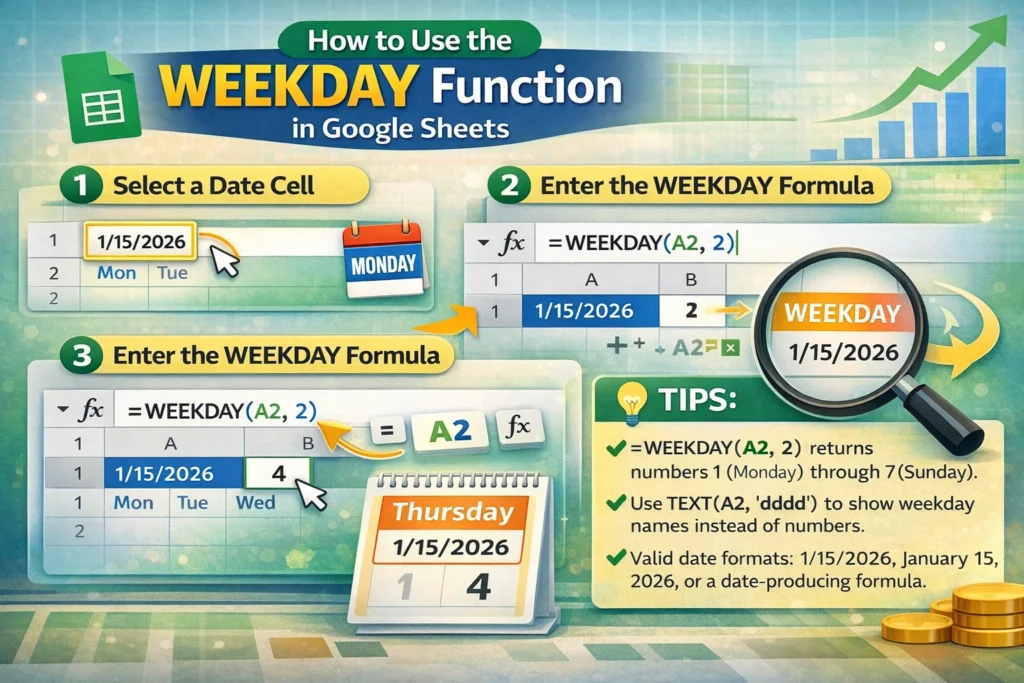
=WEEKDAY(A2, 2)With this version, Monday becomes 1 and Sunday becomes 7, which aligns better with most work schedules and reporting use cases.
Another common option is:
=WEEKDAY(A2, 3)This returns numbers from 0 (Monday) to 6 (Sunday). This format is useful for advanced calculations or when combining WEEKDAY with other numeric logic.
The key takeaway is that WEEKDAY is best for calculations and comparisons, not for displaying readable weekday names.
How do you show weekday names instead of numbers?
If your goal is to display “Monday” or “Fri” rather than a number, formatting is often a better solution than formulas. Google Sheets allows you to extract weekday names directly from dates using custom formats.
You can do this by selecting a date cell, opening the Format menu, choosing Number, then Custom date and time, and applying formats like:
ddddfor full weekday names (Monday)dddfor abbreviated names (Mon)
This approach keeps your data clean because the cell still contains a real date, not text. That means you can still sort, filter, and calculate without issues.
When should you use TEXT instead of formatting?
Sometimes you need the weekday name as text inside a formula, especially when combining it with other strings or logic. In those cases, the TEXT function is appropriate.
TEXT formula examples
=TEXT(A2, "dddd")This returns the full weekday name as text. For abbreviations, you can use:
=TEXT(A2, "ddd")Keep in mind that once you convert a weekday into text, it’s no longer treated as a date. This can limit sorting and calculations later, so it’s best used when display or labeling is your main goal.
How can weekdays be used in real-world spreadsheets?
Weekday calculations are surprisingly versatile. In budgeting templates, you might tag expenses by weekday to see spending patterns. In habit trackers, weekdays help separate workdays from weekends. In business dashboards, sales by weekday can reveal trends that monthly totals hide.
For example, many Sheetrix templates rely on weekday logic to automate summaries, highlight weekends, or adjust formulas based on the day of the week. Using weekday functions correctly ensures those templates stay accurate as new dates are added.
How do you identify weekends in Google Sheets?
One of the most common weekday use cases is detecting weekends. This is typically done with the WEEKDAY function combined with logical tests.
Weekend detection formula examples
=WEEKDAY(A2, 2)>5This formula returns TRUE for Saturday and Sunday when Monday is set as day 1. It’s commonly used in conditional formatting to highlight weekends automatically or exclude them from calculations.
This approach works well for schedules, attendance trackers, and workday-only calculations.
What are common mistakes when working with weekdays?
A frequent mistake is typing dates as text instead of real dates. If Google Sheets doesn’t recognize a value as a date, weekday functions won’t work correctly. Always ensure your dates are properly formatted.
Another common issue is mixing weekday numbers with different numbering systems. If one formula assumes Monday is 1 and another assumes Sunday is 1, your results can become inconsistent. Choosing a single system and sticking to it avoids confusion.
Users also sometimes rely too heavily on TEXT when formatting alone would be safer. Converting dates to text too early can break downstream formulas.
How does WEEKDAY compare to related date functions?
WEEKDAY is often used alongside other date functions like DAY, MONTH, and YEAR, but each serves a different purpose. WEEKDAY focuses on position within the week, not the calendar month or year.
For more advanced workflows, WEEKDAY pairs well with logical functions like IF or conditional formatting rules. While there isn’t a direct “WEEKDAYS” function, understanding WEEKDAY gives you the flexibility to build your own logic for almost any scheduling scenario.





