
If you’ve worked with spreadsheets for any length of time, you’ve probably used VLOOKUP or INDEX MATCH to find and return data from a table. While those functions still work, Google Sheets now supports a much more modern and flexible option: XLOOKUP. Understanding how XLOOKUP works in Google Sheets can dramatically simplify your formulas, reduce errors, and make your spreadsheets easier to maintain.
This guide walks you through exactly how XLOOKUP in Google Sheets works, when to use it, and how it compares to older lookup formulas. Whether you’re brand new to lookups or upgrading from VLOOKUP, you’ll leave with a clear mental model and practical examples you can apply immediately.
What is XLOOKUP in Google Sheets and why should you use it?
XLOOKUP is a lookup function designed to replace older functions like VLOOKUP, HLOOKUP, and most INDEX MATCH combinations. It allows you to search for a value in one range and return a corresponding value from another range—without requiring the lookup column to be on the left or dealing with column index numbers.
The biggest reason to use XLOOKUP in Google Sheets is simplicity. Instead of remembering different functions for vertical and horizontal lookups, XLOOKUP handles both. It’s also more resilient to spreadsheet changes, such as inserting columns or rearranging data.
At a high level, XLOOKUP lets you say: “Find this value here, and return the matching value from there.”
How does XLOOKUP work in Google Sheets?
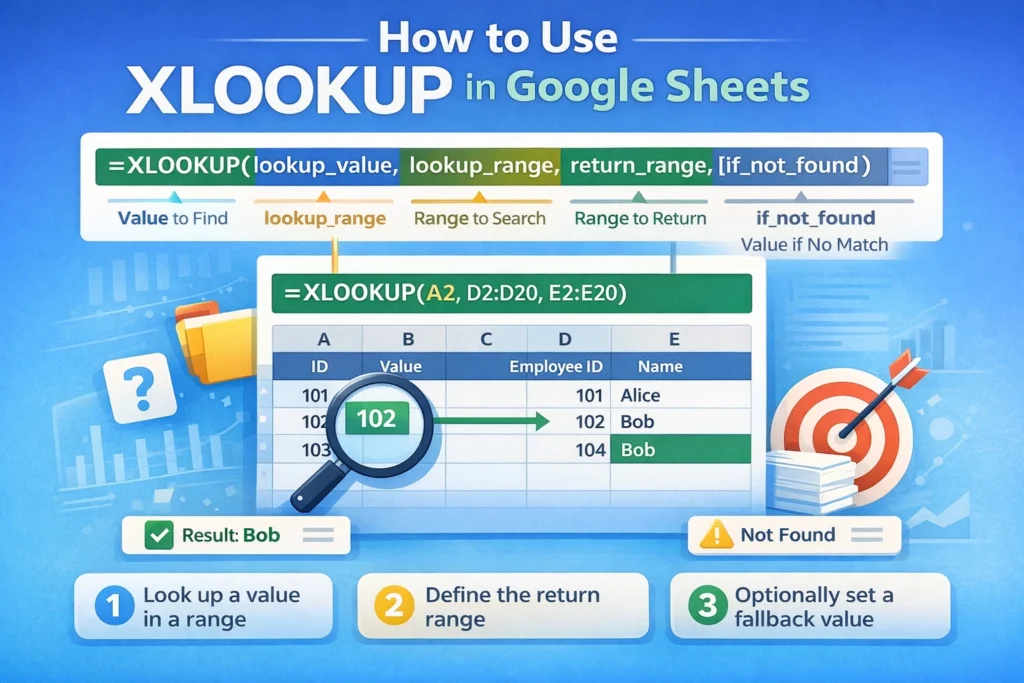
XLOOKUP works by pairing a lookup range with a return range. Unlike VLOOKUP, you don’t define a table—only the exact ranges you want to search and return from. This makes formulas easier to read and much harder to break.
Conceptually, XLOOKUP follows three steps:
- Look for a value in a specified range.
- Identify the position of the match.
- Return the value from the same position in another range.
Because Google Sheets handles ranges dynamically, XLOOKUP continues to work even if you add or remove columns, as long as the ranges remain aligned.
What is the syntax of XLOOKUP in Google Sheets?
Understanding the syntax makes everything else easier. XLOOKUP has more arguments than VLOOKUP, but most are optional and only used when needed.
XLOOKUP syntax explained
The general syntax is:
XLOOKUP(lookup_value, lookup_range, return_range, [if_not_found], [match_mode], [search_mode])
Here’s what each argument means in plain English:
- lookup_value: The value you want to find.
- lookup_range: The range where Google Sheets should search.
- return_range: The range containing the value you want returned.
- if_not_found (optional): What to show if no match exists.
- match_mode (optional): How exact or flexible the match should be.
- search_mode (optional): The direction or method of the search.
Most everyday use cases only require the first three arguments.
XLOOKUP formula examples in Google Sheets
Below are clean, practical examples you can reuse or adapt. These are grouped intentionally so formulas are easy to scan and reference.
Basic XLOOKUP formula
This example looks up an employee ID and returns the employee name:
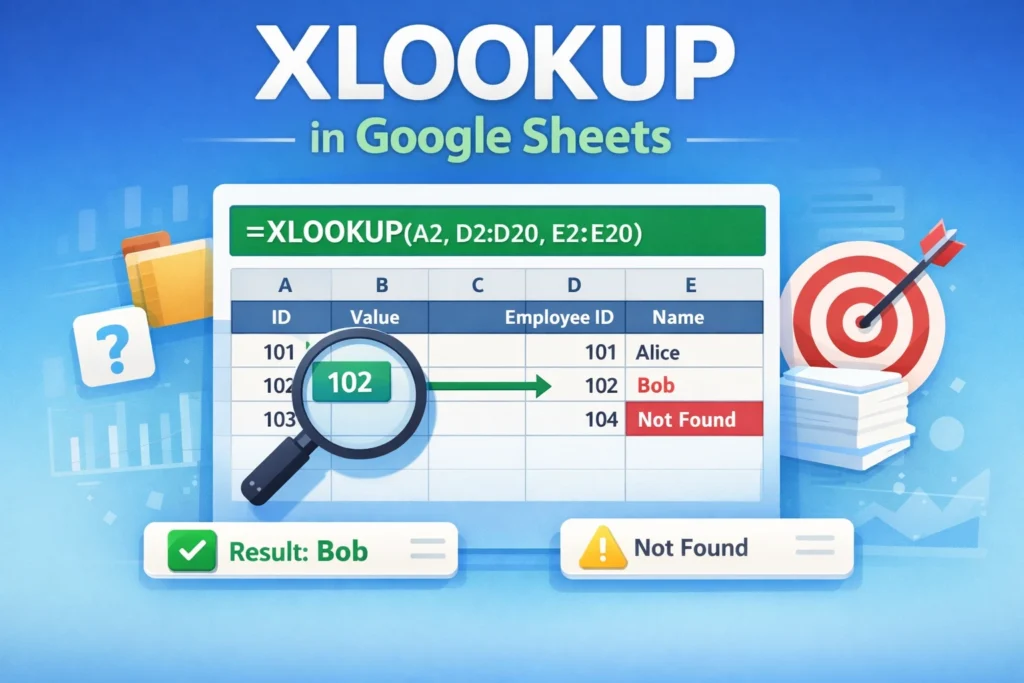
XLOOKUP(A2, D2:D20, E2:E20)
This formula searches for the value in cell A2 within D2:D20 and returns the corresponding value from E2:E20.
XLOOKUP with a custom “not found” message
Instead of returning an error when no match exists, you can define a fallback value:
XLOOKUP(A2, D2:D20, E2:E20, “Not found”)
This is especially useful for dashboards or client-facing spreadsheets where errors look unprofessional.
XLOOKUP for horizontal data
XLOOKUP works just as well across rows as it does down columns:
XLOOKUP(B1, B1:G1, B2:G2)
There’s no need to switch to a different function like HLOOKUP.
XLOOKUP with approximate matching
When working with ranges such as tax brackets or commission tiers, approximate matching is helpful:
XLOOKUP(A2, A2:A10, B2:B10, , 1)
The match_mode value of 1 tells Google Sheets to return the closest match that is less than or equal to the lookup value.
How is XLOOKUP different from VLOOKUP in Google Sheets?
XLOOKUP is not just a newer version of VLOOKUP—it fixes many long-standing frustrations.
First, XLOOKUP does not require the lookup column to be on the left. This alone eliminates a huge number of helper columns and workaround formulas.
Second, XLOOKUP does not rely on column index numbers. With VLOOKUP, inserting a column can silently break your formula. With XLOOKUP, ranges stay explicit and stable.
Third, XLOOKUP supports built-in error handling. Instead of wrapping formulas with IFERROR, you can define what happens when no match is found directly inside the function.
Finally, XLOOKUP can search from top to bottom or bottom to top, which is useful when working with logs or versioned data.
Can XLOOKUP replace INDEX MATCH in Google Sheets?
For most users, yes. XLOOKUP can handle nearly all common INDEX MATCH use cases with fewer arguments and clearer intent.
INDEX MATCH is still useful in advanced scenarios involving multi-criteria lookups or array manipulation, but for single-criteria lookups, XLOOKUP is easier to read, easier to audit, and easier to teach.
A major advantage of XLOOKUP over INDEX MATCH is readability. Someone opening your spreadsheet months later can understand what XLOOKUP is doing without mentally parsing two nested functions.
How does XLOOKUP handle errors and missing values?
One of the most underrated benefits of XLOOKUP in Google Sheets is its built-in error handling.
Instead of returning #N/A when a value is missing, you can define a default output using the if_not_found argument. This allows you to:
- Display user-friendly messages
- Return blank cells instead of errors
- Substitute default values such as 0 or “Unknown”
This makes XLOOKUP ideal for reports, templates, and shared spreadsheets where clarity matters.
What are common mistakes when using XLOOKUP in Google Sheets?
Even though XLOOKUP is simpler than older lookup functions, a few common mistakes still come up.
One frequent issue is mismatched ranges. The lookup_range and return_range must be the same size. If one range has more rows or columns than the other, the formula will fail.
Another mistake is forgetting about data types. Numbers stored as text will not match numeric values. This often happens with imported data or IDs that look numeric but are treated as text.
Users also sometimes overuse optional arguments. If you don’t need approximate matching or reverse search, it’s best to leave those arguments out to keep formulas readable.
What limitations does XLOOKUP have in Google Sheets?
While XLOOKUP is powerful, it’s not perfect.
Currently, XLOOKUP in Google Sheets does not support multiple lookup criteria natively. If you need to match on more than one condition, you’ll still need to combine functions or use FILTER instead.
XLOOKUP also does not return multiple matches. It always returns a single result. For cases where multiple rows match your criteria, FILTER is the better choice.
Finally, very large datasets may experience performance slowdowns if XLOOKUP is used excessively across thousands of rows. In those cases, limiting ranges or using helper columns can improve speed.
When should you use XLOOKUP instead of FILTER or QUERY?
XLOOKUP is best when you need a single, predictable result based on a single lookup value.
FILTER is better when you expect multiple matching rows or need to apply multiple conditions.
QUERY is ideal for complex reporting, grouping, or transformations, but it has a steeper learning curve and is less intuitive for simple lookups.
As a rule of thumb:
- Use XLOOKUP for simple, one-to-one lookups
- Use FILTER for multi-row results
- Use QUERY for analysis and reporting
How can XLOOKUP improve real-world spreadsheet workflows?
XLOOKUP shines in everyday business scenarios. It’s ideal for pulling prices into invoices, matching IDs to names, mapping categories, and building clean dashboards.
Because it’s resilient to layout changes, XLOOKUP is especially useful in shared templates and downloadable spreadsheet tools. Users can insert columns, rearrange data, and still trust that the formulas will work.
For Sheetrix-style templates, XLOOKUP makes spreadsheets easier for beginners while remaining powerful enough for advanced users.
Final thoughts on using XLOOKUP in Google Sheets
XLOOKUP in Google Sheets is one of the most important formula upgrades in recent years. It simplifies lookup logic, reduces errors, and makes spreadsheets easier to understand and maintain.
If you’re still relying on VLOOKUP or complex INDEX MATCH formulas, switching to XLOOKUP can save time and prevent future issues. Once you understand the core concept—matching one range and returning from another—you’ll find yourself using XLOOKUP in almost every spreadsheet you build.
For anyone creating reusable templates, dashboards, or instructional spreadsheets, XLOOKUP is no longer optional. It’s the modern standard for lookups in Google Sheets.





