
Google Sheets is a powerful tool for organizing and manipulating data—but working with full names in a single column can be tricky. Whether you’re managing a mailing list, customer database, or employee roster, it often helps to split names into first and last name fields.
Video Walkthrough
In this guide, you’ll learn how to separate names in Google Sheets using built-in features and formulas. We’ll cover multiple methods to fit different use cases.
Why Separate First and Last Names in Google Sheets?
Breaking down full names from Google Sheets into separate columns improves data clarity, allows for better sorting/filtering, and supports tasks like:
- Personalizing email campaigns (e.g., using first names)
- Sorting data alphabetically by last name
- Importing contacts into CRM systems
Method 1: Use the “Split Text to Columns” Tool
The fastest way to separate names in Google Sheets is by using the Split text to columns feature.
Step-by-Step Instructions:
- Select the cells with full names (e.g., John Doe).
- Go to the Data menu.
- Click Split text to columns.

- A small menu will appear — under Separator, choose Space.
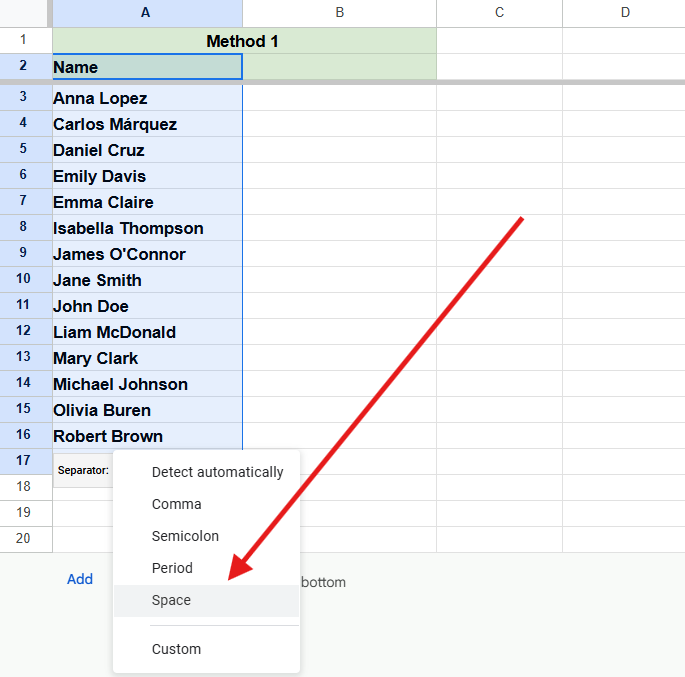
💡 Google Sheets will automatically split names into adjacent columns using the space between them.
Best For:
- Standard name formats with one space (e.g., “Jane Smith”).
- Quick, one-time operations.
Method 2: Use the SPLIT() Function
If you want more control or need dynamic splitting, use the SPLIT() formula.
Example Formula:
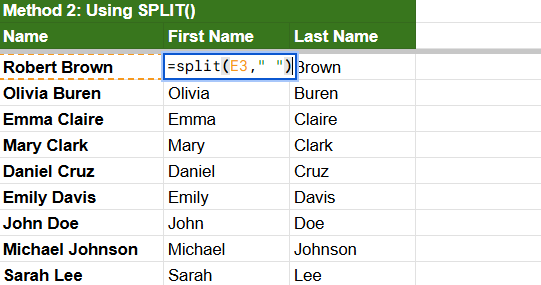
=SPLIT(A2, ” “)
- A2 is the cell with the full name.
- ” “ tells Google Sheets to split based on the space.
This will return the first and last name in two separate cells.
Best For:
- Dynamic spreadsheets where names update regularly.
- Splitting names with custom delimiters (like commas or dashes).
Method 3: Extract First and Last Names Separately
If your names in Google Sheets varies in structure (e.g., middle names or multiple last names), you may want to extract the first and last name independently.
This method is similar to using SPLIT() with the main difference is that you are choosing which of the split items will be shown.
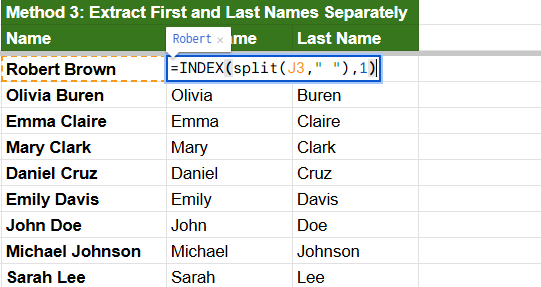
Extract First Name Only:
=INDEX(SPLIT(A2, ” “), 1)
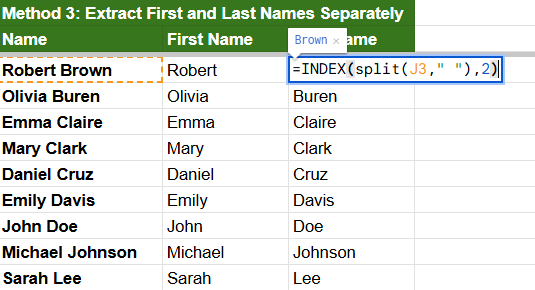
Extract Last Name Only:
=INDEX(SPLIT(A2, ” “), 2)
These formulas are flexible and work even when names include middle names or initials.
Bonus: Handling Names with Commas (Last, First Format)
If your names are formatted like “Doe, John,” you can adapt the formula to use comma and space (, ) as your delimiter:
=SPLIT(A2, “, “)
- The result will be “Doe” in one cell and “John” in another.
- You can then rearrange the order if needed.
Common Issues & Fixes
| Problem | Solution |
| Middle names cause extra columns | Use INDEX(SPLIT(…), 1) to get specific parts |
| No consistent delimiter | Use REGEXEXTRACT() for advanced parsing |
| Names with titles or suffixes | Manually clean or use conditional formulas |
Tips for Better Results
- Always back up your data before splitting names.
- Use array formulas for automatic population across rows.
- Clean your data first — remove extra spaces or non-standard characters.
Final Thoughts
Learning how to separate names in Google Sheets can save you hours of manual editing and lead to cleaner, more usable data. Whether you’re using Split text to columns, formulas like SPLIT(), or extracting specific name parts with INDEX(), Google Sheets provides flexible tools for the task.





