
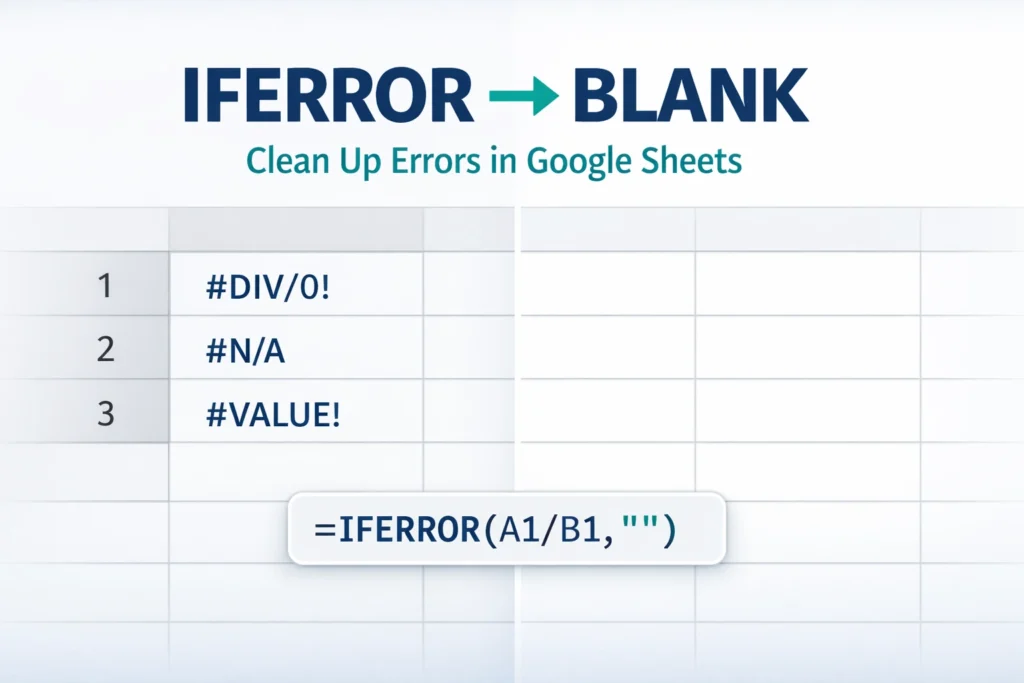
Using the IFERROR function to return a blank cell is one of the most effective ways to make Google Sheets formulas look cleaner, more professional, and easier to use—especially in dashboards, calculators, and reusable templates.
What does IFERROR do in Google Sheets?
The IFERROR function evaluates a formula and checks whether it returns an error. If the formula works normally, Google Sheets displays the result. If the formula produces any error, IFERROR replaces it with a value you specify.
This makes IFERROR ideal for situations where errors are expected temporarily, such as empty input cells, incomplete lookup tables, or calculations that depend on user-entered data.
How do you use IFERROR to return a blank cell?
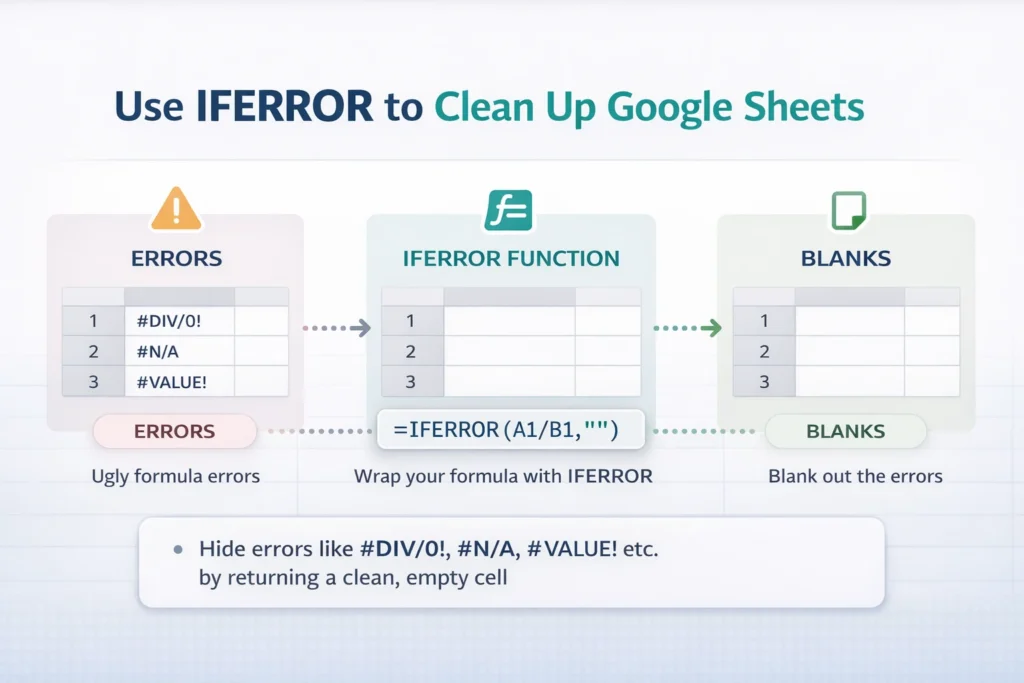
To return a blank cell, you use an empty text string ("") as the second argument of IFERROR. This tells Google Sheets to display nothing instead of an error.
IFERROR Blank Formula Example
=IFERROR(A1/B1,"")If cell B1 is empty or contains zero, the division would normally result in #DIV/0!. With IFERROR, the cell appears blank until valid numbers are entered. Once both cells contain valid values, the calculation displays normally.
This pattern is especially useful for calculators, trackers, and templates where users enter data gradually.
Why does IFERROR with blanks improve spreadsheet usability?
Returning a blank cell instead of an error significantly improves readability. Users can focus on entering data without being distracted by warnings they don’t understand. This is especially important if the spreadsheet is shared with non-technical users.
Blank outputs also make printed sheets, PDFs, and embedded spreadsheets look far more polished. For templates designed for reuse, this small change dramatically improves first impressions.
When should you use IFERROR instead of fixing the formula?
IFERROR is best used when errors are expected as part of normal spreadsheet behavior. For example, lookup formulas may fail until a matching value exists, or calculations may fail until all inputs are filled in.
However, IFERROR should not be used to hide genuine formula mistakes. If a formula is broken due to incorrect ranges or logic errors, masking it with IFERROR can make troubleshooting harder later.
A good practice is to test formulas without IFERROR first. Once you’re confident they work correctly, wrap them with IFERROR for a cleaner user-facing result.
What are common mistakes when returning blanks with IFERROR?
One common mistake is assuming blank cells behave like zero. When IFERROR returns "", the result is text, not a number. This can affect calculations like averages or totals if the value is used elsewhere.
Another mistake is wrapping large formulas or entire array outputs with IFERROR unnecessarily. Doing so can hide important issues and make large spreadsheets harder to maintain.
For best results, apply IFERROR only to final output cells rather than internal calculation steps.
How do blank results affect charts and dashboards?
Blank values behave differently from zeros in charts. Google Sheets typically skips blank cells but plots zero values. If you use IFERROR to return blanks, charts will look cleaner and more accurate, without artificial dips or spikes caused by zero values.
This makes IFERROR especially valuable in dashboards and reports that rely on visual data.
When should you avoid returning a blank cell?
If the result of a formula feeds into other calculations, returning a blank may not be ideal. In these cases, returning 0 or another default value may be safer.
Think carefully about whether the cell is meant for display or computation. Display-focused cells benefit from blanks, while calculation-focused cells usually do not.
How does IFERROR help create better Google Sheets templates?
For downloadable templates and tools, IFERROR is essential. It ensures the spreadsheet looks complete and usable even before data is entered. Clean outputs build trust and reduce confusion, especially for beginners.
On Sheetrix, IFERROR pairs naturally with guided layouts, clear instructions, and prebuilt formulas—making templates easier to use and more professional from the first open.
What’s the best way to think about IFERROR blank formulas?
Using IFERROR to return a blank cell is about improving communication, not hiding problems. When applied intentionally, it makes spreadsheets cleaner, more approachable, and easier to share—without sacrificing accuracy or control.





