
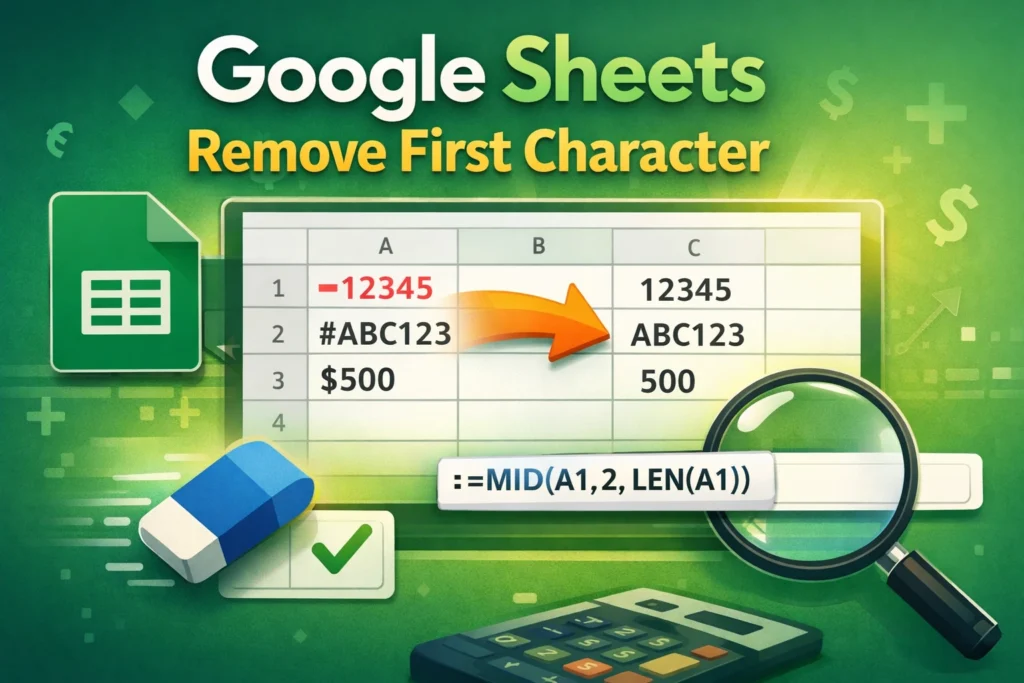
If you’ve ever imported data into Google Sheets and noticed an extra character at the beginning of each cell, you’re not alone. This is one of the most common cleanup tasks in spreadsheets. Whether it’s a leading dash, an unwanted space, a currency symbol, or a prefix added by another system, knowing how to remove the first character efficiently can save you hours of manual editing.
This guide walks through the most reliable ways to remove the first character in Google Sheets, explains why each method works, and helps you choose the right approach for your specific situation. It’s written for beginners who want clarity and for intermediate users who care about clean, scalable formulas.
Why would you need to remove the first character in Google Sheets?
Removing the first character usually isn’t about cosmetics—it’s about making your data usable. Many spreadsheet problems come from small formatting issues at the start of a cell.
Common real-world scenarios include product IDs that start with a symbol, phone numbers with a leading apostrophe, exported CSV files that include extra characters, or text values that won’t convert to numbers because of a hidden prefix. In reporting dashboards, even a single extra character can break lookups, sorting, or calculations.
Understanding how to remove the first character correctly ensures your formulas behave as expected and your data stays consistent across sheets.
What is the simplest way to remove the first character from text?
The simplest and most widely used approach is to keep everything except the first character. In Google Sheets, that usually means combining text functions that count characters and extract a portion of the string.
This method works best when every cell follows the same pattern and you always want to remove exactly one character from the beginning.
Remove First Character Formula Example (RIGHT + LEN)
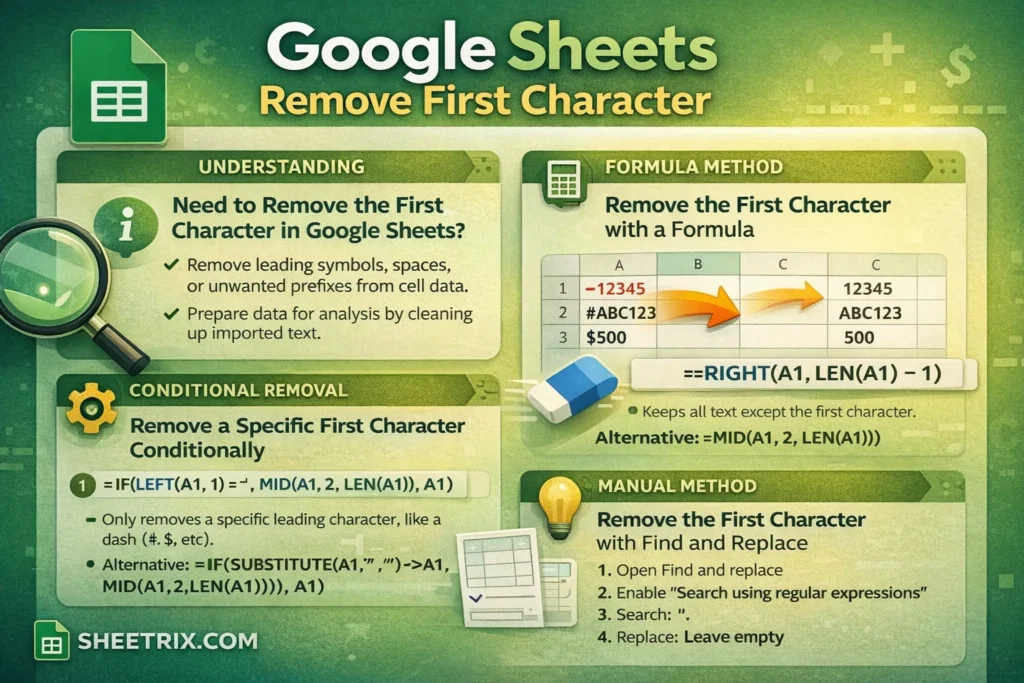
This is the most beginner-friendly formula for removing the first character from a cell.
Formula:
=RIGHT(A1, LEN(A1) - 1)How it works:
LEN(A1)counts how many characters are in the cell.- Subtracting 1 tells Sheets to ignore the first character.
RIGHTreturns the remaining characters from the right side of the text.
This formula is ideal when:
- Every value has at least one character
- You always want to remove exactly one character
- The unwanted character is always at the beginning
A small but important detail: if a cell only contains one character, this formula will return a blank result. That’s usually fine, but it’s something to be aware of when working with short values.
Can you remove the first character using MID instead?
Yes, and many spreadsheet experts prefer this approach because it’s more explicit about where the text starts.
Remove First Character Formula Example (MID)
Formula:
=MID(A1, 2, LEN(A1))How it works:
MIDextracts text starting from a specific position- Starting at position 2 skips the first character
- Using
LEN(A1)ensures you capture the rest of the string
This formula reads more clearly than the RIGHT-based version, especially for people learning text functions. It’s also slightly easier to extend later if you decide to remove more than one character.
What’s the best method for removing a leading space?
Leading spaces are a special case. They look like characters, but they’re often accidental and invisible.
If your issue is a space at the beginning of text, removing the “first character” isn’t always the best solution. Instead, you should remove unnecessary spaces altogether.
Remove Leading Spaces Formula Example (TRIM)
Formula:
=TRIM(A1)What makes this different:
TRIMremoves all leading and trailing spaces- It also reduces multiple internal spaces to a single space
This is one of the most underused cleanup functions in Google Sheets. Many datasets that “look broken” are actually just affected by extra spaces.
New insight: TRIM does not remove non-breaking spaces (CHAR(160)). These often come from copied web data. In those cases, you’ll need a more advanced approach using SUBSTITUTE.
How do you remove a specific first character only if it exists?
Sometimes you don’t want to blindly remove the first character. You only want to remove it if it matches a specific value, like a dash, hash, or currency symbol.
This is where conditional logic becomes important.
Remove First Character Conditionally (IF + LEFT + MID)
Formula:
=IF(LEFT(A1,1)="-", MID(A1,2,LEN(A1)), A1)What this does:
LEFT(A1,1)checks the first character- If it matches the unwanted symbol, it removes it
- If not, the original value is preserved
This approach prevents accidental data loss when some cells don’t follow the same format. It’s especially useful in shared spreadsheets where data quality isn’t guaranteed.
Can you remove the first character without using formulas?
Yes. If you only need to do this once and don’t need a dynamic solution, Find and Replace can work.
However, it’s important to understand its limitations.
Remove First Character Using Find and Replace
Steps:
- Select the range
- Open Find and Replace
- Enable “Search using regular expressions”
- Find:
^.
- Replace with nothing
This removes the first character in every selected cell.
Why this is risky:
- It permanently alters your data
- It removes the first character even if it’s valid
- It can’t adapt to future data changes
Use this method only when you’re confident and have a backup.
How do you remove the first character from numbers stored as text?
A common frustration in Google Sheets is numbers that behave like text. Often, the issue is a leading character such as an apostrophe or symbol.
After removing the first character, you may still need to convert the result into a true number.
Remove First Character and Convert to Number
Formula:
=VALUE(MID(A1,2,LEN(A1)))Why this matters:
- The text looks like a number, but formulas won’t treat it as one
VALUEforces Sheets to interpret the result numerically
New insight: If VALUE fails, it’s often due to hidden spaces or non-breaking characters. Wrapping the formula with TRIM or SUBSTITUTE can resolve this.
What are the most common mistakes when removing the first character?
One frequent mistake is assuming the first visible character is the first actual character. Hidden spaces, line breaks, or special characters can throw off results.
Another issue is applying a formula to empty cells or very short strings, which can cause errors or blanks that users don’t expect.
A third mistake is using destructive methods like Find and Replace in dynamic spreadsheets, where new data will continue to appear.
When should you use formulas instead of manual cleanup?
Formulas should always be your default choice when:
- Data updates regularly
- The sheet is shared with others
- The output feeds into charts, dashboards, or other formulas
Manual cleanup is only appropriate for one-time imports or archived datasets.
A useful mindset shift is treating cleanup formulas as part of your data pipeline, not as temporary fixes.
How can this be combined with other text-cleaning techniques?
Removing the first character is often just one step in a larger cleanup process. You might also need to standardize capitalization, remove extra spaces, or extract specific parts of text.
Combining functions like MID, SUBSTITUTE, TRIM, and VALUE allows you to build robust formulas that handle messy real-world data gracefully.
New insight: For large datasets, chaining too many text functions can slow recalculation. In performance-sensitive sheets, it’s often better to clean data once in a helper column and reference the cleaned result elsewhere.
Final thoughts: choosing the right method
There’s no single “best” way to remove the first character in Google Sheets. The right method depends on your data structure, how often it changes, and how reliable the input is.
If you want clarity and flexibility, MID-based formulas are hard to beat. If you want simplicity, RIGHT with LEN is perfectly fine. If the issue is spacing, TRIM is often the real solution.
Mastering these techniques helps you build cleaner spreadsheets, avoid subtle errors, and spend less time fixing data that should have worked in the first place.





