Managing finances is one of the most important parts of running a business — yet it’s also one of the easiest areas to overlook. Whether you’re a freelancer, small business owner, or Airbnb host, having a simple bookkeeping system can help you stay organized and make better financial decisions.
This Bookkeeping Template for Google Sheets from Sheetrix is designed to help you track income, expenses, and net profit in one place. It’s easy to customize, works automatically once set up, and provides a clear year-over-year financial view that anyone can understand — no accounting degree required.
A Clear Overview of the Bookkeeping Template
This spreadsheet acts as a lightweight bookkeeping system built entirely in Google Sheets (and also compatible with Excel). The layout is designed for accuracy and clarity, featuring clean color coding and automated calculations.
It’s made up of three key sheets that work together: Yearly View, Transactions & Expenses, and Dropdowns (Settings). Each one serves a specific role to help you manage your business finances efficiently.
Imagine you’re a photographer who needs to track client payments, travel costs, and gear expenses. Instead of sorting through multiple invoices or handwritten notes, this template lets you log everything in one place. You’ll see how your income and expenses evolve month by month and know exactly where your business stands at any moment.
Explore the Key Features and Sections
The beauty of this template lies in its simplicity and automation. You can focus on running your business while the spreadsheet does the math for you.
Yearly View Sheet
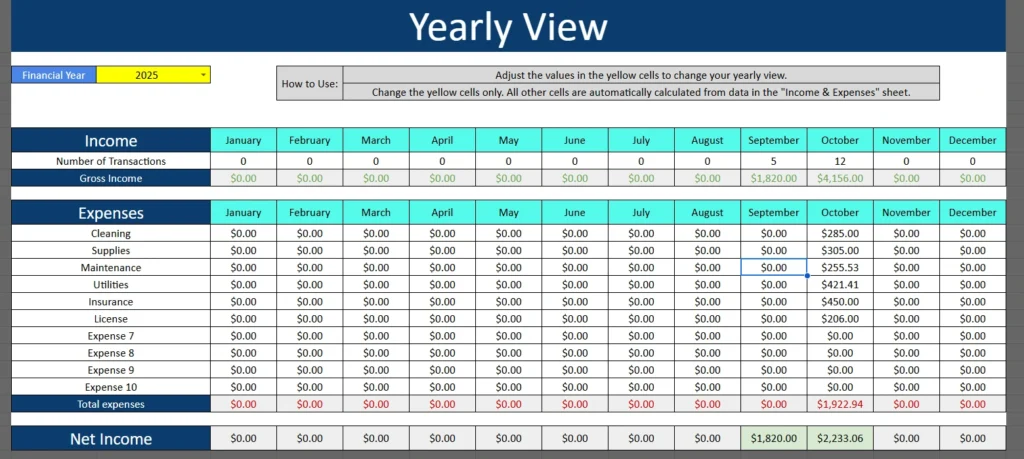
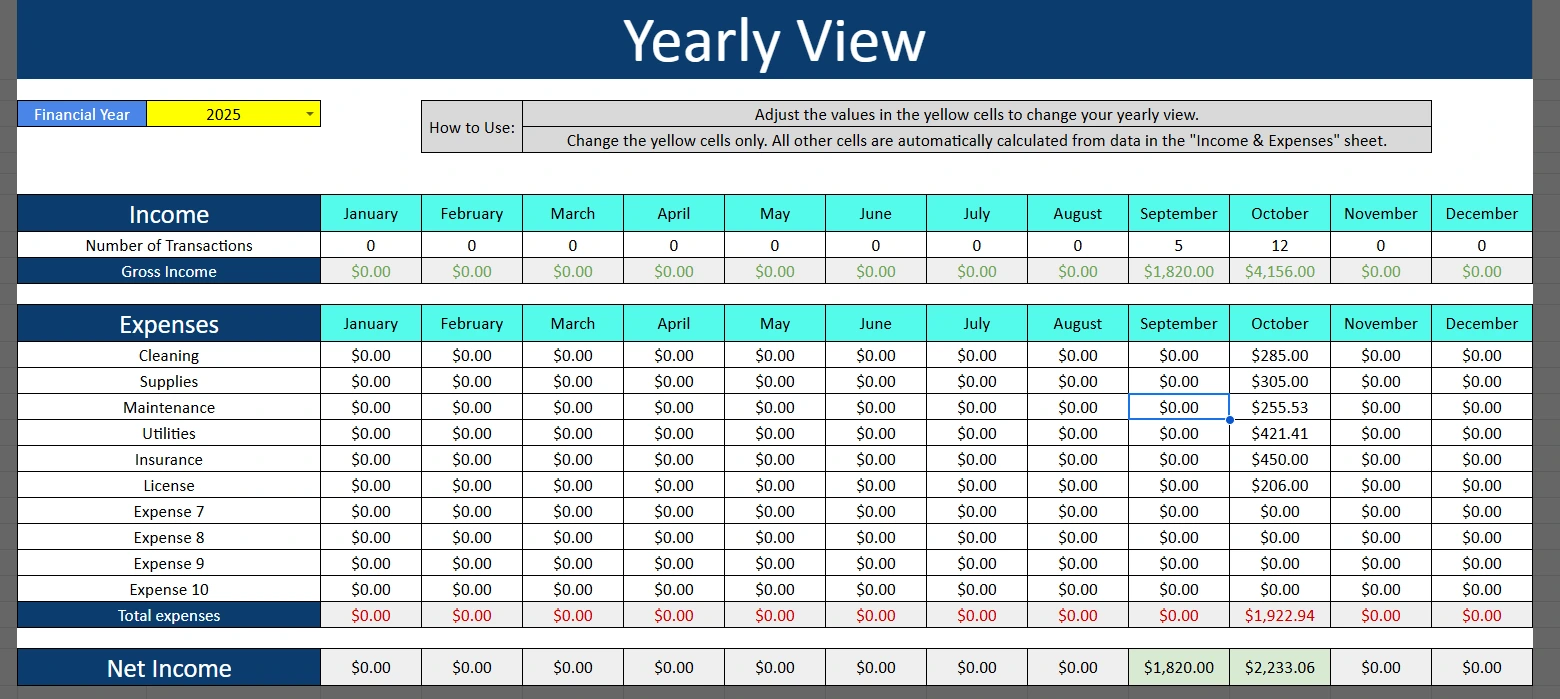
The Yearly View sheet is the heart of the template. It gives you a complete snapshot of your financial performance for the year. You can select your financial year from a dropdown, and the sheet automatically pulls data from the other tabs.
Across the top, you’ll see a row for Income broken down by month — from January to December. Each month displays the number of transactions and total gross income. These values are calculated from the entries in the Transactions sheet, so you never have to enter them twice.
Below the income section, the Expenses area shows each expense category (such as Cleaning, Supplies, Maintenance, Utilities, Insurance, and License) with monthly totals. The sheet calculates both individual category totals and an overall expense sum for each month.
At the bottom, the Net Income row subtracts total expenses from total income, revealing your monthly profit or loss. The color-coded cells (green for positive, red for negative) make it easy to spot trends at a glance.
This setup is ideal for anyone who wants to see both short-term performance and yearly trends without dealing with complex accounting software.
Transactions and Expenses Sheet
This section contains two adjacent tables — one for Transactions (Income) and another for Expenses. Each table is designed for easy, consistent data entry using dropdown menus.
The Transactions Table lets you record every sale or client payment. You’ll find columns for:
- Date – the transaction date
- Type – whether it’s a Product or Service
- Invoice # – your invoice or sales reference number
- Customer – the client or buyer’s name
- Notes – any additional details (such as “Wedding shoot” or “Repeat client”)
- Nights – optional column if you charge per night (for Airbnb or rentals)
- Amount – the total earned
The Expenses Table works similarly but focuses on your outgoing costs. It includes:
- Date – when the expense occurred
- Category – a dropdown list of expense types (Cleaning, Supplies, etc.)
- Description – what the expense was for
- Cost – the amount spent
When you add new transactions or expenses, the Yearly View updates automatically to include the latest totals. This ensures that every number in your summary sheet reflects the most recent data.
For example, if you enter a $600 insurance payment in October, you’ll instantly see that month’s expense total increase and your net income adjust accordingly — no extra work needed.
Dropdowns (Settings) Sheet
The Dropdowns sheet acts as the control center for your template. It’s where you define the lists that appear in dropdown menus throughout the spreadsheet.
In the left columns, you can customize:
- Transaction Types (for example, Product or Service)
- Expense Types (Cleaning, Supplies, Maintenance, etc.)
You can also add or rename categories to match your business. For instance, a digital marketing freelancer might replace “Utilities” with “Software Subscriptions,” while a rental property manager could use “Maintenance” and “Cleaning” as main expense types.
On the right side, there’s a Years column that feeds the dropdown in the Yearly View. You can include multiple years (like 2024 and 2025) to quickly switch between financial periods.
Each editable cell is highlighted in yellow, with clear instructions at the top of the sheet. Everything else is protected to prevent accidental edits to formulas.
Step-by-Step: How to Use the Template
- Start with the Dropdowns sheet.
Add your business’s transaction and expense categories. If you’re a service-based business, you might list “Consulting,” “Travel,” and “Subscriptions.” For product sellers, you might use “Materials,” “Shipping,” or “Inventory.” - Go to the Transactions and Expenses sheet.
Record your daily business activity. For example:- On October 1, enter a “Product” sale for $230 to “Tom S.”
- On October 7, log an expense under “Maintenance” for $104.33.
Each new entry will feed into your monthly totals automatically.
- Open the Yearly View.
Choose the correct year (like 2025) from the dropdown. The spreadsheet will instantly calculate:- Number of transactions
- Monthly gross income
- Monthly and yearly expenses
- Net profit for each month
- Analyze your performance.
Use the colored cells and monthly summaries to see where your money goes. If you notice your “Supplies” costs spiking in certain months, it’s a cue to review your spending habits.
This process takes only a few minutes per week and gives you real-time visibility into your business finances.
Why This Bookkeeping Template Stands Out
There are plenty of bookkeeping templates online, but most are either too simple or too complicated. This Sheetrix template is built to strike the perfect balance — it’s beginner-friendly yet robust enough for real business use.
- Fully automated: All calculations are handled through formulas. Once you log data, everything updates across the workbook.
- Customizable: You can adapt categories, years, and color schemes to match your brand or workflow.
- No accounting jargon: The labels are simple and self-explanatory, making it easy for anyone to use.
- Professional design: The clean layout, turquoise headers, and gray-blue backgrounds give the sheet a polished, modern feel.
- Google Sheets ready: Share it with your team, access it anywhere, and collaborate live without needing any paid software.
For freelancers, it’s a great tool to prepare for tax season or client invoicing. For small business owners, it doubles as a monthly profit tracker. Even Airbnb hosts can use it to separate bookings, cleaning costs, and utilities — just like the example in the images above.
Get Your Free Bookkeeping Spreadsheet
- Free Template
- Fully Editable
- Instant Access
- Organize your information
How to Access Your Copy
- Enter your email for instant access
- Open the link we send you
- Start using the spreadsheet right away
Take control of your business bookkeeping today — and make smarter decisions with confidence using this free Sheetrix template.