Running a consignment shop can be both rewarding and challenging. Keeping track of inventory, sales, commissions, and payments requires a system that is both efficient and easy to use. A well-designed consignment inventory tracking spreadsheet built in Google Sheets can transform the way you manage your business, saving you time, reducing errors, and ensuring you stay on top of your finances.
Whether you’re a small boutique owner, a thrift store manager, or someone who runs a consignment business from home, having a clear overview of your inventory and sales is crucial. This spreadsheet is designed to streamline your workflow, automate calculations, and provide real-time insights into your business performance.
In this blog post, we’ll explore what this consignment inventory tracking spreadsheet offers, how to use it effectively, and why it’s the best choice for your needs.
Overview of the Consignment Inventory Tracking Spreadsheet
The consignment inventory tracking spreadsheet is a comprehensive tool designed to help you manage every aspect of your consignment business. Built entirely in Google Sheets, it provides a centralized location for tracking inventory, sales, commissions, and payments—all in one place.
What Does the Spreadsheet Include?
- Dashboard: A summary of your business performance, including total inventory value, sales revenue, commissions earned, and amounts due to consignors.
- Inventory Sheet: A detailed log of all items received, their status (active, sold, returned), pricing, and commission details.
- Consignors Sheet: A database of consignor information, including contact details, commission rates, and sales history.
- Sales Report Sheet: A record of all sold items, payments made, and outstanding amounts.
- User Guide: A step-by-step guide on how to set up, use, and get the most out of your spreadsheet.
This template is perfect for individuals and small businesses that want to streamline their consignment operations without investing in expensive software.
Key Features and Sections
Dashboard: Real-Time Business Insights
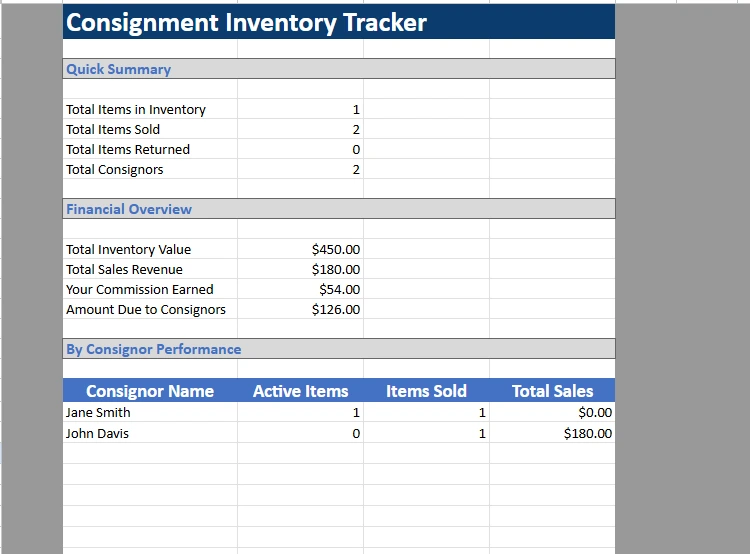
The Dashboard is the heart of your consignment inventory tracking spreadsheet. It provides a snapshot of your business at a glance, including:
| Metric | Description |
|---|---|
| Total Items in Inventory | The number of items currently in your inventory. |
| Total Items Sold | The number of items that have been sold. |
| Total Items Returned | The number of items returned to consignors. |
| Total Consignors | The number of consignors you are working with. |
| Total Inventory Value | The combined asking price of all active items in inventory. |
| Total Sales Revenue | The total revenue generated from sold items. |
| Your Commission Earned | The total commission you’ve earned from sales. |
| Amount Due to Consignors | The total amount owed to consignors after sales. |
Example: If you have 10 items in inventory, 5 sold, and 1 returned, your dashboard will instantly show these numbers, helping you stay organized and informed.
Inventory Sheet: Track Every Item
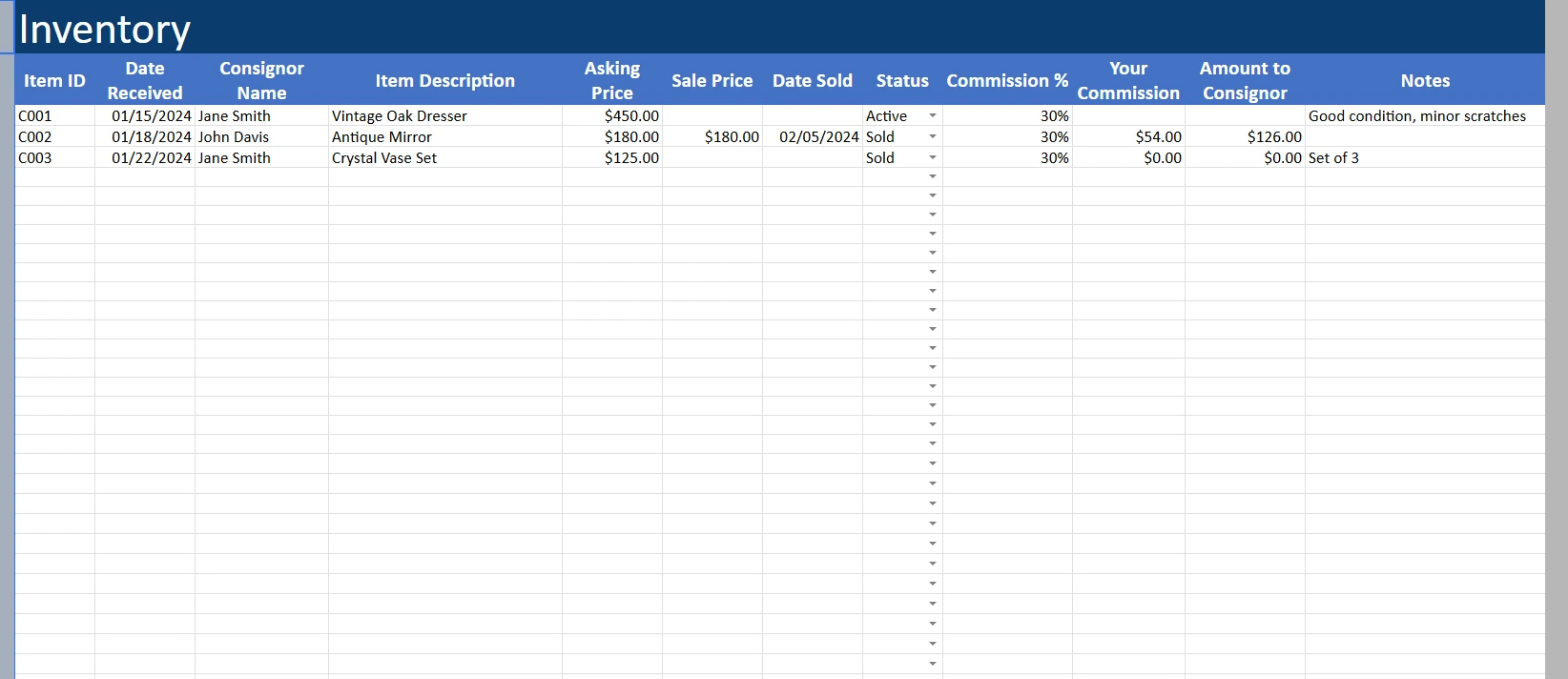
The Inventory sheet is where you record all the items you receive from consignors. Each item is assigned a unique ID (e.g., C001, C002) for easy tracking. Here’s what you’ll find in this sheet:
| Column | Description |
|---|---|
| Item ID | A unique identifier for each item (e.g., C001, C002). |
| Date Received | The date the item was consigned to you. |
| Consignor Name | The name of the consignor who provided the item. |
| Item Description | A detailed description of the item (e.g., Vintage Oak Dresser). |
| Asking Price | The price at which you are selling the item. |
| Sale Price | The final selling price (if the item has been sold). |
| Date Sold | The date the item was sold (if applicable). |
| Status | The current status of the item (Active, Sold, Returned). |
| Commission % | The agreed-upon commission percentage for the consignor. |
| Your Commission | The commission you earned from the sale (if applicable). |
| Amount to Consignor | The amount owed to the consignor after the sale (if applicable). |
| Notes | Any additional notes about the item’s condition or special instructions. |
Example: You receive a vintage oak dresser from Jane Smith on January 15, 2024, with an asking price of $450. You record this in the Inventory sheet with the ID C001, and the item will appear as “Active” until it is sold.
When the item sells, you update the Sale Price, Date Sold, and Status to “Sold.” The spreadsheet automatically calculates your commission and the amount due to the consignor.
Consignors Sheet: Manage Consignor Information
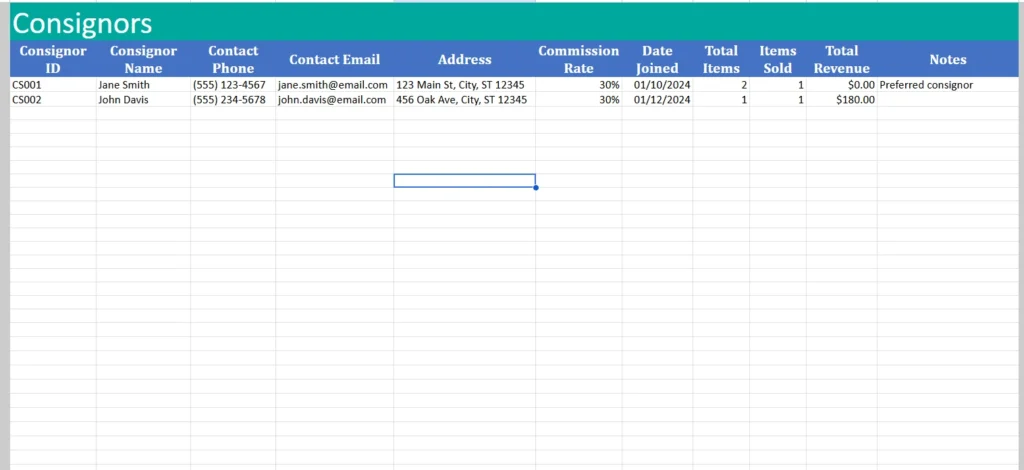
The Consignors sheet is where you store all the details about the people you work with. This includes:
| Column | Description |
|---|---|
| Consignor ID | A unique identifier for each consignor (e.g., CS001, CS002). |
| Consignor Name | The name of the consignor. |
| Contact Phone | The consignor’s phone number. |
| Contact Email | The consignor’s email address. |
| Address | The consignor’s mailing address. |
| Commission Rate | The agreed-upon commission percentage for the consignor. |
| Date Joined | The date the consignor joined your program. |
| Total Items | The total number of items consigned by this person. |
| Items Sold | The number of items sold from this consignor. |
| Total Revenue | The total revenue generated from this consignor’s items. |
| Notes | Any additional notes about the consignor (e.g., preferred consignor). |
Example: Jane Smith consigns two items with you. You record her details in the Consignors sheet with the ID CS001. When her items sell, the spreadsheet automatically updates her sales history and revenue.
Sales Report Sheet: Track Payments and Outstanding Balances
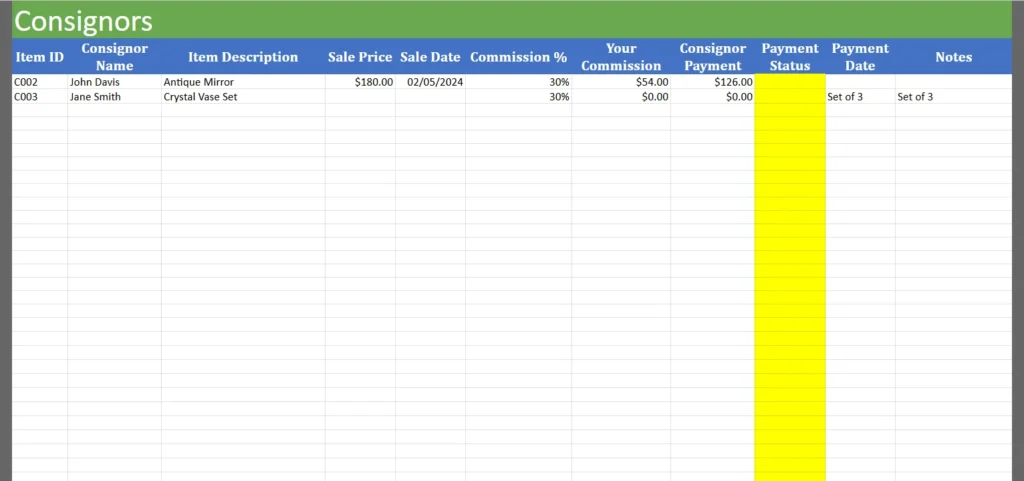
The Sales Report sheet is automatically populated with data from the Inventory sheet when items are marked as “Sold.” It includes:
| Column | Description |
|---|---|
| Item ID | The unique identifier for the sold item. |
| Consignor Name | The name of the consignor who provided the item. |
| Item Description | A detailed description of the item. |
| Sale Price | The final selling price of the item. |
| Sale Date | The date the item was sold. |
| Commission % | The agreed-upon commission percentage. |
| Your Commission | The commission you earned from the sale. |
| Consignor Payment | The amount owed to the consignor after the sale. |
| Payment Status | Whether the payment has been made (Paid, Unpaid). |
| Payment Date | The date the payment was made (if applicable). |
| Notes | Any additional notes about the payment or sale. |
Example: When the antique mirror (C002) is sold for $180, it appears in the Sales Report with John Davis as the consignor. The spreadsheet calculates your $54 commission and the $126 owed to John. You can mark the payment as “Paid” once you’ve transferred the funds.
User Guide: Get the Most Out of Your Spreadsheet
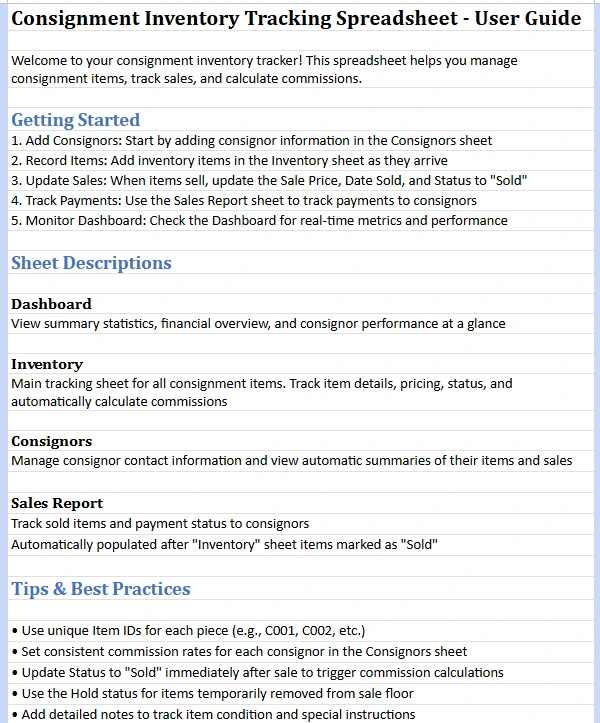
The User Guide provides step-by-step instructions on how to set up and use the spreadsheet effectively. It covers:
- Getting Started: How to add consignors, record items, and update sales.
- Sheet Descriptions: Detailed explanations of each sheet and its purpose.
- Tips and Best Practices: Advice on using unique Item IDs, setting consistent commission rates, and updating statuses immediately after sales.
Example: The guide recommends using unique Item IDs (e.g., C001, C002) for easy tracking and setting consistent commission rates for each consignor in the Consignors sheet.
How to Use the Consignment Inventory Tracking Spreadsheet
Using the consignment inventory tracking spreadsheet is straightforward, even if you’re new to Google Sheets. Here’s a step-by-step guide to get you started:
Step 1: Add Consignors
Before you can track items, you need to add your consignors to the system.
- Open the Consignors sheet.
- Fill in the details for each consignor, including their name, contact information, commission rate, and address.
- Save the sheet to ensure all data is recorded.
Tip: Use unique Consignor IDs (e.g., CS001, CS002) to keep your records organized.
Step 2: Record Items
When you receive items from consignors, record them in the Inventory sheet.
- Open the Inventory sheet.
- Enter the Item ID, Date Received, Consignor Name, Item Description, and Asking Price.
- Set the Status to “Active” to indicate that the item is available for sale.
- Add any notes about the item’s condition or special instructions.
Example: You receive a vintage oak dresser from Jane Smith on January 15, 2024. You enter C001 as the Item ID, record the date, consignor name, description, and asking price ($450), and set the status to “Active.”
Step 3: Update Sales
When an item sells, update the Inventory sheet to reflect the sale.
- Open the Inventory sheet.
- Find the sold item and update the Sale Price, Date Sold, and Status to “Sold.”
- The spreadsheet will automatically calculate your commission and the amount owed to the consignor.
Tip: Update the status to “Sold” immediately to trigger automatic calculations.
Step 4: Track Payments
Use the Sales Report sheet to track payments to consignors.
- Open the Sales Report sheet.
- Mark the payment as “Paid” once you’ve transferred the funds to the consignor.
- Add the Payment Date to keep a record of when the payment was made.
Example: When you pay John Davis the $126 owed for the antique mirror, you mark the payment as “Paid” in the Sales Report and add the payment date.
Step 5: Monitor Performance
Check the Dashboard regularly to monitor your business performance.
- Track your total inventory value, sales revenue, and commissions earned.
- Review the performance of individual consignors to identify your best sellers.
- Use the insights to make informed decisions about your inventory and sales strategy.
Tip: Regularly review the Dashboard to stay updated on your business’s financial health.
Step 6: Manage Returned Items
If an item is returned to the consignor, update the Inventory sheet to reflect this change.
- Open the Inventory sheet.
- Find the returned item and update the Status to “Returned.”
- Add any notes about the reason for the return.
Why Choose This Consignment Inventory Tracking Spreadsheet?
If you’re still using pen and paper or a basic spreadsheet to manage your consignment business, you’re missing out on the efficiency and accuracy that a dedicated template can provide. Here’s why this consignment inventory tracking spreadsheet is the best choice for your business:
Saves Time and Reduces Errors
Manually tracking inventory, sales, and payments is time-consuming and prone to errors. This spreadsheet automates calculations, ensuring that your commissions and payments are always accurate. You’ll spend less time crunching numbers and more time growing your business.
Provides Real-Time Insights
The Dashboard gives you a real-time overview of your business performance, so you always know how much inventory you have, how much revenue you’ve generated, and how much you owe to consignors. This level of insight is invaluable for making informed decisions.
Easy to Use and Customizable
Built in Google Sheets, this spreadsheet is easy to use and can be customized to fit your specific needs. You can add or remove columns, adjust formulas, and tailor the template to match your business processes.
Affordable and Accessible
Unlike expensive consignment software, this spreadsheet is an affordable solution that doesn’t require any special training. All you need is a Google account and access to Google Sheets.
Perfect for Small Businesses and Home-Based Operations
Whether you run a small boutique, a thrift store, or a home-based consignment business, this spreadsheet is designed to meet your needs. It’s scalable, so you can start with just a few items and expand as your business grows.
Who Can Benefit from This Spreadsheet?
- Small Boutique Owners: Keep track of your inventory and sales in one place.
- Thrift Store Managers: Manage consignor relationships and payments efficiently.
- Home-Based Consignment Sellers: Organize your inventory and sales without the need for complex software.
- Consignment Shops: Streamline operations and improve customer service with accurate, up-to-date records.
Download Your Free Consignment Inventory Spreadsheet
- Free Template
- Fully Editable
- Instant Access
- Organize your information
How to Access Your Copy
- Enter your email for instant access
- Open the link we send you
- Start using the spreadsheet right away