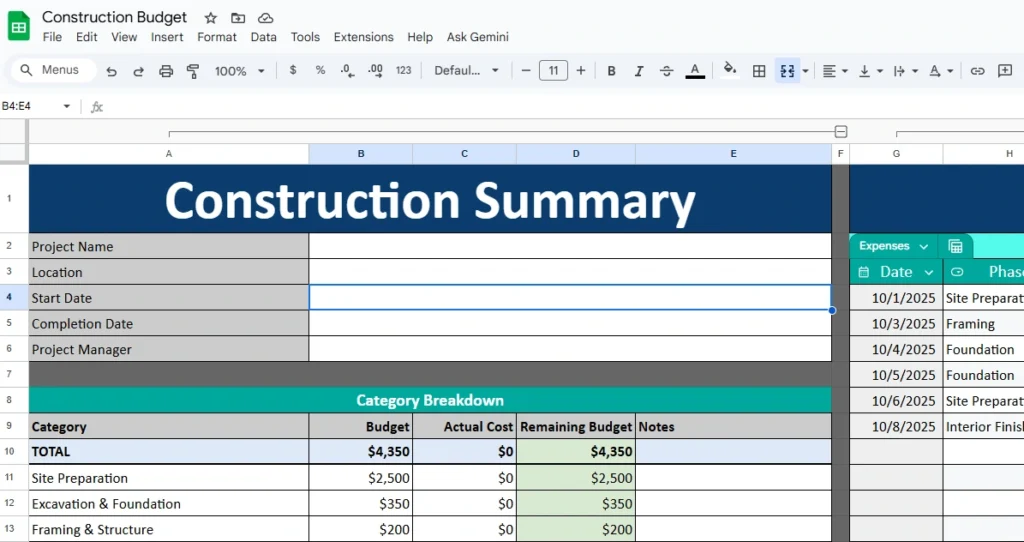
Managing a construction project involves hundreds of moving parts—materials, labor, permits, and equipment costs can quickly pile up. Without a clear system to track it all, budgets spiral out of control, and small errors can snowball into costly overruns. That’s where the Construction Budget Template from Sheetrix comes in. This free Google Sheets template gives you an easy yet powerful way to organize and manage construction finances from start to finish. Whether you’re a contractor, project manager, or homeowner overseeing a custom build, this spreadsheet helps you plan, record, and review every expense with confidence.
A Clear and Organized Way to Manage Construction Costs
The Construction Budget Template is designed to simplify cost management by combining professional project tracking with easy data entry. It’s built entirely in Google Sheets, so you don’t need specialized software or complex training. You can use it online, share it with team members, and update it in real time from any device.
Each section of the template works together to give you a complete overview of your project’s financial health. The spreadsheet includes three main components: the Construction Summary Sheet, the Expenses Log Sheet, and the Dropdowns Sheet. These sheets connect automatically to ensure every transaction you record updates the overall totals and remaining budgets instantly.
Construction Summary Sheet
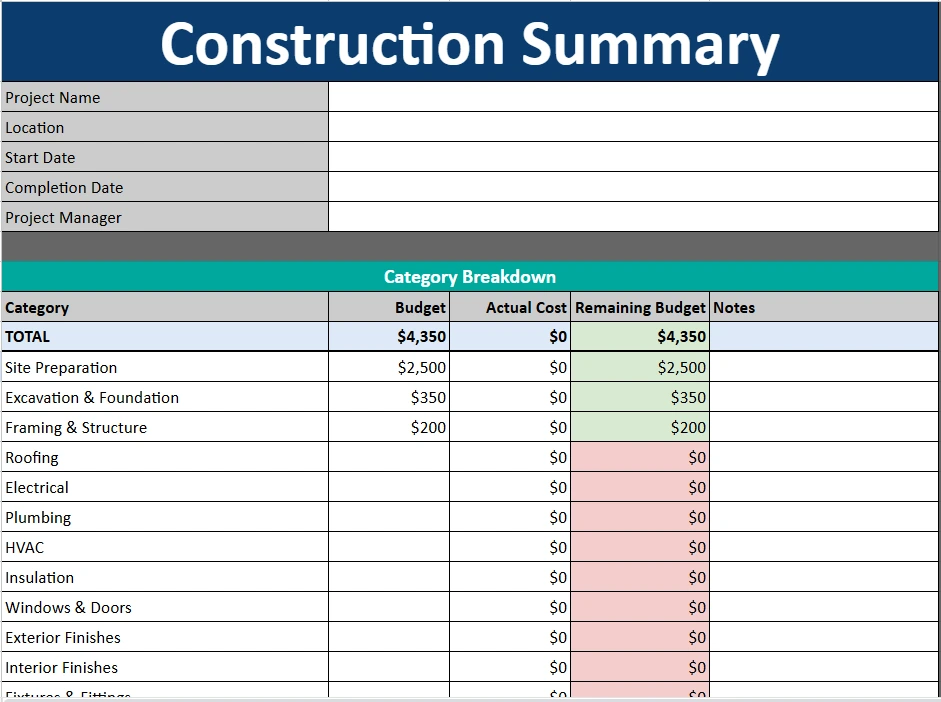
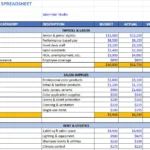
The Construction Summary sheet acts as your central control panel. At the top, it includes dedicated fields for project details—Project Name, Location, Start Date, Completion Date, and Project Manager—making it easy to identify and manage multiple jobs.
Below that, the Category Breakdown table summarizes your full construction budget. Categories cover all major areas of a build, such as:
- Site Preparation
- Excavation and Foundation
- Framing and Structure
- Roofing
- Electrical and Plumbing
- HVAC and Insulation
- Windows and Doors
- Interior and Exterior Finishes
- Fixtures and Equipment
- Landscaping and Site Work
- Permits, Fees, and Contingency
For each category, you can enter your Budget, record the Actual Cost, and see the Remaining Budget update automatically. If your spending exceeds the set budget, the difference column highlights it in red; if you’re under budget, it turns green. This quick visual cue helps you immediately spot areas where you might be overspending or where savings are available.
The summary also includes a total budget line that aggregates all categories, giving you a real-time look at how your overall project is performing. It’s an excellent tool for meetings or client updates because you can show the big picture at a glance.
Expenses Log Sheet
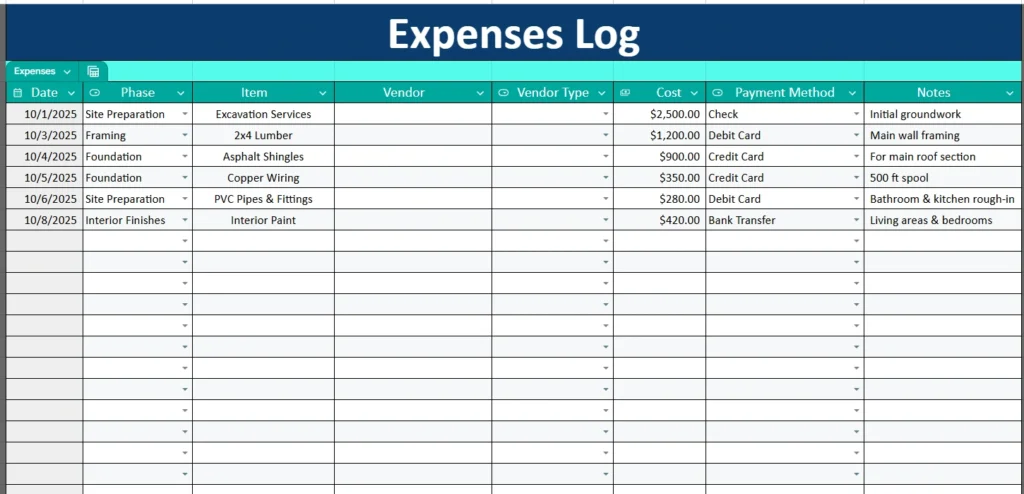
The Expenses Log sheet is where day-to-day project tracking happens. Each row represents a specific transaction—everything from materials to subcontractor payments. Columns include:
- Date
- Phase
- Item
- Vendor
- Vendor Type
- Cost
- Payment Method
- Notes
You can select the Phase from a dropdown list (such as Framing, Foundation, or Interior Finishes) to keep your expenses tied to specific stages of the build. The Vendor and Vendor Type fields are also dropdowns that help maintain consistency. This prevents typos and makes it easy to filter costs later—for example, to see how much you’ve spent on plumbing or roofing work.
Each entry automatically links to the summary sheet, ensuring that your Actual Cost totals update without manual input. For example, if you add an expense for “2×4 Lumber – $1,200,” it will instantly adjust your Framing category total on the Construction Summary. This automation saves time and reduces the risk of calculation errors.
You can also use the Notes column to record helpful context, such as “Delivered by Home Depot” or “Paid partial invoice, balance due next week.” These notes become invaluable for audits or progress reviews.
Dropdowns Sheet
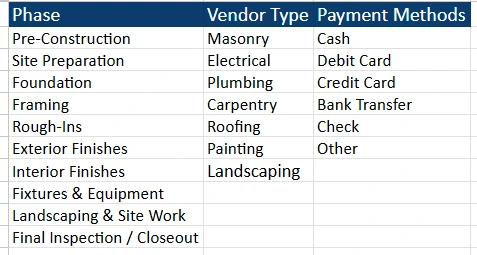
The Dropdowns Sheet serves as the control center for all dropdown lists used in the other sheets. It includes three main sections:
- Phases: Pre-Construction, Site Preparation, Foundation, Framing, Rough-Ins, Exterior Finishes, Interior Finishes, Fixtures and Equipment, Landscaping and Site Work, and Final Inspection.
- Vendor Types: Masonry, Electrical, Plumbing, Carpentry, Roofing, Painting, Landscaping, and other specialty trades.
- Payment Methods: Cash, Debit Card, Credit Card, Bank Transfer, Check, and Other.
By separating these lists from your main budget and expenses, you can easily add or remove options without breaking any formulas. For example, if you hire a new type of contractor like “Concrete Finisher,” you can simply add it to the Vendor Types list, and it will appear instantly in your dropdown options on the Expenses Log.
This sheet ensures that your data stays clean and standardized across the entire workbook—critical when you’re working with multiple team members or subcontractors.
How to Use the Construction Budget Template
Getting started is simple.
- Set up your project details. Begin in the Construction Summary sheet by filling in your project name, location, and key dates.
- Enter your estimated budgets. For each category, input how much you plan to spend. The total will calculate automatically.
- Record expenses as they happen. On the Expenses Log sheet, add each transaction with its phase, vendor, and cost. Use the dropdowns to keep entries consistent.
- Review your summary. The Construction Summary will update instantly, showing you how much of your budget remains and where you’ve overspent.
- Adjust as needed. If you add new project phases or trades, update them in the Dropdowns Sheet—your dropdown menus will update automatically.
You can also filter or sort the Expenses Log by date, phase, or vendor to see specific spending patterns. For example, filtering by “Rough-Ins” might show how much of your plumbing and electrical work has been completed.
For team collaboration, simply share the Google Sheet with your colleagues or clients. You can grant them view-only access for transparency or editing rights if multiple people need to update costs.
Why This Template Works for Real Construction Projects
This construction budget spreadsheet isn’t just for professionals—it’s designed for real-world usability. Here are a few examples of who benefits most from it:
- Independent Contractors: Track material orders, subcontractor payments, and client invoices all in one place.
- Project Managers: Monitor costs across multiple job sites and phases, keeping everyone aligned with financial goals.
- Homeowners: Manage new builds or remodels without needing accounting software or complex cost-tracking tools.
- Small Construction Firms: Share one master budget file across multiple staff to ensure every expense is documented and transparent.
The spreadsheet’s simple structure and built-in formulas mean you don’t need to be a spreadsheet expert to stay organized. Every calculation—like totals, remaining balances, and percentage spent—is handled automatically.
Because it’s built in Google Sheets, you can use it from anywhere and on any device. That means updating your budget from the job site, your office, or even your phone. And since it’s cloud-based, your data is always up to date for everyone involved.
Get Your Free Construction Budget Spreadsheet
- Free Template
- Fully Editable
- Instant Access
- Organize your information
How to Access Your Copy
- Enter your email for instant access
- Open the link we send you
- Start using the spreadsheet right away