Tracking donations can quickly get complicated when you’re juggling multiple fundraising campaigns, donors, and payment methods. Without a clear system, it’s easy to lose track of totals, repeat donors, or the progress toward your annual fundraising goals. That’s exactly why this Donation Tracker Template for Google Sheets exists — a simple yet powerful spreadsheet that organizes all your donation data in one place.
This free template gives nonprofits, schools, churches, and individuals a professional way to record, analyze, and report contributions. With built-in formulas, dropdown menus, and an interactive dashboard, it eliminates manual work and gives you accurate, real-time insights into your fundraising efforts.
A Smarter Way to Track Donations
This Donation Tracker Template is designed to make donation management simple, visual, and automated. It’s built entirely in Google Sheets, meaning you can share it with your team, access it from anywhere, and customize it to fit your specific fundraising needs.
Instead of trying to piece together donation records from scattered emails or paper lists, you’ll have an organized system that automatically summarizes everything. Every donation you log feeds into a clean dashboard, where you can instantly see how much has been raised, how close you are to your goal, and which campaigns are performing best.
Whether you’re collecting funds for a charity, a community project, or an annual scholarship drive, this sheet keeps your records transparent, accurate, and easy to analyze.
Explore the Key Sections and Features
The template is organized into four main sheets — each designed with a specific purpose and clear functionality. Let’s break them down.
Dashboard
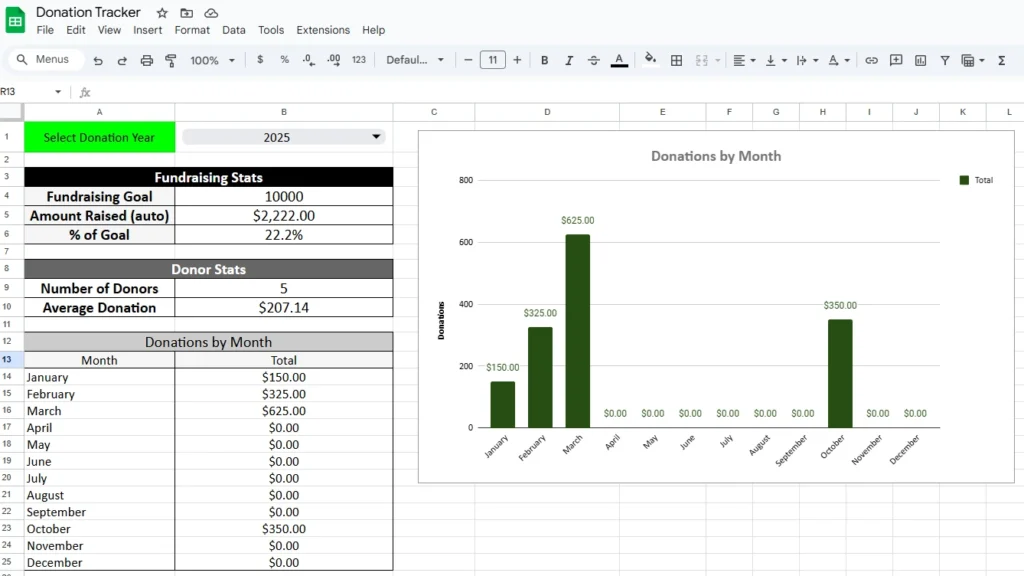
The Dashboard provides a real-time summary of your fundraising data. At the top, you’ll find a year selector that filters your data by year, allowing you to focus on a specific fundraising period.
Beneath that, you’ll see a section titled Fundraising Stats, which includes:
- Fundraising Goal: The target amount you aim to raise for the year.
- Amount Raised (auto): This updates automatically as donations are entered.
- % of Goal: Calculates your progress toward the goal and displays it as a percentage.
There’s also a Donor Stats area that summarizes:
- Number of Donors: The count of unique donors contributing during the year.
- Average Donation: The mean contribution value, giving insight into typical donor behavior.
One of the most useful elements on this tab is the Donations by Month chart. It breaks down donations across each month, helping you visualize seasonal trends — perfect for identifying when fundraising campaigns perform best. For example, you might notice that donations spike around December holidays or drop off during the summer, allowing you to plan campaigns more strategically.
Donations
The Donations sheet is where you record each contribution. It’s structured with clear columns for the date, donor name, email, donation amount, campaign, payment method, and notes.
Dropdown menus simplify data entry and maintain consistency. For instance:
- Campaign: Choose from predefined options like General Fund, Scholarship Drive, Capital Campaign, or add your own through the “Dropdowns” sheet.
- Payment Method: Select from Card, Cash, Bank Transfer, Check, Online, or In-kind.
The Notes column gives you space for details such as “Recurring monthly donor,” “Corporate match pending,” or “Thank-you email sent.”
Every entry here automatically updates the Dashboard and Donors sheets, saving hours of manual work.
Donors
This sheet acts as your donor database, automatically summarizing each person’s giving history. For every donor, the template calculates:
- Total Donations: How many times they’ve contributed.
- Lifetime Total: The total amount they’ve donated.
- First Donation Date and Amount: When they first supported your cause and how much they gave.
- Last Donation Date and Amount: When they last contributed and for how much.
This is particularly helpful for maintaining relationships. For example, if you notice that a past donor hasn’t contributed this year, you can reach out with a personalized thank-you or campaign update. Nonprofits and schools often use this tab to identify their most loyal supporters or top contributors at a glance.
A red note in this sheet reminds users not to modify any of the calculated values — everything updates automatically as you add data in the Donations sheet.
Dropdowns
The Dropdowns sheet acts as the control center for customizing your categories. Here, you’ll find columns for Years, Campaigns, and Payment Methods. You can add or remove entries as your organization grows or launches new fundraising efforts.
For instance, if your nonprofit adds a new campaign called Emergency Relief Fund, just type it under the “Campaign” column. It will immediately appear in the dropdown list within the Donations tab. This flexibility makes the template usable for everything from year-round giving programs to short-term events.
Step-by-Step: How to Use the Donation Tracker
- Make a Copy:
Click “File → Make a Copy” to add the template to your Google Drive. - Customize Campaigns and Years:
Open the Dropdowns tab to adjust available donation years, campaigns, and payment methods. - Set Your Goal:
On the Dashboard, enter your fundraising goal for the selected year. - Start Recording Donations:
Go to the Donations sheet and begin entering each contribution. Be sure to include the date, donor name, email, and donation amount. The campaign and payment method can be selected from dropdowns. - Track Automatically:
Once donations are entered, the Dashboard updates instantly, and the Donors tab will display totals for each supporter. - Monitor Performance:
Use the chart on the Dashboard to identify trends and high-performing months. For example, if February donations are consistently strong, you might decide to schedule your next campaign around that time. - Share or Collaborate:
Since the template is built in Google Sheets, you can share it with your team or volunteers and collaborate in real time.
Why This Template Is Worth Using
There are many donation trackers online, but most are either too basic or too complicated. This one strikes the right balance — it’s professional enough for nonprofits, yet easy enough for small community groups or individual fundraisers.
Here’s what makes it stand out:
- Automation with simplicity: All calculations are prebuilt, so you don’t need to write any formulas.
- Visual clarity: The dashboard and color-coded tables make insights easy to understand.
- Customizable design: You can add new campaigns, edit goals, or rebrand it with your organization’s colors.
- No software cost: It’s 100% free and runs entirely in Google Sheets.
- Accurate donor tracking: The Donors tab gives a complete history of supporter activity — something even some paid tools don’t do well.
For example, a local animal rescue could use it to manage monthly donor contributions and see how much each campaign raised toward veterinary expenses. A school fundraising committee might track donations for different projects like playground renovations or student scholarships. Even individuals running GoFundMe campaigns can benefit from tracking offline and online donations together in one spreadsheet.
Get Your Free Donation Tracker Spreadsheet
- Free Template
- Fully Editable
- Instant Access
- Organize your information
How to Access Your Copy
- Enter your email for instant access
- Open the link we send you
- Start using the spreadsheet right away
Once you start using it, you’ll have an organized record of all donations, an automated dashboard showing your progress, and valuable insights into your donor community.
It’s not just a spreadsheet — it’s a small step toward smarter, more transparent fundraising. Try it today and see how easy donation management can be with the right template.