Tracking employee leave doesn’t have to be complicated. With this employee time off spreadsheet template, you can manage paid and unpaid time off, visualize absences by month, and maintain an organized view of every team member’s leave — all in one Google Sheet.
Whether you’re a small business owner, HR professional, or team lead, this tool helps you keep accurate records of vacations, sick days, and other absences throughout the year. The best part? It works seamlessly in both Excel and Google Sheets, so your whole team can collaborate in real time.
A Smarter Way to Manage Employee Leave
Keeping track of who’s off, when, and why can quickly become messy without the right system. This Employee Time Off Tracker Excel template is built for simplicity and clarity. It’s designed around a 2026 calendar layout, with monthly tabs for day-to-day tracking and summary sheets that automatically total paid and unpaid leave.
By using this spreadsheet, you’ll save time every month and avoid the guesswork of manual tracking. Each section of the template provides an at-a-glance summary of employee absences and balances.
Key Features of the Employee Time Off Tracker Excel
This tracker focuses on what HR teams and managers need most — accuracy, automation, and simplicity. Here’s what makes it stand out:
- Monthly calendar sheets for daily absence tracking
- Separate paid and unpaid summaries for clearer reporting
- Automatic total calculations per employee and per month
- Dropdown menus for leave types (vacation, sickness, work from home, etc.)
- Color-coded categories for quick reference
- Year-to-date summaries that make end-of-year reporting effortless
Every feature is designed to make the process of recording and reviewing time off easy, even if you’re not an Excel expert.
Inside the Template: Sheets Explained
Employee List Sheet
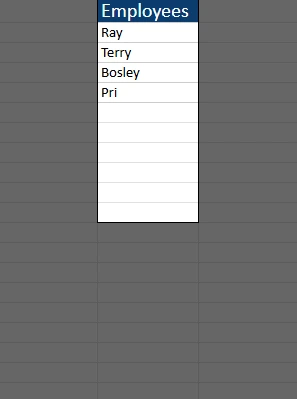
The Employee List sheet serves as the foundation of your tracker. Here, you’ll enter the names of everyone on your team — for example:
| Employees |
|---|
| Ray |
| Terry |
| Bosley |
| Pri |
This list feeds into the dropdown menus across all the other sheets, allowing you to select employees quickly. You can add or remove rows as your team changes over time.
This single list keeps data consistent across the template, so you don’t have to retype employee names every month.
Monthly Tracking Sheets (Example: January 2026)
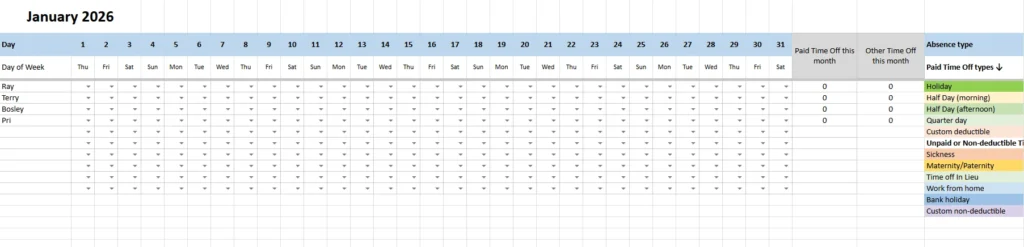
Each month has its own tracking sheet, such as January 2026, February 2026, and so on. These tabs are where you record each employee’s time off, day by day.
The sheet includes:
- Columns for every day of the month (1–31)
- Automatic “Day of Week” headers for quick reference
- Dropdown menus for each employee to select an absence type
- Two summary columns on the right for “Paid Time Off this month” and “Other Time Off this month”
The right-hand side of the sheet also contains a color-coded absence key, including:
- Paid Time Off Types (Holiday, Half Day, Quarter Day, Custom Deductible)
- Unpaid or Non-Deductible Types (Sickness, Maternity/Paternity, Work from Home, Bank Holiday, Custom)
For example, if “Ray” takes a vacation day on January 5th, you can select Holiday from the dropdown under Day 5. The tracker automatically counts that as one paid day off for the month.
If “Pri” takes three unpaid days for personal reasons, mark those days with Custom Non-Deductible — they’ll be totaled separately under “Other Time Off this month.”
This structure makes it easy to see who’s available at any given time and how much leave each employee has used so far.
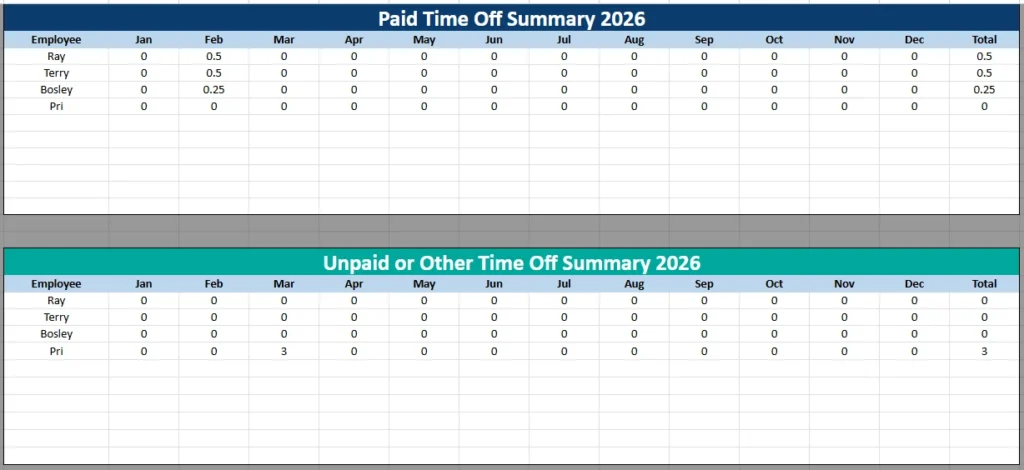
Paid Time Off Summary Sheet
This sheet provides a bird’s-eye view of every employee’s paid leave usage across the year. It’s organized by month, making it easy to spot patterns and calculate totals.
| Employee | Jan | Feb | Mar | … | Dec | Total |
|---|---|---|---|---|---|---|
| Ray | 0 | 0.5 | 0 | … | 0 | 0.5 |
| Terry | 0 | 0.5 | 0 | … | 0 | 0.5 |
| Bosley | 0 | 0.25 | 0 | … | 0 | 0.25 |
| Pri | 0 | 0 | 0 | … | 0 | 0 |
Each month automatically pulls totals from the corresponding calendar tab. You’ll always know exactly how many days off have been taken, without recalculating manually.
This sheet is especially useful during quarterly reviews or when approving additional vacation requests.
Unpaid or Other Time Off Summary Sheet
Just like the Paid Time Off Summary, this sheet tracks unpaid or other absence types such as:
- Sick leave
- Maternity or paternity leave
- Work from home days
- Bank holidays
- Custom non-deductible leave
| Employee | Jan | Feb | Mar | … | Dec | Total |
|---|---|---|---|---|---|---|
| Ray | 0 | 0 | 0 | … | 0 | 0 |
| Terry | 0 | 0 | 0 | … | 0 | 0 |
| Bosley | 0 | 0 | 0 | … | 0 | 0 |
| Pri | 0 | 0 | 3 | … | 0 | 3 |
This separation between paid and unpaid leave helps maintain accurate payroll and reporting data. HR teams can easily summarize total absences at the end of each month or fiscal year.
How to Use the Template Step-by-Step
- Open the file in Google Sheets or Excel.
The link below creates an automatic copy for Google Sheets. - Enter your employee list.
Update the “Employees” tab with all team members. This automatically updates the dropdowns in each month. - Go to the current month’s tab.
Record daily absences by selecting the correct leave type from the dropdown menu for each day. - Review monthly totals.
The columns “Paid Time Off this month” and “Other Time Off this month” instantly show totals for each employee. - Check yearly summaries.
Switch to the “Paid Time Off Summary” or “Unpaid Time Off Summary” sheets to view totals per month and per year. - Print or export.
At the end of each quarter or year, export the summaries as a PDF for your HR records or management reports.
Why This Template Is Ideal for HR and Teams
Most small businesses don’t need a full HR software system — just a reliable, easy-to-use tracker that keeps everyone accountable. This Employee Time Off Tracker Excel does exactly that.
- Simple for managers: Record leave in seconds with dropdowns instead of manual typing.
- Clear for employees: Everyone can see their leave balance and history.
- Flexible: Add new absence types or rename existing ones to fit your company’s policy.
- Collaborative: Works perfectly in Google Sheets, allowing managers and HR staff to update the file together.
- Scalable: Works for teams of 3 or 30 — just extend rows as needed.
For example, if your marketing department often works remotely, you can rename “Custom Non-Deductible” to “Remote Work.” Or if you want to include half-day tracking for hourly staff, just adjust the dropdown list to add “Half Day – Afternoon.”
The template’s balance of structure and flexibility means it adapts easily to different workplaces and industries.
Get Your Free Employee Time Off Tracker Spreadsheet
- Free Template
- Fully Editable
- Instant Access
- Organize your information
How to Access Your Copy
- Enter your email for instant access
- Open the link we send you
- Start using the spreadsheet right away
Keep your HR records accurate, your team informed, and your leave management stress-free.
Final Tip: Bookmark the tracker and update it regularly — once a week is often enough to stay current. Over time, you’ll have a clear, trustworthy record of every employee’s time off, ready for performance reviews, audits, or payroll reconciliation.