Managing employee training can quickly become messy without a clear system in place. Whether you are onboarding new hires, tracking compliance courses, or managing ongoing professional development, you need a simple but structured way to see what is completed, what is in progress, and what needs attention.
This employee training tracker template file is designed to do exactly that. Built to work seamlessly in both Excel and Google Sheets, the template centralizes all training-related information in one primary sheet, while supporting it with a secondary dropdown configuration sheet. The result is a clean, scalable tracker that works equally well for small teams, growing companies, HR departments, and training coordinators.
Unlike overly complex HR systems, this spreadsheet focuses on clarity, usability, and flexibility. You control the status of each training manually through dropdowns, while the dashboard provides an instant overview of training progress across your organization.
Key Features and Sections
Training Tracker Sheet
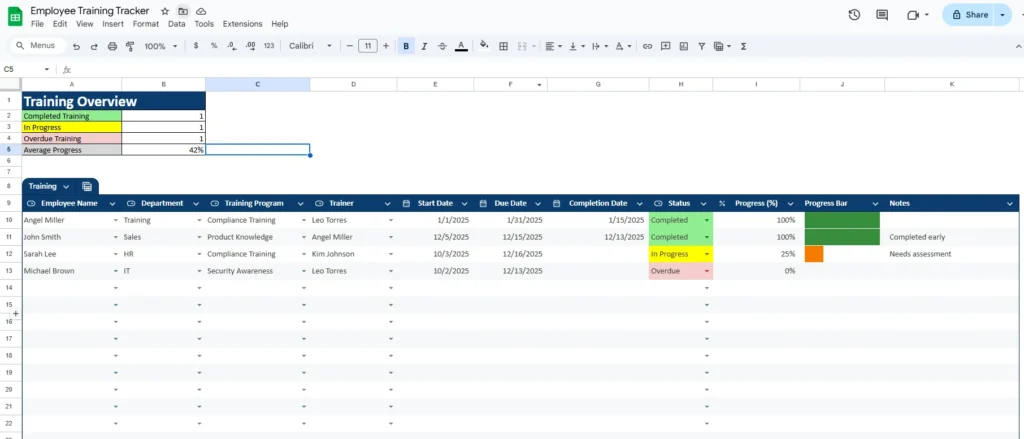
The Training Tracker sheet is where all core data lives. It is designed as a structured table, making it easy to sort, filter, and expand as your training program grows.
Each row represents a single training assignment for an employee. The columns are laid out to follow the natural lifecycle of a training program, from assignment to completion.
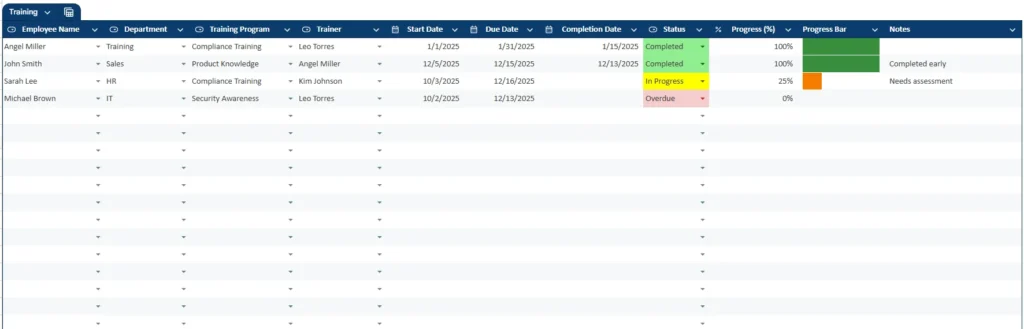
Key columns include:
- Employee Name: Identifies who the training is assigned to. This can be filtered to view training history for a specific employee.
- Department: Useful for grouping training by teams such as Sales, HR, IT, or Operations.
- Training Program: The name of the course, certification, or internal training.
- Trainer: Tracks who is responsible for delivering or overseeing the training.
- Start Date and Due Date: Defines the expected training window and helps identify overdue items.
- Completion Date: Filled in once the training is finished, creating a historical record.
- Status: Selected manually using a dropdown (Completed, In Progress, Overdue, Not Started).
- Progress (%): A numeric representation of how far along the training is.
- Progress Bar: A visual bar that updates automatically based on the progress percentage.
- Notes: Space for context such as “Completed early,” “Needs assessment,” or “Waiting on materials.”
Because the status is user-controlled rather than formula-driven, the tracker adapts better to real-world scenarios where progress does not always follow strict date logic.
Dropdowns Sheet
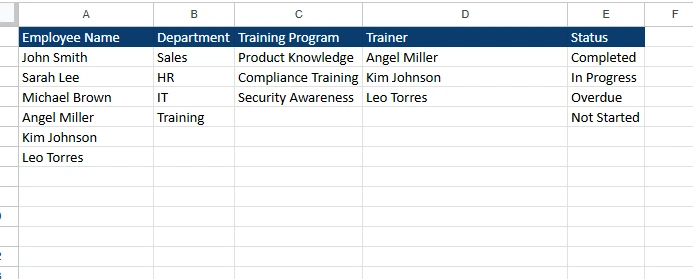
The Dropdowns sheet works quietly in the background but plays a critical role in keeping data clean and consistent.
This sheet stores predefined lists used throughout the Training Tracker, including:
- Status values (Completed, In Progress, Overdue, Not Started)
- Department names
- Trainer names
- Training program categories (optional)
By referencing this sheet for data validation, the template prevents spelling inconsistencies and formatting errors. For example, “In Progress” will always appear the same way, ensuring accurate counts on the dashboard.
If your organization changes terminology or adds new departments, you only need to update the Dropdowns sheet once. All connected dropdowns will update automatically.
Training Overview Dashboard
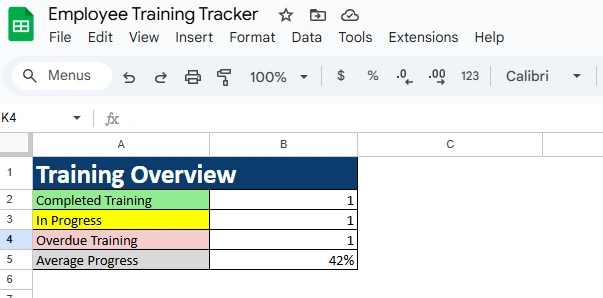
The dashboard provides a snapshot view of training performance without requiring filters or formulas.
Key metrics include:
- Completed Training: Counts how many trainings are marked as completed.
- In Progress Training: Shows active trainings currently underway.
- Overdue Training: Highlights potential issues requiring follow-up.
- Average Progress: Displays overall completion percentage across all trainings.
This overview is especially useful for managers or HR teams who want quick insights without reviewing individual rows.
How to Use the Template
Using the template effectively requires only a few simple steps.
Start by entering or importing your employee and training data into the Training Tracker sheet. For each training assignment, fill in the employee name, department, training program, and trainer. Add start and due dates to establish expectations.
Next, use the Status dropdown to reflect the current state of the training. This is intentionally manual, allowing you to handle edge cases such as paused training, extensions, or partial completions without relying on rigid formulas.
Update the Progress (%) column as the training advances. The progress bar column will update automatically, providing an at-a-glance visual indicator of completion.
When training is finished, enter the completion date and change the status to “Completed.” Over time, this builds a historical training log that can be filtered by employee, department, or program.
The Dropdowns sheet rarely needs daily interaction, but it becomes valuable when scaling. For example, if your company hires new trainers or adds departments, updating the dropdown lists ensures consistent data entry moving forward.
Why Choose This Template
Many training trackers fail because they are either too basic or unnecessarily complex. This template strikes a practical balance.
It is ideal for HR professionals who need a reliable way to track compliance and onboarding. Team managers can use it to monitor skill development without investing in expensive software. Small businesses benefit from having a professional training system that grows with them. Even freelancers and consultants can use it to track certifications or client-required training.
Because it works in Excel and Google Sheets, it fits into existing workflows without forcing teams to adopt new platforms. The use of dropdowns ensures clean data, while the dashboard makes reporting fast and accessible.
Most importantly, the template reflects how training works in real life. Status is controlled by people, not assumptions. Progress can be estimated realistically. Notes add context that formulas cannot capture.
Download Your Free Employee Training Tracker Spreadsheet
- Free Template
- Fully Editable
- Instant Access
- Organize your information
How to Access Your Copy
- Enter your email for instant access
- Open the link we send you
- Start using the spreadsheet right away