Managing inventory does not need to involve expensive software or complicated systems. For many small businesses, home organizers, and resellers, a well-designed Excel inventory spreadsheet is more than enough to stay organized and avoid costly mistakes. When built correctly, Excel can automatically calculate inventory value, flag items that need reordering, and give you a clear overview of what you have on hand.
This Excel Inventory Spreadsheet Template was designed to be practical first. It focuses on clarity, automation, and ease of use, while still being flexible enough to adapt to different inventory needs. Whether you are tracking office supplies, kitchen stock, tools, or resale items, this template gives you a structured system that works right out of the box.
Overview of the Excel Inventory Template
This inventory spreadsheet is built as a single Excel workbook with multiple supporting sheets. The main inventory sheet is where all tracking happens, while a dedicated dropdowns sheet helps keep your data consistent and clean.
The template automatically calculates total inventory value, tracks how many items you have, and identifies which products need to be reordered based on the thresholds you set. Instead of manually reviewing every row, you can rely on Excel formulas and conditional formatting to surface the most important information.
This approach works especially well for users who want full control over their data. Everything is visible, editable, and easy to understand. There are no locked cells, hidden macros, or complex VBA scripts. If you understand basic Excel concepts, you will always know how your numbers are calculated.
Key Features and Spreadsheet Structure
The strength of this Excel inventory spreadsheet comes from how its sections work together. Each column has a clear purpose, and the summary area turns raw data into useful insights.
Inventory Sheet
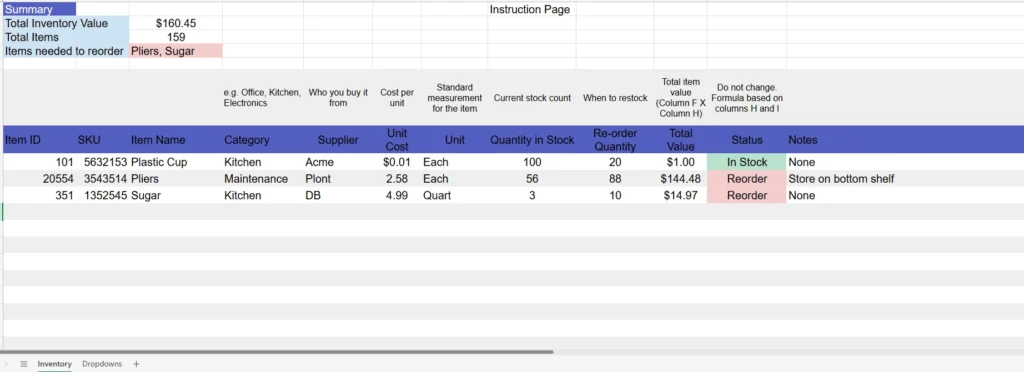
The Inventory sheet is the heart of the template. Each row represents one unique item in your inventory.
You start with Item ID and SKU, which help identify products consistently. This is especially useful if you manage similar items or reorder from multiple suppliers. The Item Name, Category, and Supplier columns give you descriptive context so you can filter and sort your inventory quickly.
The Unit Cost and Quantity in Stock columns are where Excel begins to do the heavy lifting. These values feed directly into the Total Value column, which calculates the total worth of each item automatically using a simple multiplication formula.
The Re-order Quantity column defines when an item should be restocked. When the current stock count falls below this number, the Status column automatically changes to “Reorder.” Conditional formatting highlights these rows visually, making low-stock items easy to spot without scanning numbers manually.
A Notes column is included for practical reminders, such as storage location, handling instructions, or supplier details. This small feature often becomes one of the most useful columns in real-world use.
Summary Section
At the top of the Inventory sheet, you will find a summary area that updates automatically as your data changes.
The Total Inventory Value shows the combined value of all items in stock. This is helpful for budgeting, insurance purposes, and financial planning. The Total Items count tells you how many inventory entries you are actively tracking.
One of the most useful summary elements is Items needed to reorder. Instead of just showing a number, this cell can display the actual item names that need attention. This allows you to quickly identify priorities without scrolling through the sheet.
Because the summary relies on formulas rather than manual input, it stays accurate as long as your inventory data is up to date.
Dropdowns Sheet
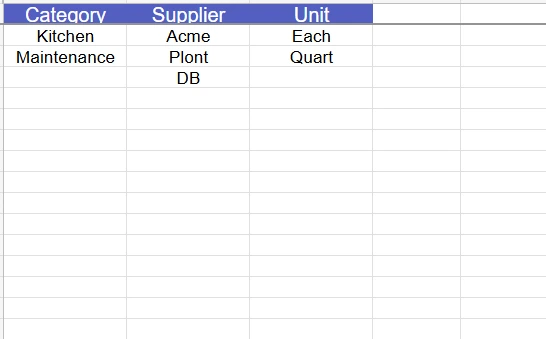
The Dropdowns sheet exists to support clean data entry and long-term consistency.
Here, you define standard lists for Categories, Suppliers, and Units. These lists are used to create dropdown menus in the Inventory sheet. Instead of typing values repeatedly, you select them from a list, which reduces errors and keeps your data uniform.
This is especially important when filtering or summarizing inventory later. Consistent category names make Excel filters and pivot tables far more reliable.
How to Use the Excel Inventory Spreadsheet
Using this template does not require advanced Excel knowledge. Everything is designed to follow a logical flow.
Step 1: Enter Your Inventory Items
Begin by replacing the sample data with your own items. Each row should represent one product or supply. Enter the item name, category, supplier, and unit cost first. Then add the current quantity in stock.
As soon as you enter these values, the Total Value column will calculate automatically.
Step 2: Set Reorder Thresholds
For each item, decide the minimum quantity you want to keep on hand. Enter that number in the Re-order Quantity column. Excel will compare this value against your current stock count.
When stock falls below the reorder level, the Status column will update to “Reorder” and change color. This allows you to catch shortages early instead of reacting after you run out.
Step 3: Review the Summary
Check the summary section at the top of the sheet regularly. It gives you a high-level snapshot of your inventory without needing to analyze individual rows.
This is particularly helpful before placing supplier orders or reviewing monthly expenses. You can immediately see which items require action and how much inventory you currently hold in total value.
Step 4: Maintain the Sheet Over Time
Each time inventory changes, update the Quantity in Stock column. That is all you need to do. The formulas and status indicators will update automatically.
For users managing frequent changes, this spreadsheet becomes more valuable over time because it reflects real inventory behavior instead of static estimates.
Why This Excel Inventory Template Is a Smart Choice
Many inventory templates are either too basic or unnecessarily complex. This one is intentionally balanced.
For small business owners, it provides a reliable way to track stock without investing in inventory software. For resellers, it offers clear visibility into product value and reorder timing. For home or office use, it keeps supplies organized and prevents overbuying or shortages.
Because it is built entirely in Excel, you retain full ownership of your data. You can add columns, modify formulas, or expand the system as your needs grow. There are no subscriptions, logins, or platform restrictions.
Most importantly, the spreadsheet encourages good inventory habits. By clearly showing stock levels, reorder needs, and total value, it helps you make better decisions with less effort.
Download the Excel Inventory Spreadsheet and Get Started
If you want a clean, practical way to manage inventory, this Excel template is ready to use. It is designed to be simple enough for beginners, yet powerful enough for real-world tracking.
Once downloaded, you can start entering your items immediately and customize the dropdown lists to match your categories and suppliers. In just a few minutes, you will have a working inventory system that updates automatically.
Download the Excel Inventory Spreadsheet today and take control of your stock with a tool that is clear, flexible, and built to last.