Staying organized in Excel becomes increasingly important as projects grow, deadlines stack up, and responsibilities are shared across teams. This Excel Task Management Template is built specifically for users who want a clear, structured, and visual way to manage tasks without relying on complex software or external tools. It focuses on practicality, readability, and ease of use, making it suitable for both personal task tracking and professional project coordination.
This template is designed as a downloadable Excel file and includes two connected sheets: Tasks and Dropdowns. Together, they provide a reliable system for entering tasks, assigning ownership, tracking progress, and maintaining consistent data entry. Everything is laid out in a way that feels intuitive, even for users who are not advanced Excel users. You simply open the file, start entering tasks, and let the structure guide your workflow.
Unlike generic to-do lists, this task management template emphasizes clarity and accountability. You can see who is responsible for each task, how far along it is, and how much time remains before the deadline, all within a single view. This makes it especially useful for professionals who want a lightweight but effective task management solution inside Excel.
Key Features and Sections
The strength of this template lies in how its two sheets work together to create a smooth task tracking experience. Each section has a clear role, reducing clutter and making ongoing updates easy.
Tasks Sheet
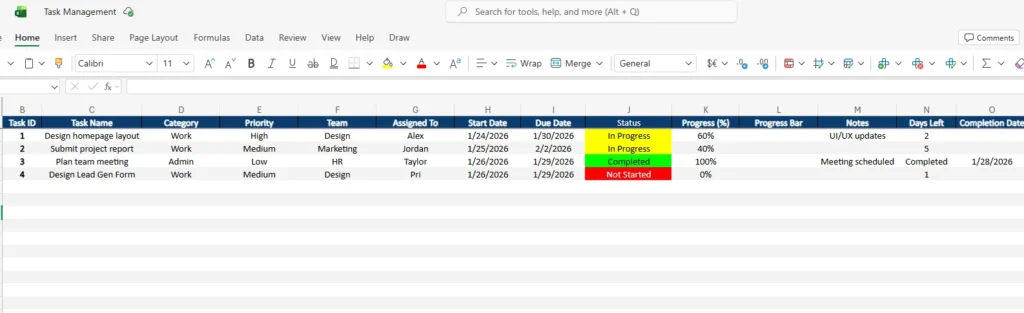
The Tasks sheet is the main working area of the template. This is where all tasks are created, tracked, and updated over time. Each row represents a single task, and each column captures a specific detail that helps you understand the task’s status at a glance.
The sheet begins with a Task ID column, which provides a simple reference number for sorting or discussing tasks with others. Next is Task Name, where you enter a clear description such as “Design homepage layout” or “Submit project report.” Clear task names help avoid confusion, especially when multiple tasks are similar.
The Category column allows you to group tasks by type, such as Work or Admin. This is useful for filtering tasks later when you want to focus on a specific kind of work. The Priority column helps identify urgency, using levels like Low, Medium, High, or Critical. This makes it easier to decide what needs attention first.
The Team and Assigned To columns introduce accountability. You can specify which department is responsible and who owns the task. For example, a task might belong to the Design team and be assigned to Alex, while another belongs to Marketing and is assigned to Jordan. This is especially helpful in shared Excel files where multiple people contribute.
The Start Date and Due Date columns define the task timeline. These dates help you plan workloads and identify upcoming deadlines. The Status column uses clear labels such as Not Started, In Progress, and Completed, paired with strong colors that make progress easy to see even when scrolling quickly.
To complement the status, the Progress (%) column shows how far along a task is numerically, while the Progress Bar column provides a visual representation. This visual element makes it easy to scan the sheet and immediately spot tasks that are nearly done or falling behind.
The Notes column gives you space to add context, updates, or reminders. For example, you might note that a task is waiting on client feedback or that a meeting has been scheduled. The Days Left column shows how much time remains before the due date or indicates when a task is completed. Finally, the Completion Date records when the task was finished, creating a useful history of completed work.
Dropdowns Sheet
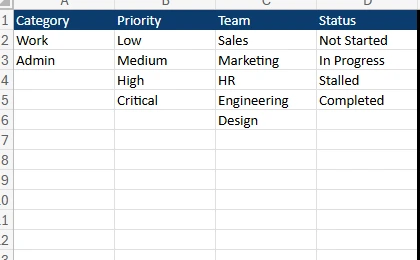
The Dropdowns sheet supports the Tasks sheet by storing all selectable options in one place. This keeps the main sheet clean and ensures consistency across entries. Instead of typing values manually each time, you select from predefined lists.
This sheet includes lists for Category, Priority, Team, and Status. By centralizing these options, the template reduces errors like inconsistent spelling or mismatched labels. For example, “In Progress” will always appear the same way, which makes filtering and reviewing tasks much easier.
The Dropdowns sheet is also where customization happens. If your workflow changes, you can add new categories, teams, or statuses here without altering the structure of the Tasks sheet. This makes the template flexible enough to grow with your needs.
How to Use the Task Tracker Template
Using the Excel Task Management Template is straightforward, even if you are new to structured task tracking. Start by opening the file in Excel and reviewing the example rows to understand how information is entered.
Begin adding your own tasks by filling in one row per task. Enter a clear task name, select a category and priority, and assign the task to a team and individual. Add start and due dates to define the timeline. As work begins, update the status and progress percentage to reflect real progress.
As tasks move forward, you will naturally interact with only a few columns most of the time: Status, Progress, Notes, and Completion Date. This keeps maintenance simple and prevents the sheet from becoming overwhelming. The visual progress bars and color-coded statuses help you understand the overall workload without reading every detail.
For example, a small business owner might use this template to track operational tasks like invoicing, marketing updates, and supplier follow-ups. A project manager could track deliverables across multiple departments, filtering by team or priority during weekly check-ins. A freelancer might manage client work by assigning each task to a category like Design, Revisions, or Admin.
Because the template is built in Excel, it also works well for offline use and can be shared with others when needed. Teams can update the same file during meetings or send updated versions as part of regular reporting.
Why Choose This Template
There are many task management tools available, but this Excel-based template offers a unique balance of simplicity and structure. It does not require subscriptions, accounts, or training, making it accessible to anyone familiar with spreadsheets.
This template is ideal for users who prefer control and transparency. Every task is visible, every update is intentional, and nothing is hidden behind menus or dashboards. You can sort, filter, and review tasks using standard Excel features without breaking the layout.
Another advantage is flexibility. This task management template works just as well for a solo user managing daily tasks as it does for a small team coordinating work. It adapts to different industries, including marketing, design, operations, education, and administration.
Because it uses clear labels, visual indicators, and structured columns, it also helps improve communication. When everyone uses the same categories, priorities, and statuses, misunderstandings are reduced and progress is easier to report.
Get Your Excel Task Management Spreadsheet
- Free Template
- Fully Editable
- Instant Access
- Organize your information
How to Access Your Copy
- Enter your email for instant access
- Download from the link we send you
- Start using the spreadsheet right away
Download and Start Using the Task Management Template
If you are looking for a reliable and easy-to-use Excel task management template, this spreadsheet is ready to support your workflow immediately. It is designed to help you stay organized, track progress visually, and manage responsibilities with confidence.
You can download the template, open it in Excel, and begin entering tasks right away. No setup is required, and the structure is flexible enough to fit a wide range of use cases. Whether you are managing a project, running a business, or organizing personal goals, this task management template provides a clear foundation for staying on track.
Download the Excel file today and start managing your tasks with a system that is practical, visual, and built for real-world use.