Tracking tax-deductible expenses in Excel remains a popular choice for freelancers, contractors, and small business owners who prefer offline access, local file control, or compatibility with existing accounting workflows. This Excel tax expense spreadsheet is designed to make expense tracking simple, consistent, and accurate without relying on complex accounting software.
Instead of manually calculating deductions or sorting expenses at tax time, this template allows users to log expenses as they occur and automatically see deductible totals by month, category, and tax year. The spreadsheet handles the math in the background, reducing errors and saving time.
This Excel template is ideal for users who already rely on Microsoft Excel for budgeting, reporting, or business tracking. It works as a standalone file, does not require macros, and is compatible with modern versions of Excel on both Windows and Mac.
The structure is intentionally straightforward. Each sheet has a clear purpose, and formulas are transparent so users can understand how totals are calculated. This makes the spreadsheet easy to trust, easy to customize, and easy to share with an accountant when needed.
Key Features and Sections
The Excel tax expense spreadsheet includes four main sheets that work together to provide a complete overview of tax-related expenses.
Start Here Sheet
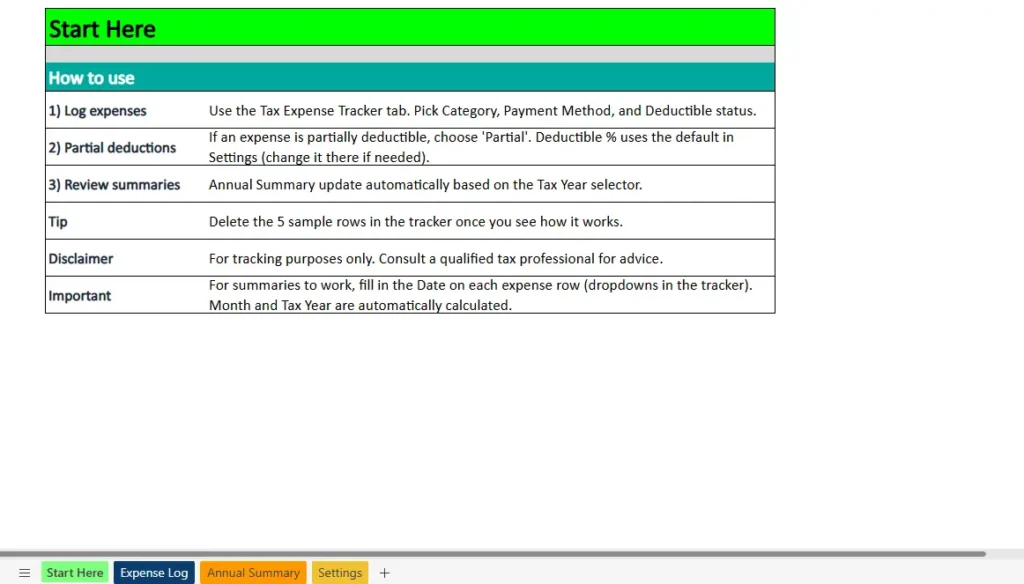
The Start Here sheet provides clear instructions directly inside the spreadsheet. This helps users understand how to use the template without needing external documentation.
It explains how to log expenses, how deductible statuses affect calculations, and how summaries update automatically based on the selected tax year. It also highlights that month and year values are derived from the date entered for each expense, which is critical for accurate summaries.
A short disclaimer reminds users that the spreadsheet is intended for tracking purposes only and that tax advice should come from a qualified professional. Including this guidance upfront improves usability and sets proper expectations.
Expense Log Sheet

The Expense Log sheet is where all expense data is entered. Each row represents a single expense and includes structured columns for date, description, vendor or payee, category, payment method, amount, deductible status, deductible percentage, deductible amount, notes, month, and year.
Dropdown lists are used for categories, payment methods, and deductible options to ensure consistent data entry. This reduces mistakes and keeps summaries accurate.
The deductible percentage is automatically populated based on the default value in the Settings sheet when an expense is marked as partially deductible. Fully deductible and non-deductible expenses are handled automatically, so users do not need to manually calculate deductible amounts.
Because Excel formulas are used throughout, users can scroll through the sheet and clearly see how calculations are performed. This transparency is especially helpful for users who want confidence in their numbers.
Annual Summary Sheet
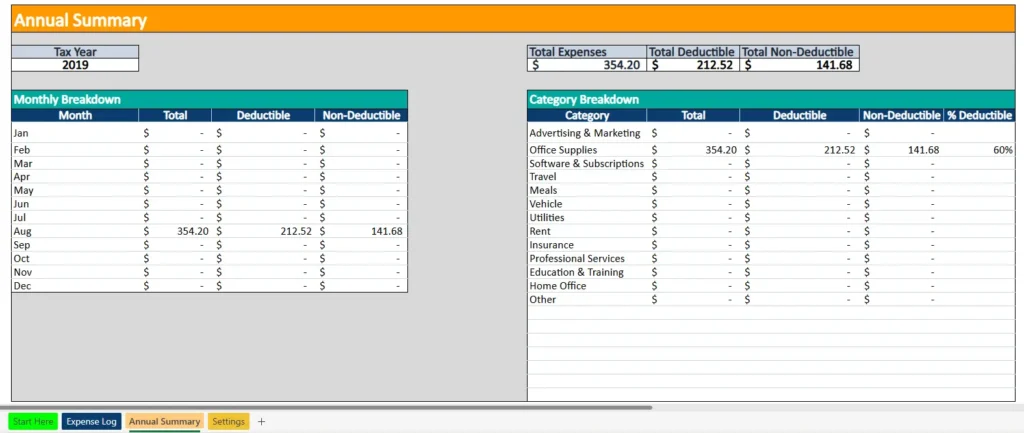
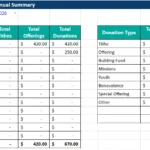
The Annual Summary sheet provides a high-level view of expenses for a selected tax year. Users choose the tax year from a dropdown, and all totals update automatically.
At the top of the sheet, total expenses, total deductible expenses, and total non-deductible expenses are displayed clearly. These figures are calculated directly from the Expense Log sheet based on the selected year.
Below the totals, the spreadsheet includes a monthly breakdown showing total, deductible, and non-deductible amounts for each month. This helps users identify spending patterns and prepare for quarterly or annual tax planning.
A category breakdown is also included, showing totals by expense category along with deductible and non-deductible amounts. This is particularly useful when preparing reports for an accountant or reviewing which categories contribute most to deductions.
Settings Sheet
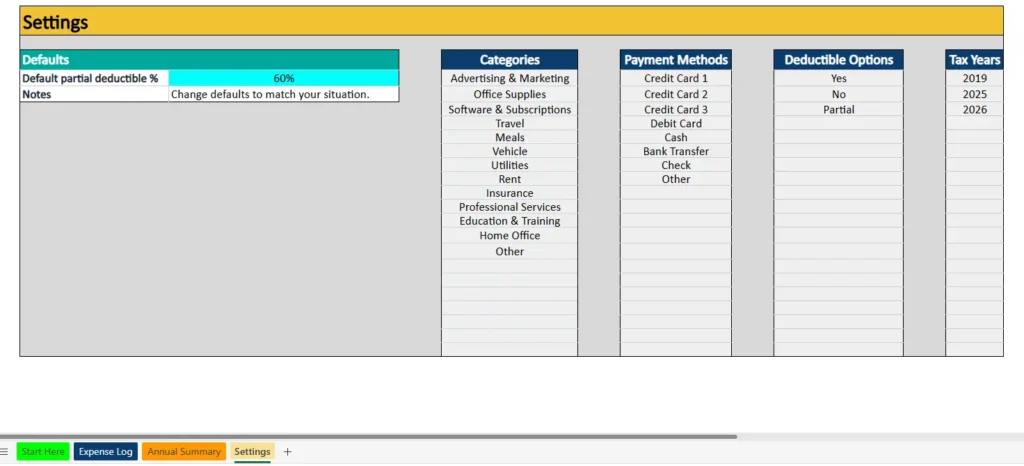
The Settings sheet controls all dropdown lists and default values used throughout the spreadsheet. Users can adjust the default partial deductible percentage, update expense categories, modify payment methods, and add or remove tax years.
Because all dropdowns reference this sheet, changes are applied instantly across the entire workbook. This allows the spreadsheet to adapt to different business types without editing formulas.
The Settings sheet makes the template flexible while keeping the rest of the spreadsheet clean and protected from accidental changes.
How to Use the Excel Template
Using the Excel tax expense spreadsheet is simple and does not require advanced Excel skills.
Start by opening the Expense Log sheet and entering each expense as it occurs. Enter the date, description, vendor, select a category and payment method, and enter the amount. Then choose whether the expense is fully deductible, partially deductible, or not deductible.
If an expense is marked as partially deductible, the spreadsheet applies the default percentage from the Settings sheet automatically. Users who need a different percentage can update it once in Settings rather than adjusting individual rows.
As dates are entered, the Month and Year columns populate automatically. This ensures expenses are included in the correct summaries without additional steps.
To review totals, navigate to the Annual Summary sheet and select the desired tax year. All totals, monthly breakdowns, and category summaries update instantly based on the logged data.
This workflow encourages consistent expense tracking throughout the year and significantly reduces the work required during tax season.
Why Choose This Excel Tax Expense Spreadsheet
This Excel tax expense spreadsheet is designed for users who value control, transparency, and simplicity. It does not rely on external connections, subscriptions, or macros. Everything works using standard Excel formulas.
For freelancers and independent contractors, it provides a reliable way to track deductions without committing to accounting software. For small business owners, it offers clear visibility into spending patterns and deductible categories.
The spreadsheet is especially useful for users who prefer working offline or need a file that can be stored locally, emailed, or archived for records. Because it is built in Excel, it integrates easily into existing financial workflows.
Most importantly, the template helps users stay organized year-round. By logging expenses consistently and letting Excel handle the calculations, users gain clarity, reduce errors, and approach tax time with confidence.
If you are looking for a clean, practical Excel tax expense spreadsheet that does exactly what it promises, this template is built to support that goal. Download it, customize it to your needs, and start tracking your tax expenses with confidence.
Download Your Excel Tax Expenses Spreadsheet
- Free Template
- Fully Editable
- Instant Access
- Organize your information
How to Access Your Copy
- Enter your email for instant access
- Download from the link we send you
- Start using the spreadsheet right away