Keeping track of expenses is one of the most effective ways to understand your financial habits and make better money decisions. Whether you’re managing personal bills, freelance income, or household spending, a well-structured expense tracker template can save you hours of manual work.
The Expense Tracker Template was designed for simplicity and clarity. It uses Google Sheets (or Excel) to automatically total your expenses, organize them into categories, and give you a clear snapshot of where your money goes each month. You don’t need any coding or formula knowledge—just enter your data and let the spreadsheet do the rest.
Overview of the Template
This expense tracker spreadsheet includes everything you need to log, categorize, and analyze your spending. It comes pre-formatted with color-coded columns, automatic totals, and clean, minimal styling that works on both desktop and mobile.
The template is made up of two primary sheets:
- Expenses Sheet – This is where you record each transaction.
- Summary Sheet – This automatically calculates totals and highlights your biggest spending areas.
Each part of the template is linked, so updates in your expense log instantly reflect in your summary. You can use it for personal budgets, business expenses, or shared household costs.
Here’s a quick example: if you record groceries, rent, and utilities in the Expenses tab, the Summary sheet automatically displays your total monthly spend and highest expense category. It’s fast, visual, and saves you from repetitive calculations.
Key Features and Sections
This template is structured to make tracking effortless, even for beginners. Here’s what’s included:
Expenses Sheet
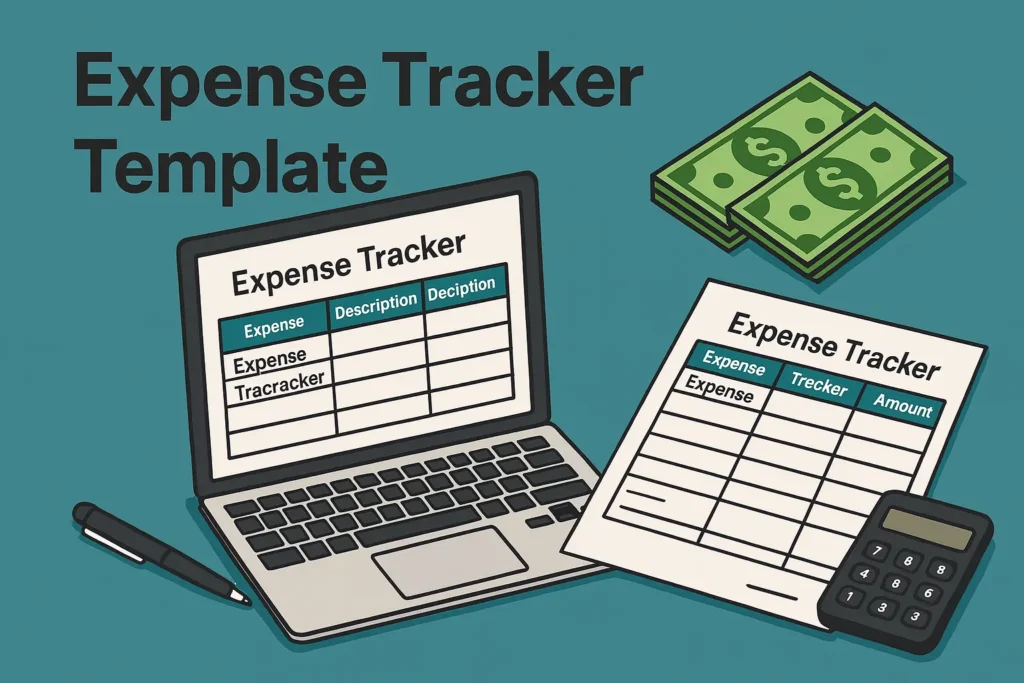
The Expenses tab includes six key columns:
- Date: The day you made the purchase.
- Category: Select from a built-in dropdown list like Food, Rent, Utilities, Transport, or Entertainment.
- Description: Optional space to add notes such as “Lunch at Café Luna” or “Internet bill.”
- Payment Method: Helps you sort by Credit Card, Cash, or Bank Transfer.
- Amount: The cost of the expense (automatically formatted as currency).
- Notes: Optional field for any details you want to remember later.
Every entry is easy to read and totals automatically at the bottom of the sheet.
Summary Sheet
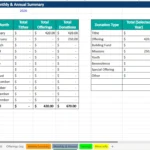
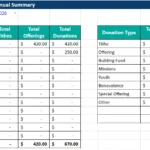
The Summary tab provides quick financial insights:
- Total Spent: The sum of all expenses entered.
- Top Category: Shows which category has the highest spending.
- Highest Expense: Displays the single most expensive transaction.
This structure helps you spot trends quickly—like overspending on takeout or transportation—without building pivot tables or charts manually.
How to Use the Template
Using this template is straightforward and doesn’t require any prior spreadsheet knowledge.
- Access the file (available for both Google Sheets).
- Open the Expenses sheet and start logging each purchase.
- Example: On November 1, you spent $50 on groceries using a debit card. Enter that line once, and the totals update instantly.
- Select categories from the dropdown. This keeps your data consistent, so reports and summaries stay accurate.
- Review the Summary tab. At a glance, you’ll see your total monthly expenses and which category consumed most of your budget.
You can also duplicate the Expenses sheet for each month or year. Many users create separate tabs like “January 2025,” “February 2025,” and so on to track long-term progress.
Real-World Example
Let’s say you’re a freelancer tracking your business expenses:
- Laptop purchase: $1,200 (Category: Equipment)
- Monthly coworking space: $250 (Category: Office)
- Coffee meetings: $45 (Category: Meals)
The Summary sheet instantly shows you that Equipment is your top spending area. This helps with budgeting and even tax preparation when claiming deductible expenses later.
Tips for Customizing It
One of the biggest advantages of using Google Sheets or Excel is flexibility. The Sheetrix Expense Tracker is designed for easy editing so you can tailor it to your needs.
Here are a few popular ways users customize it:
- Add Income Tracking: Insert new rows or a separate tab for income sources to compare income vs. expenses.
- Monthly Budget Goals: Add a “Budgeted Amount” column next to “Actual Amount” to monitor your financial targets.
- Color Coding: Use conditional formatting to highlight overspending categories or transactions above a certain threshold.
- Charts and Graphs: Insert a pie chart to visualize spending by category or a bar graph to see month-over-month changes.
- Currency Change: Simply change the cell format to your local currency in Format → Number → Currency.
If you’re using Excel, you can enable filters and pivot tables for deeper analysis. For Google Sheets, you can connect the file to Google Forms to log expenses from your phone while on the go.
Why Choose This Template
There are countless expense trackers online, but many are cluttered, locked behind paywalls, or filled with unnecessary macros. The Sheetrix template is built with simplicity in mind—clean design, reliable formulas, and full transparency.
Here’s why users love it:
- Beginner-friendly: No coding or formula editing required.
- Fully editable: You own the file and can change anything you like.
- Google Drive integration: Access from any device and share with others easily.
- Privacy-safe: No app logins or external data connections—everything stays in your sheet.
This makes it ideal for:
- Students tracking monthly allowances
- Families managing shared budgets
- Freelancers recording client or travel expenses
- Small businesses monitoring office or project costs
Get Your Free Expense Tracker Spreadsheet
- Free Template
- Fully Editable
- Instant Access
- Organize your information
How to Access Your Copy
- Enter your email for instant access
- Open the link we send you
- Start using the spreadsheet right away
With just a few minutes of setup, you’ll have a clear overview of where your money goes every month, helping you stay organized and plan smarter.