A grocery list should make your weekly shopping easier—not more complicated. That’s exactly why this Grocery List Spreadsheet was designed: to give you a clean, organized, and flexible tool that helps you plan what to buy, estimate costs, track what’s already in your basket, and stay focused in the store. Everything is laid out on a single sheet so you can see your entire list at a glance without jumping between tabs or hunting through cluttered layouts.
This spreadsheet works perfectly in Google Sheets, Excel, or any spreadsheet app that supports XLSX files. Whether you’re planning a big family grocery run, prepping meals for the week, or simply trying to stick to a budget, this template keeps everything structured and easy to update. Each section is intentionally simple so that anyone—regardless of spreadsheet skill—can use it right away.
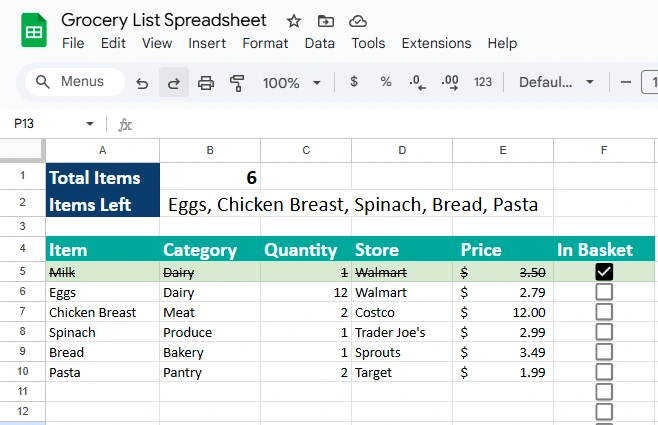
The top area includes a small summary that automatically calculates the total number of items and lists all remaining items you still need to put in your cart. Below that, the main table includes your grocery items, categories, quantities, stores, prices, and a checkbox-style “In Basket” column you can toggle as you shop. It’s a straightforward layout that still feels powerful and customizable.
Key Features and Sections
Summary Header
The template begins with a bold summary section showing Total Items and Items Left. This area updates automatically based on the groceries entered below. It serves two important purposes:
- A quick count of how many items are on your list
- A dynamic text summary that lists any remaining items you haven’t checked off
For example, if your list includes Milk, Eggs, Spinach, and Bread—but you’ve only marked Milk as purchased—the “Items Left” area will show: Eggs, Spinach, Bread. This makes it easy to glance at your phone in the store and instantly see what still needs picking up.
Item
This is the main column where you enter each grocery item. The sample version includes common staples like Milk, Eggs, Chicken Breast, Spinach, Bread, and Pasta. But you can add unlimited new rows as your needs change—holiday cooking, party hosting, meal prepping, or weekly essentials.
Category
The Category column helps you group items together so you can move through the store efficiently. Common examples include:
- Dairy
- Produce
- Meat
- Bakery
- Pantry
- Frozen
- Household Supplies
Shoppers who want to move through stores faster or avoid backtracking will find categories especially helpful.
Quantity
This field lets you specify exactly how much of each item you need. It can be numerical (e.g., “2” for two cartons of eggs) or descriptive (e.g., “1 bunch” of spinach). Families and meal preppers often rely heavily on this column to avoid coming home understocked.
Store
If you visit multiple stores—like Costco for bulk items, Trader Joe’s for produce, or Walmart for basics—this column helps you organize your trip. You can also use it to note sale locations if you’re following a weekly ad or circular.
Price
This column allows you to estimate or track the price of each item. Many users apply it in different ways:
- Estimate costs ahead of time to avoid overspending
- Track the actual price so they can compare stores
- Identify rising grocery costs over time
Even a simple price estimate helps you make smarter decisions before you reach the checkout line.
In Basket
The final column is a checkbox-style space where you mark items as purchased. In Google Sheets, this can be converted to an actual checkbox, making it feel like a digital shopping list you can tap while walking through the store. As you check items off, the summary at the top automatically updates so you always know what’s left.
How to Use the Template
Step 1: Download and Open the Sheet
Once downloaded from your site, open the spreadsheet in Google Sheets or Excel. The layout is ready to use immediately—no adjustments required. If you’re on mobile, the sheet is designed to stay readable without zooming or scrolling excessively.
Step 2: Add or Edit Grocery Items
Replace the sample items with your own. You can add rows for weekly staples like:
- Bananas
- Ground turkey
- Coffee beans
- Cereal
- Paper towels
Or plan for specific meals:
- Tacos → Tortillas, ground beef, cheese, salsa
- Stir-fry → Chicken, bell peppers, broccoli, soy sauce
- Baking → Flour, sugar, vanilla extract, chocolate chips
The sheet adapts easily to whatever style of cooking or shopping you prefer.
Step 3: Update Categories
Assign a category to each item. If you’re not sure how to categorize something, choose whatever helps you navigate your store layout. For example, Trader Joe’s shoppers often group items by:
- Produce wall
- Freezer aisle
- Dry goods
- Snacks
- Bread section
The point is clarity—choose categories that make sense for your routine.
Step 4: Enter Quantity and Store
Fill in the quantities you need and the store where you plan to purchase each item. People who shop for large households often include both Costco and a local grocery store. College students may write down whichever store has the best sale that week. Meal preppers may include quantities like “3 lbs” or “2 large”.
Step 5: Enter or Estimate Prices
You can estimate costs if you’re budgeting or record actual prices if you want to compare stores later. The template’s simple price format makes it easy to review at a glance.
Step 6: Use the “In Basket” Column While Shopping
If you’re using Google Sheets on your phone, you can check off items in real time. As each box is marked, your “Items Left” list instantly shrinks. This not only keeps you organized but also helps you avoid impulse purchases because you stay focused on what’s left.
Why Choose This Template
This grocery list spreadsheet is intentionally built for real-life use. It’s not overloaded with formulas, extra tabs, or categories that slow you down. Instead, it’s structured around the core needs of everyday shoppers:
- Anyone who wants a clean, digital grocery list
- Meal planners who prep for the week
- Parents managing busy family schedules
- Students sticking to a tight budget
- Shoppers who visit multiple stores
- People tracking grocery spending
- Anyone trying to save time during weekly errands
Unlike many templates that feel generic or overly complex, this one focuses on clarity and simplicity. The summary area at the top is especially powerful—it gives you an immediate understanding of what’s left without digging through the table. That alone makes shopping more efficient.
Most users appreciate how customizable the template is. Want to track calories or brand preferences? Just add a column. Need to group by recipe? Create color-coded rows. Prefer to see totals for estimated costs? Add a SUM function to the Price column. The sheet grows with you.
Conclusion
A grocery list should help you stay organized—not overwhelm you. This template keeps everything in one clean, easy-to-use place so you can plan your shopping, track prices, and move through stores efficiently without forgetting anything.
If you want a simple, flexible, and mobile-friendly way to manage your weekly groceries, this spreadsheet is a perfect fit.
Get Your Free Grocery List Spreadsheet
- Free Template
- Fully Editable
- Instant Access
- Organize your information
How to Access Your Copy
- Enter your email for instant access
- Open the link we send you
- Start using the spreadsheet right away