Planning an event often starts with one big question — who’s coming? Whether you’re organizing a wedding, a company gathering, or a holiday dinner, keeping track of invitations, RSVPs, and guests can get messy fast. That’s why this Guest List Spreadsheet Template was built — a clean, organized Google Sheets version that does all the tracking for you.
This spreadsheet helps you manage every detail, from invitation dates to RSVP statuses, and even tallies your total attending guests automatically. If you’ve ever lost track of who replied or how many people each guest is bringing, this tool will make your planning far easier.
Below, you’ll learn how the template works, what makes it different, and how to start using it right away.
A Smarter Way to Organize Guests
This guest list Excel template combines the structure of a traditional RSVP list with the automation power of a spreadsheet. It’s designed for anyone planning an event that involves multiple guests — weddings, birthday parties, fundraisers, reunions, banquets, or office celebrations.
Unlike static paper lists or simple notes on your phone, this spreadsheet automatically updates key totals as you go. It’s easy to customize, color-coded for clarity, and available in both Excel and Google Sheets formats. You can share it with your co-organizers, edit it collaboratively in real time, and always know exactly where your event stands.
The layout is simple: at the top of the sheet, there’s an event summary dashboard, and below it lies the detailed guest list table. A separate hidden sheet holds dropdown values you can edit to match your event’s needs.
Explore the Template Layout and Key Features
1. Built-In Event Dashboard
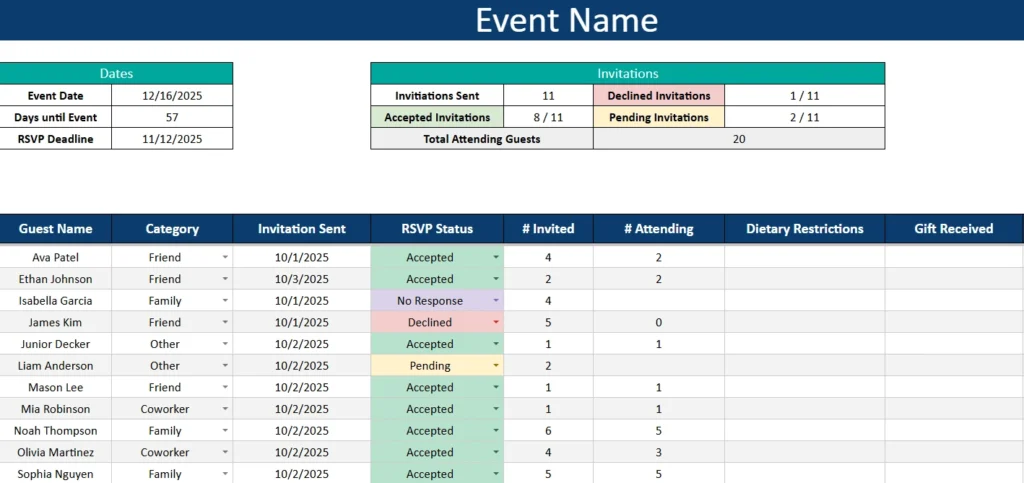
The first thing you’ll notice is a professional-looking summary section at the top of the sheet. This area gives you a quick snapshot of your event at any moment.
Event Information Box:
On the left, you’ll find the event name, event date, RSVP deadline, and an automatically calculated “days until event” counter. This feature helps you keep deadlines in mind without checking a calendar.
Invitation Summary:
On the right, there’s a color-coded table showing how many invitations have been sent, how many were accepted, how many declined, and how many are still pending. These numbers update automatically based on the responses you record in the guest list below.
Total Attending Guests:
At the bottom, the template totals the number of confirmed attendees so you always know your current headcount — useful for planning seating, catering, or venue capacity.
This summary turns your spreadsheet into a live dashboard, so even large events feel organized and easy to manage.
2. Guest List Table
Below the dashboard is the main table, where all guest details are stored. Each row represents one guest or household, depending on how you prefer to organize it.
Here’s what each column covers:
- Guest Name: Type the full name of your guest or family.
- Category: Choose from a dropdown list such as Family, Friend, Coworker, or Other. You can edit these categories in the “Dropdowns” sheet to match your event type (for example, VIP, Vendors, or Clients).
- Invitation Sent: Record the date when the invitation was sent.
- RSVP Status: Choose between Accepted, Declined, Pending, or No Response. The cell color changes automatically: green for accepted, yellow for pending, red for declined, and gray for no response.
- # Invited and # Attending: Track how many people were invited within that party and how many confirmed attendance. This helps you handle families or plus-ones easily.
- Dietary Restrictions: Add notes like Vegetarian, Vegan, Nut Allergy, or Gluten-Free so your caterer can prepare accordingly.
- Gift Received: A simple Yes/No dropdown helps you track post-event thank-you notes.
- Notes: An open field for anything else — seating preferences, table numbers, travel info, or reminders.
Every detail in this table is formatted for clarity and consistency. The dropdowns ensure that responses stay standardized, and the conditional formatting makes the sheet visually clear even for large lists.
3. The Dropdown Management Sheet
Behind the scenes, there’s a second tab called “Dropdowns.” This is where all the options for your data validation live — RSVP statuses, categories, and Yes/No values. You can customize these lists without altering your main data.
For example, if you’re planning a corporate event, you might replace Family and Friend with Staff, Partners, and Clients. If it’s a wedding, you could add Bride’s Family, Groom’s Family, or Vendors.
This flexibility makes the template reusable for any type of event.
Step-by-Step: How to Use the Guest List Excel Template
Using the template is easy, even if you’re not familiar with spreadsheets. Here’s a simple guide to getting started:
- Enter Your Event Details.
Update the top section with your event name, date, and RSVP deadline. The “Days until Event” field will automatically update based on the date you enter. - Add Your Guests.
In the table below, start adding names and details. Each row represents one guest or family group. - Select RSVP Statuses from Dropdowns.
Use the built-in dropdowns to mark whether each guest has accepted, declined, or hasn’t responded yet. The dashboard at the top will update instantly. - Track Attendance and Dietary Needs.
As RSVPs come in, fill in the “# Attending” column. You can also add notes about meal preferences or allergies for easy catering reference. - Update as You Go.
The more data you add, the more valuable the dashboard becomes. The totals and color cues help you visualize progress toward your guest goal. - Share with Others.
For collaborative events, share the sheet with your co-organizer or event planner. You can both edit the file and track updates in real time.
In less than five minutes, you’ll have a live, color-coded guest tracker that stays accurate from the first invitation to the last RSVP.
Why Event Planners Love This Template
This guest list Excel template was designed by people who actually use spreadsheets daily — so every formula and layout decision serves a real purpose.
Here are a few reasons users love it:
- Saves time: No manual counting — totals and percentages calculate automatically.
- Reduces mistakes: Dropdowns prevent inconsistent data like “Accepted” vs. “Accept.”
- Professional layout: The summary at the top looks polished enough to share with clients or venues.
- Fully customizable: Add or remove columns, change colors, or rename categories without breaking the formulas.
- Multi-event friendly: Copy the sheet and reuse it for future occasions — birthdays, fundraisers, or conferences.
For example, a wedding planner might use it to track hundreds of guests and dietary restrictions, while a corporate event manager could use it to manage clients and staff invitations for an annual gala. Even families hosting a reunion can benefit by tracking RSVPs and attendance numbers easily.
Start Planning with Confidence
If you’ve ever found yourself juggling invitation lists, email responses, and text messages, this guest list spreadsheet template will bring everything together in one place. It takes the guesswork out of event planning and replaces it with clarity.
You can view and edit it from your browser, on your phone, or in Excel. And best of all, it’s completely free.
Get Your Free Guest List Spreadsheet
- Free Template
- Fully Editable
- Instant Access
- Organize your information
How to Access Your Copy
- Enter your email for instant access
- Open the link we send you
- Start using the spreadsheet right away
With this template, you’ll always know exactly who’s coming — and your next event will feel effortless, professional, and perfectly planned.