Planning holidays and managing staff absences can quickly turn into a confusing mix of notes, messages, and calendar invites. The Holiday Tracker Excel template by Sheetrix brings order to that process by offering a simple, visual, and formula-powered way to log every type of absence across an entire year.
This template is designed for HR managers, small business owners, team leads, or anyone who needs a reliable record of who’s in and who’s out at any given time. Built in Google Sheets and fully compatible with Excel, it can be accessed from anywhere, updated collaboratively, and customized for your company’s specific leave policies.
A Complete Overview of the Holiday Tracker Template
The Holiday Tracker Excel template gives you a full-year view of attendance and absences in an organized grid layout. Each month has its own tab, each employee has their own row, and every day of the year has a corresponding column. You simply choose a letter code from a dropdown to mark the type of leave taken.
What makes this template powerful is its automation. Formulas instantly total both deductible absences (such as paid holidays or personal days) and non-deductible absences (such as sick leave or work from home). The built-in color coding lets you see at a glance how much time each employee has taken and which months have the most leave activity.
You can also manage everything from a single dashboard, which summarizes monthly data for the entire year. This makes the template especially useful for managers who need to review patterns, balance workloads, or prepare reports.
Key Features and Sections Explained
The template is divided into multiple sheets that connect automatically through formulas and data validation. Each section serves a distinct purpose to make the workflow intuitive and efficient.
Monthly Calendar Sheets
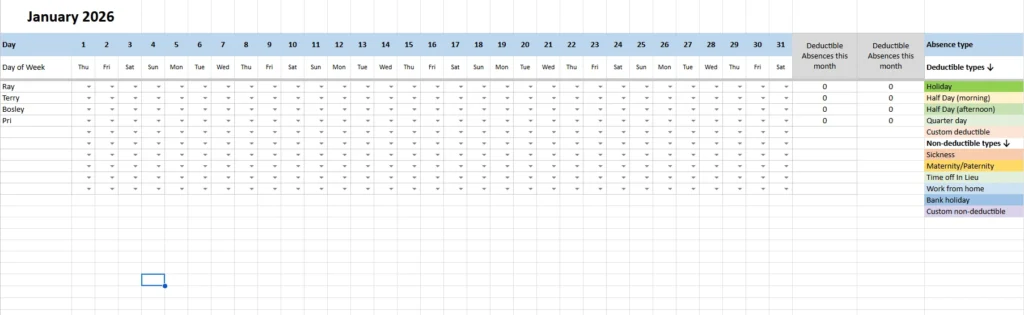
Each month from January through December 2026 has its own sheet. The top of each sheet lists all days of the month, along with the corresponding day of the week. The left column lists employees.
Inside the grid, you select a code from a dropdown menu to record an absence. Every cell can display one of several pre-defined codes, such as “H” for holiday, “S” for sickness, or “W” for work from home. Conditional formatting automatically fills the cell with a matching color, making patterns instantly visible.
Each employee’s row includes two automated columns at the end:
- Deductible Absences This Month: Adds up only those codes that reduce available leave (like holidays or personal days).
- Non-Deductible Absences This Month: Totals other codes like sick leave, work from home, or public holidays.
This automation means no manual calculations — just pick the right code, and totals update automatically.
Absence Type Legend
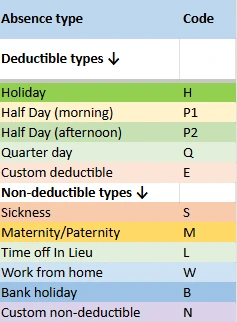
Every monthly sheet includes a clear, color-coded legend. It’s divided into two sections:
- Deductible types: These count against an employee’s vacation allowance and include Holiday (H), Half Day Morning (P1), Half Day Afternoon (P2), Quarter Day (Q), and Custom Deductible (E).
- Non-deductible types: These cover time off that doesn’t reduce leave, such as Sickness (S), Maternity/Paternity (M), Time Off in Lieu (L), Work from Home (W), Bank Holiday (B), and Custom Non-Deductible (N).
Each type has its own color shade — for instance, holidays appear green, sick days red, and remote days blue — so anyone reviewing the calendar can spot trends without reading every code.
Employees Sheet
The Employees sheet holds your master list of team members. This list automatically populates each monthly sheet through data validation, ensuring names stay consistent throughout the workbook. You can add new hires or remove former employees without editing every tab manually.
Deductible and Non-Deductible Summary Sheets
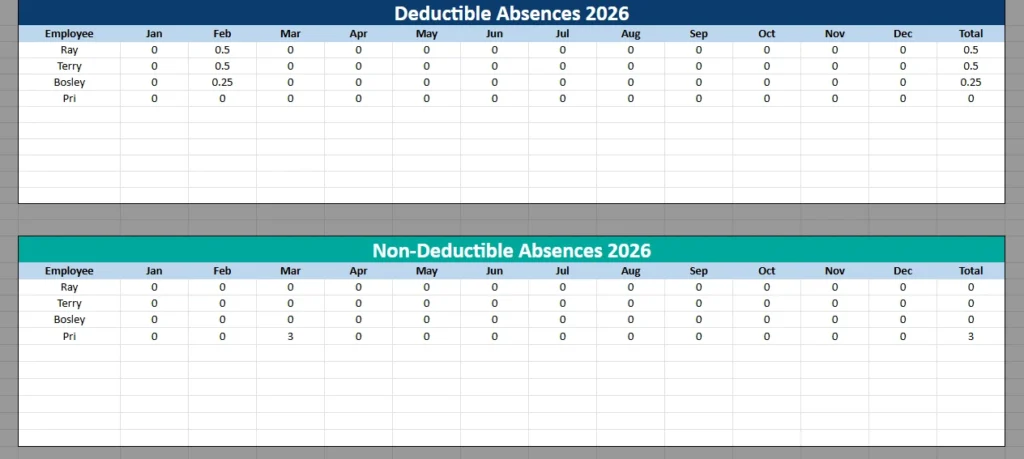
Two summary sheets consolidate information across all months.
- The Deductible Absences 2026 sheet displays totals for every employee per month and calculates a year-end total automatically.
- The Non-Deductible Absences 2026 sheet works the same way but focuses on absences that don’t count against paid leave.
Together, these summaries make it easy to see patterns such as which employees are taking frequent personal days, which months have more absences, and whether your team’s workload might need adjusting.
How to Use the Holiday Tracker Template
Getting started with this spreadsheet is simple even for users who aren’t spreadsheet experts. It’s already set up with all formulas, color rules, and dropdowns.
- Go to the Employees sheet and list all staff names. These will appear automatically in every monthly tab.
- Open a month, such as January 2026, and record absences by selecting the right code from the dropdown list under each date.
- Check the “Deductible” and “Non-Deductible” columns at the right — they’ll calculate totals instantly.
- Visit the summary sheets to review full-year totals by employee and month.
Because all formulas are built in, you never have to adjust anything manually. You can even filter by name or month to generate quick reports or identify absence trends.
Example: Small Team Usage
Imagine a small marketing agency with five employees. The manager can track annual leave (H), sick days (S), and work from home days (W) without needing any third-party HR software. If an employee takes half a day off, the manager simply chooses “P1” or “P2,” and the spreadsheet automatically counts 0.5 days.
By year’s end, the totals sheet shows exactly how many days each person took as holiday and how many were non-deductible — perfect for HR reporting or performance reviews.
Why Choose This Holiday Tracker Excel Template
This tracker stands out because it balances simplicity with real-world functionality. It’s flexible enough for any organization size yet detailed enough for accurate year-end reporting.
Here’s what makes it an excellent choice:
- No complicated setup: All formulas, validations, and color coding are ready to use.
- Full visibility: Every absence type is clearly distinguished, making it easy to review team attendance.
- Compatible with Excel and Google Sheets: Choose your preferred platform without losing functionality.
- Perfect for remote or hybrid teams: Track in-office days, work from home, and public holidays side by side.
- Automated totals: Save time and reduce calculation errors by letting formulas handle all the counting.
Unlike manual trackers or paid HR systems, this Sheetrix template is free, lightweight, and customizable. You can adjust codes, colors, and even add formulas to match your company’s HR policies.
Who Will Benefit Most
- Small businesses that need a centralized way to monitor attendance without paying for HR software.
- Department managers who want a visual summary of team availability each month.
- HR professionals managing leave requests for multiple teams.
- Freelancers and contractors who track billable vs non-billable leave days for client reporting.
Each of these users benefits from a single, unified spreadsheet that works as both a daily log and an annual overview.