If you’re tired of complicated invoicing tools or clunky PDFs, this Invoice Template Google Sheets is a clean, reliable way to send professional invoices in minutes. Designed for small businesses, freelancers, and consultants, it gives you full control of your branding and calculations — all inside a familiar spreadsheet layout.
Unlike most generic templates online, this one isn’t just a blank sheet. It comes with built-in formulas, organized sections, and an easy-to-follow layout that automatically calculates line totals, subtotals, taxes, and final balances. It’s made to look professional when printed or exported as a PDF, so you can send polished invoices without extra software or subscriptions.
A Clear Look at the Template and What It Offers
This Google Sheets invoice template is divided into logical sections that work together seamlessly, making it easy to understand and update. Here’s how it’s structured and what each section does.
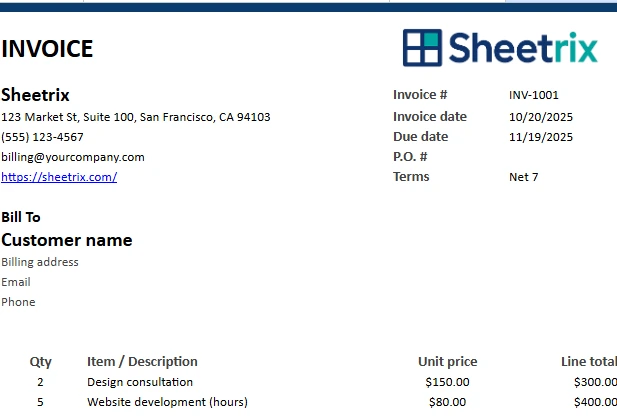
At the top, you’ll find your business header, which includes your logo, business name, address, phone number, and website. The layout is designed to fit perfectly within standard print margins, making it ideal for both digital and paper versions. The logo box is ready to use — just insert your own image using Insert → Image → Image over cells.
To the right of the header is your invoice summary block, which holds the invoice number, invoice date, due date, P.O. number, and payment terms. These fields are formatted to keep everything aligned and easy to read. You can enter your dates manually or let Google Sheets calculate them automatically with built-in formulas like =TODAY() for the current date and =TODAY()+30 for a 30-day due date.
Beneath the header is the Bill To section, where you enter the customer’s name, address, email, and phone number. This makes the template reusable for different clients — simply overwrite this section each time you create a new invoice.
The main part of the sheet is the itemized table, where the real power of the template shines. It has columns for quantity, item or service description, unit price, and line total. Each row automatically calculates its line total based on the quantity and unit price entered. You can add as many rows as you need, and the totals below will adjust automatically.
At the bottom right, you’ll find the summary and totals section, which displays your subtotal, discount, tax, shipping, total due, amount paid, and balance due. These cells are pre-formatted with currency formatting, and formulas handle all the math for you. If you add a discount or record a partial payment, the balance updates automatically.
Finally, there’s a notes section for payment instructions, thank-you messages, or special terms. This space is flexible — many users include bank details, PayPal or Zelle information, or simple payment reminders here.
Together, these sections make the spreadsheet a complete, professional invoicing solution that’s both practical and visually appealing.
Step-by-Step Guide: How to Use the Google Sheets Invoice Template
You don’t need to be an accountant or spreadsheet expert to use this template. Everything is designed to work right away, but here’s how to set it up properly the first time.
1. Enter your business details
Fill in your company information — name, address, phone, email, and website — at the top left. This info appears automatically on every printed invoice. Replace the sample logo by going to Insert → Image → Image over cells and adjusting it to fit the logo box.
2. Customize invoice fields
Edit the invoice number and date in the right-hand summary block. The due date field automatically calculates based on your terms (for example, Net 7, Net 15, or Net 30). You can also manually adjust it if needed.
3. Add your client details
Under “Bill To,” enter the customer’s name, address, and contact information. This keeps each invoice personalized and professional.
4. Fill in your services or products
In the item table, type a short description, quantity, and unit price. The line totals will update instantly. For example:
- 2 × Design consultation @ $150 each = $300
- 5 × Website development (hours) @ $80 each = $400
The subtotal, tax, and final balance will all update automatically at the bottom.
5. Adjust tax, discounts, or payments
If you need to include sales tax, update the tax cell with your rate. You can also apply discounts or record payments received — the balance due adjusts automatically.
6. Add payment instructions and notes
In the Notes section, replace the sample text with your payment details (for example, “Please make payment via bank transfer or card within 15 days”). This section is flexible enough to include thank-you messages or custom reminders.
7. Export your invoice as a PDF
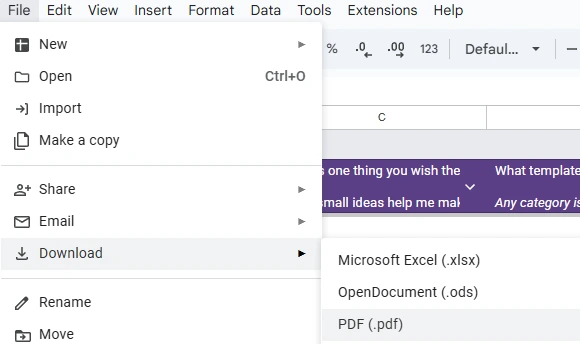
When ready to send your invoice, go to File → Download → PDF (.pdf). In the PDF settings:
- Change orientation from landscape to portrait
- Set paper size to Letter (8.5×11 in)
- Choose Fit to width (100%)
- Select Margins: Narrow (0.5 in)
Click Export, and you’ll have a clean, one-page invoice ready to send or print.
This simple workflow takes just a few minutes and creates a polished, ready-to-deliver invoice.
Why This Google Sheets Invoice Template Stands Out
There are hundreds of invoice templates floating around online, but most are either too basic or too rigid. What makes this one different is how it balances flexibility, automation, and print-readiness.
First, it’s completely editable. Every color, cell, and label can be customized to match your branding. You can add your logo, change fonts, or update the color scheme to match your business identity.
Second, it uses clean and reliable formulas that automatically calculate totals, taxes, and balances — without breaking when you insert or delete rows. You don’t need to worry about complex cell references or hidden sheets.
Third, it’s designed with printing and exporting in mind. Many invoice templates look fine on screen but fall apart when printed. This one fits perfectly on a single portrait page, giving your invoices a professional appearance every time.
Finally, it’s completely free and cloud-based. Because it’s built for Google Sheets, you can access it anywhere, share it with clients or team members, and make updates instantly — all without paying for invoicing software.
Who Can Benefit from This Template
This template is built for anyone who needs to send clear, professional invoices without complicated software. A few examples:
- Freelancers: Designers, writers, and developers can use it to bill clients per project or per hour.
- Consultants and agencies: Easily invoice for strategy sessions, retainers, or monthly services.
- Service providers: Plumbers, electricians, cleaners, or photographers can enter materials, labor hours, and travel costs quickly.
- Small businesses: Perfect for shops or startups that need a reliable, low-cost invoicing method.
Get Your Free Invoice Template Spreadsheet
- Free Template
- Fully Editable
- Instant Access
- Organize your information
How to Access Your Copy
- Enter your email for instant access
- Open the link we send you
- Start using the spreadsheet right away
It’s simple enough for beginners yet structured enough to handle recurring clients and multi-item invoices with ease.
Whether you’re a freelancer, business owner, or service provider, this spreadsheet will save time, prevent calculation errors, and help you present a polished image to your clients — every single time.