Managing personal payments doesn’t have to be complicated or time-consuming. The Personal Payment Tracker Spreadsheet by Sheetrix helps you take control of your monthly bills, recurring expenses, and due dates — all in one clear and easy-to-use dashboard. Built in Google Sheets, this tracker keeps your financial life simple by showing exactly what’s paid, scheduled, or past due at a glance.
Whether you’re tracking rent, credit card payments, or subscriptions, this spreadsheet makes it effortless to monitor your monthly flow of money. It’s designed for real-world use — flexible enough for anyone managing a personal budget, and smart enough to handle your entire payment schedule automatically.
A Closer Look at the Template
The Personal Payment Tracker is a one-sheet solution that combines a summary dashboard with a detailed tracker table. Everything you need appears right on one tab — no switching between pages or doing manual calculations. A small second tab called Lists provides the dropdown data that powers your categories, payment methods, and status options.
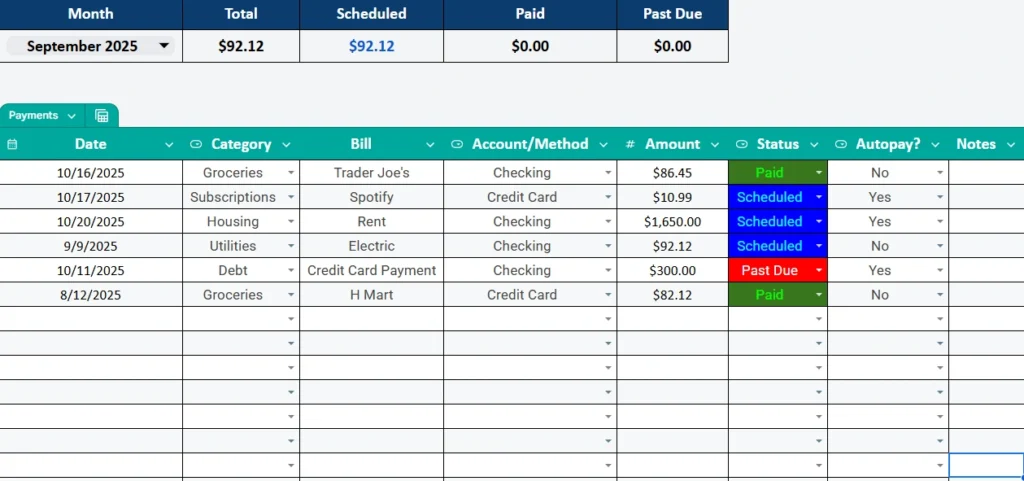
At the top of the main sheet, you’ll find a Month selector and a compact summary table. When you choose a month from the dropdown, your totals update instantly. The summary displays four key metrics:
- Total – the total amount of all payments for the selected month.
- Scheduled – the value of bills that are planned or upcoming.
- Paid – everything you’ve already completed.
- Past Due – anything that has missed its due date.
The rest of the sheet is where you log your actual payments. Each row represents a single bill or transaction, with simple dropdown menus to keep your data consistent and clean. The layout is practical, with a column for every important detail — from category and payee to payment method, amount, and notes.
If you’ve ever tried juggling multiple spreadsheets or apps for your finances, you’ll appreciate how this template condenses everything into one organized system. It’s quick to update, visually clear, and works perfectly for both one-time and recurring payments.
Main Features and How Each Section Works
The Payments (Personal) tab is the heart of the spreadsheet. It’s divided into two functional areas: a summary section at the top and a detailed list of payments below. Here’s how each part contributes to your workflow:
1. The Monthly Summary
The blue summary bar shows a snapshot of your month. The Month cell has a dropdown list where you can choose any date or month name. The spreadsheet automatically filters totals to that period, letting you see exactly how much you’ve paid, what’s scheduled, and what’s overdue. For example, if you select October 2025, the sheet calculates all your October entries and updates the summary cells without you lifting a finger.
2. The Payment Table
Below the summary, the tracker uses a simple table format with filters on every column. You can sort or filter by due date, category, or payment method, depending on what you need to see. The columns include:
- Date: The payment or due date.
- Category: The type of expense — like Housing, Utilities, Groceries, or Debt.
- Bill/Payee: The vendor or person you’re paying.
- Account/Method: Where the payment comes from — Checking, Credit Card, PayPal, or Cash.
- Amount: The dollar value of the payment.
- Status: A dropdown menu with options like Paid, Scheduled, Past Due, or Skipped.
- Autopay: Marks whether the bill is automatically charged each cycle.
- Notes: Any extra details you want to include, such as confirmation numbers or reminders.
Each status type is color-coded to make your sheet easy to scan. Paid rows appear green, Scheduled ones are blue, and Past Due items stand out in red. These visual cues make it obvious which payments need attention without reading through every line.
3. The Lists Tab
Behind the scenes, the Lists tab stores all dropdown data — categories, payment methods, and status options. You can edit these lists anytime to fit your personal setup. For instance, you might add “Childcare,” “Gym,” or “Streaming Services” to your Category list, or create new payment methods like “Venmo” or “Apple Pay.” The main sheet updates instantly when you modify these lists.
Step-by-Step: How to Use the Template
You can start using the Personal Payment Tracker right after copying it to your Google Drive. It’s simple enough for beginners but detailed enough for anyone managing multiple bills.
Step 1: Choose the Current Month
At the top left of the sheet, click the Month cell and pick the current month from the dropdown. The summary boxes will reflect all payments in that time frame.
Step 2: Add Your Payments
Scroll down to the table and begin logging your bills. Each line represents one payment. For example:
- Category: Utilities
- Bill: Electric Company
- Account/Method: Checking
- Amount: $92.12
- Status: Scheduled
- Autopay: Yes
You can fill in as many rows as you like — the sheet is fully expandable.
Step 3: Track Progress Over Time
As you mark bills as Paid, the totals at the top update automatically. If a due date passes without payment, the sheet highlights that row in red to flag it as overdue.
Step 4: Customize Your Categories
If you want to track personal goals, savings transfers, or side income, just open the Lists tab and add new categories. The dropdown will reflect your changes immediately.
Step 5: Review Monthly Totals
Each time you change the month at the top, your totals adjust to show that period’s results. It’s an easy way to review your spending and catch any missed payments.
Because this tracker is built in Google Sheets, you can also use filters to analyze your data. For example, you might filter “Autopay = Yes” to view all automatic charges, or sort by “Amount” to see your largest monthly expenses.
Why This Payment Tracker Stands Out
Unlike complex budgeting tools or apps with subscription fees, this spreadsheet is completely transparent and customizable. It’s designed for personal use — not as a business ledger, but as a simple companion for everyday financial tracking.
Here’s why users love it:
- No setup needed: All formulas and dropdowns are built in. You can start tracking within minutes.
- Instant updates: The summary recalculates totals in real time as you change months or statuses.
- One-page simplicity: Everything you need — overview, data entry, and color-coded progress — fits on one screen.
- Perfect for recurring bills: The Autopay and Recurrence options make it easy to track subscriptions, memberships, and other repeating expenses.
- Google Sheets flexibility: Accessible anywhere and easy to share, so you can update it from your phone, tablet, or desktop.
This tracker is ideal for individuals, couples, or families who prefer a practical system over complicated budgeting software. It’s also a great solution for anyone building better money habits — like students learning to manage bills or freelancers handling both personal and work-related payments.
Get Your Free Payment Tracker Spreadsheet
- Free Template
- Fully Editable
- Instant Access
- Organize your information
How to Access Your Copy
- Click the download button below
- Open the link we send you
- Start using the spreadsheet right away
Final Thoughts
Staying organized with bills and payments is one of the simplest ways to reduce financial stress. The Personal Payment Tracker Spreadsheet gives you a clear monthly picture of where your money goes, what’s due next, and what’s safely paid off. It replaces guesswork with visibility — and gives you full control without expensive apps or subscriptions.
Whether you’re trying to stay current on bills, plan ahead for recurring charges, or simply understand your spending patterns, this tracker makes it easy. It’s flexible, efficient, and 100% free to use in Google Sheets.
Start building better payment habits today — access the Personal Payment Tracker Spreadsheet and take charge of your finances, one month at a time.