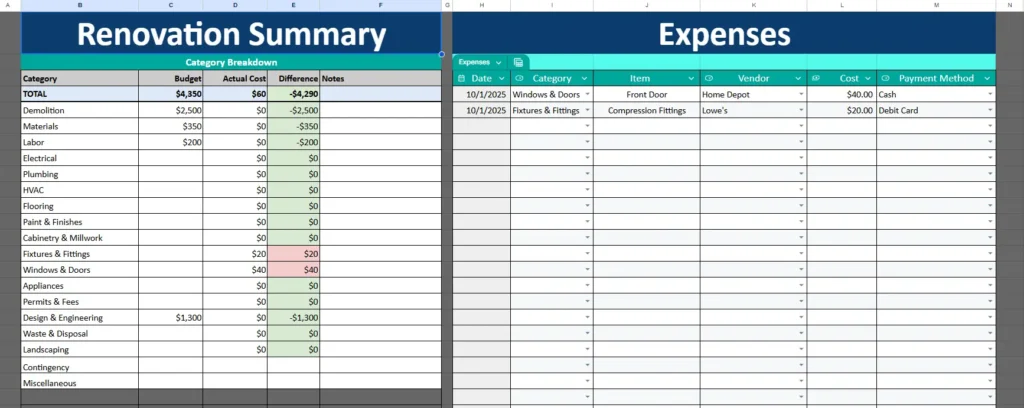
If you’re preparing for a home renovation, you already know how quickly costs can spiral out of control. Between contractors, materials, and unexpected surprises, it’s easy to lose track of where your money is going. The Renovation Budget Template from Sheetrix is built to simplify that entire process. Designed in Google Sheets, it gives you an organized, transparent view of your renovation costs—whether you’re managing a small bathroom remodel or a complete home renovation.
This template was created for anyone who wants to confidently manage renovation expenses, avoid budget overruns, and keep every receipt and cost neatly recorded. It’s simple enough for homeowners and powerful enough for project managers, flippers, or contractors who handle multiple renovations at once.
Overview of the Renovation Budget Template
This Renovation Budget Template (Google Sheets) is designed to give you both a high-level view of your renovation costs and a detailed log of every expense. It’s structured with easy-to-navigate sheets, built-in dropdown menus, automatic calculations, and color-coded indicators that make tracking progress effortless.
Everything is set up and ready to go—just make a copy of the Google Sheet, add your budget estimates, and start recording expenses as you spend. The summary automatically updates totals, showing you how close you are to your budget and which areas might need more attention.
The layout is clean and minimal, focusing on functionality and accuracy. You’ll find the essential budget categories already listed (Demolition, Labor, Plumbing, Flooring, etc.) so you can start planning immediately without worrying about formatting or formulas.
Key Features and Sections That Make Budgeting Easy
What sets this renovation tracker apart is how each section works together. You can track your planned costs, record your real expenses, and instantly see the difference—all in one connected sheet.
Renovation Summary Sheet
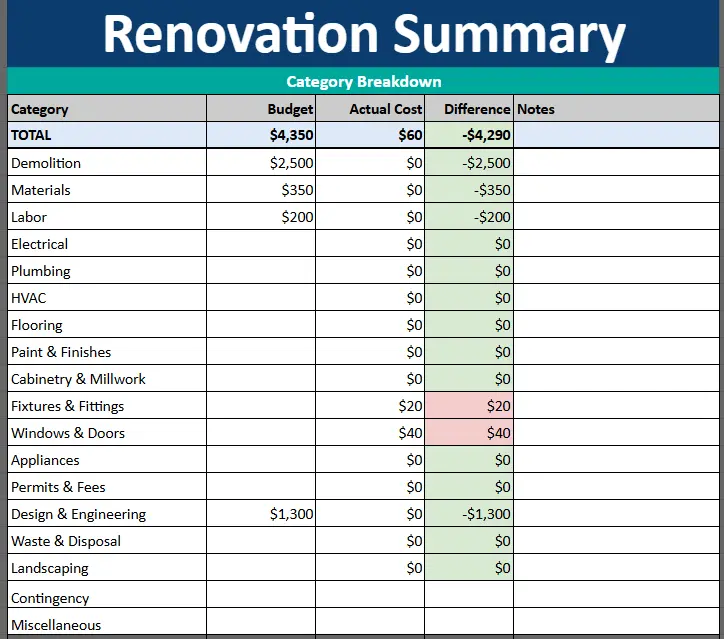
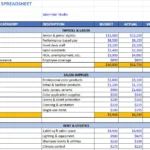
The Renovation Summary sheet is your control center. Here you’ll find all the major budget categories along with columns for Budget, Actual Cost, and Difference. The spreadsheet automatically calculates how much you’ve spent versus how much you planned.
For example, if you budgeted $2,000 for flooring and recorded $1,750 in actual expenses, the sheet shows that you’re $250 under budget—highlighted in green. If you go over budget, the cell turns red, instantly alerting you that costs are running higher than expected.
You’ll see all the main renovation categories already listed:
- Demolition for tearing out walls, fixtures, or old flooring
- Materials for supplies like paint, tiles, or lumber
- Labor for contractor or handyman costs
- Electrical and Plumbing for technical installations
- Flooring, Paint & Finishes, Fixtures & Fittings, and more
At the top of the summary, the Total Row combines every category, giving you a complete snapshot of your renovation’s financial health. This summary updates automatically—no manual math required.
Expenses Sheet
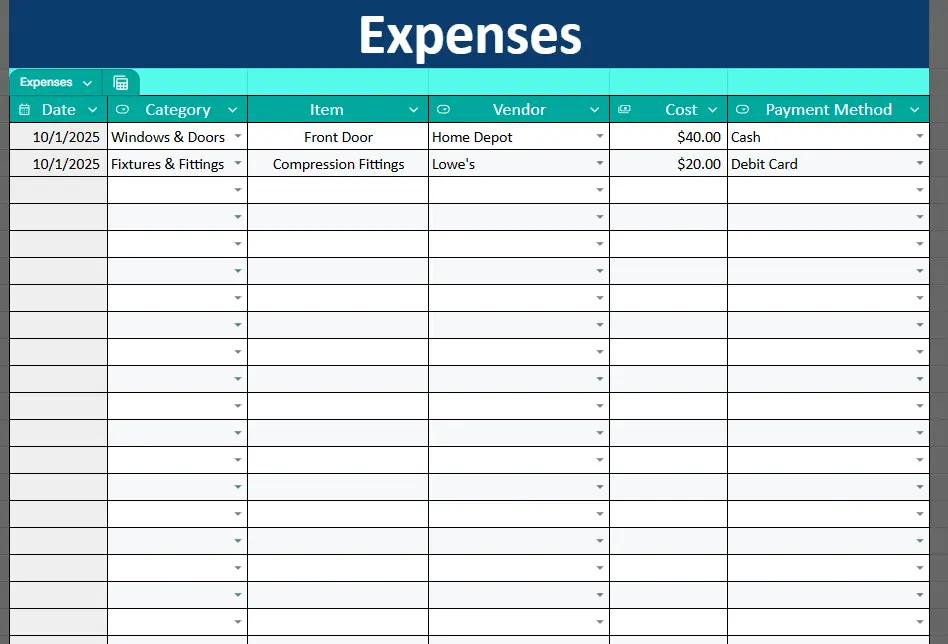
The Expenses sheet gives you the detailed view. This is where you log every purchase, invoice, or payment made throughout your project. Each entry includes:
- Date – When the purchase or service occurred
- Category – The area it applies to (e.g., Plumbing, Flooring, Materials)
- Item – A short description like “Front Door” or “Compression Fittings”
- Vendor – Where you bought it (Home Depot, Lowe’s, Amazon, etc.)
- Cost – The actual amount spent
- Payment Method – How you paid (Cash, Credit Card, Bank Transfer, etc.)
Dropdown menus make data entry easy and consistent—you won’t accidentally mistype category names or vendors. Every expense you record here contributes to your totals in the Renovation Summary, ensuring the numbers always stay accurate.
You might, for instance, record two expenses:
- On October 1, you bought a Front Door from Home Depot for $40, paid in Cash.
- The same day, you purchased Compression Fittings from Lowe’s for $20, paid by Debit Card.
These expenses would automatically appear in the Fixtures & Fittings and Windows & Doors categories of your summary sheet, updating your totals and color indicators in real time.
Lists Sheet
The Lists section acts as the behind-the-scenes reference for dropdown options. It stores your Payment Methods (Cash, Debit Card, Credit Card, etc.) and Vendors (Home Depot, Lowe’s, IKEA, Amazon, Local Contractor, etc.). You can easily add or modify these lists to suit your project’s needs.
If you frequently work with certain suppliers, just add their names here once—and they’ll appear as selectable options throughout your sheet. It’s a simple touch that keeps your records standardized and tidy.
How to Use the Template for a Real Renovation Project
The beauty of this template lies in its simplicity. It’s built to save you time, prevent mistakes, and help you make data-driven decisions throughout your renovation.
- Make a Copy of the Google Sheet
Click “File → Make a Copy” to add it to your Google Drive. You’ll now have a fully editable version. - Set Your Initial Budget
Go to the Renovation Summary sheet and enter your estimated budget for each category. Think through everything—materials, labor, permits, and contingencies. For instance, you might estimate $3,000 for demolition, $500 for flooring, and $1,200 for paint. - Track Your Actual Spending
Each time you make a purchase or pay a contractor, log it in the Expenses sheet. Select the correct category and payment method from the dropdowns. - Review Your Budget Progress
The Renovation Summary automatically updates with every expense. Check the “Difference” column to see where you’re over or under budget. Red cells show overspending, while green cells highlight savings. - Adjust and Monitor as You Go
Renovation budgets aren’t static—things change. Use the live totals to rebalance spending if one category goes over. You can shift funds from contingency or make smarter purchasing decisions mid-project.
Because it’s a Google Sheet, you can open it from your phone, share it with your contractor, or collaborate in real time with your partner. It’s flexible enough for anyone managing a renovation of any size.
Why This Renovation Budget Template Stands Out
Unlike generic spreadsheets that require setup, formulas, and formatting, this template comes fully built and optimized for real-world renovation use.
Here’s why users love it:
- Visual clarity: The color-coded system immediately tells you where you stand financially.
- Automatic calculations: Every total, difference, and overall balance updates in real time.
- No Excel knowledge needed: You don’t have to know formulas—everything is already built in.
- Customizable lists: Add your own vendors, categories, and payment options easily.
- Accessible anywhere: As a Google Sheet, it works across devices and syncs automatically.
It’s ideal for:
- Homeowners renovating kitchens, bathrooms, or basements
- Property investors tracking rehab projects
- DIY enthusiasts managing weekend remodeling jobs
- Contractors or project managers needing a client-facing cost tracker
Realistic use cases include:
- Planning a $15,000 kitchen remodel and tracking every expense from demolition to appliances.
- Managing a rental property renovation with separate sheets for each unit.
- Keeping receipts organized for a home office or design project.
This isn’t just a spreadsheet—it’s a smart renovation companion that keeps your budget under control and your project stress-free.
Get Your Free Renovation Budget Spreadsheet
- Free Template
- Fully Editable
- Instant Access
- Organize your information
How to Access Your Copy
- Enter your email for instant access
- Open the link we send you
- Start using the spreadsheet right away
With the Sheetrix Renovation Budget Template, you’ll never lose track of your spending or wonder where your money went again. Stay organized, stay within budget, and take the guesswork out of your next renovation project.