Managing restaurant inventory effectively is one of the biggest factors in running a smooth, cost conscious operation. Whether you are running a small café, a busy full service restaurant, a food truck, or a catering company, having a reliable system in place helps prevent waste, reduce ordering mistakes, and keep food costs predictable. This restaurant inventory template was designed to simplify the entire process by bringing all your counts, categories, and calculations into one organized Google Sheets file.
The template includes two connected sheets that work together. The first is an easy to read Inventory sheet where you enter all your ingredients, disposables, and supplies. The second is a Dropdowns sheet that stores your categories and updates the menus used in the main table. Because the layout is simple and the formulas run automatically, anyone on your team can use it without training. The goal is to create a practical tool that improves your weekly counts, not something complicated that takes time to figure out. By keeping everything structured in a clear table, the template lets you see your total inventory value, reorder needs, and stock levels at a glance.
Restaurant owners, managers, chefs, and kitchen leads all benefit from having a consistent process for tracking stock. This template provides that setup so you do not have to build one from scratch. You can customize categories, add new items, and adjust par levels to match exactly how your operation runs.
Key Features and Sections
This restaurant inventory template includes several practical features designed to make tracking faster, more accurate, and easier to review. Each section of the sheet plays a specific role and helps give you a complete picture of your current stock.
Inventory Sheet
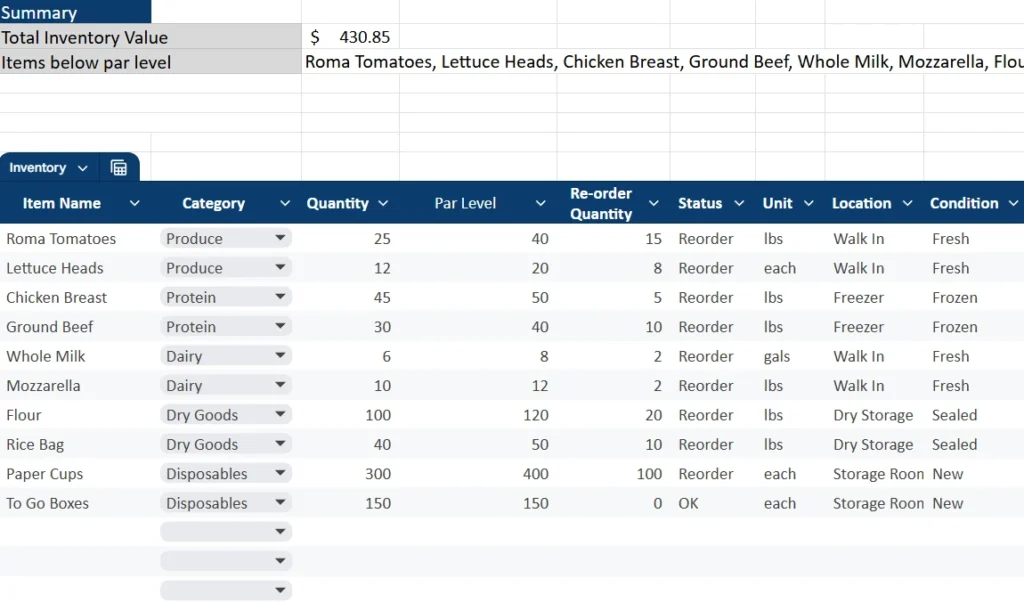
The Inventory sheet is the main working area where all tracking takes place. It is set up as a clean table with filters and dropdown menus so you can sort, search, and organize your items quickly. Each row represents a single ingredient or product, and each column stores information that helps you understand how much you have, what it is worth, and whether you need to reorder it.
The columns include:
- Item Name: A simple description such as Roma Tomatoes, Chicken Breast, Flour, or Paper Cups.
- Category: A dropdown menu linked to the Dropdowns sheet so you can group items into Produce, Protein, Dairy, Dry Goods, Disposables, or any categories you choose to add.
- Quantity: The current count on hand.
- Par Level: The minimum quantity you want to keep in stock.
- Re order Quantity: The number of items needed to reach your par level again.
- Status: A formula powered field that changes automatically to Reorder or OK depending on your current stock.
- Unit: The measurement used for that item such as lbs, cases, gallons, or each.
- Location: Where the item is stored. This might be Walk In, Freezer, Dry Storage, or Storage Room.
- Condition: A simple note such as Fresh, Frozen, Sealed, or New.
- Supplier: The vendor for that item.
- Purchase Date: The last date you received stock.
- Cost per Unit and Total Value: These fields calculate the value of your inventory so you always know how much product is sitting on your shelves.
This layout keeps everything consistent and easy to scan. When you enter new quantities, the formulas update the total inventory value at the top of the sheet and also update the list of items that are below their par level. This means you can complete an inventory count faster and check ordering needs instantly.
Dropdowns Sheet

The Dropdowns sheet controls the category dropdown menus used in the main inventory table. This sheet includes a simple list of categories that you can edit at any time. When you add a new category to this list, it appears automatically as a dropdown option on the Inventory sheet.
This setup helps keep the main sheet clean and stable. You only need to adjust categories in one place, and the changes sync everywhere else. If your restaurant adds a bar program, expands a bakery area, or begins offering catering boxes, you can add new categories here without needing to redesign the entire template.
Keeping categories in a dedicated sheet improves accuracy because team members can only select valid categories, which reduces sorting errors and helps maintain consistent reporting.
How to Use the Template
This template works best when you follow a repeatable process. The steps below explain how to use it daily, weekly, or during monthly cost checks.
Step 1. Enter Your Items in the Inventory Sheet
Start by listing the items you want to track. Enter each ingredient or supply on its own row. Examples include Roma Tomatoes, Ground Beef, Whole Milk, Mozzarella, Flour, Rice Bags, Paper Cups, and To Go Boxes. Add the category for each item using the dropdown menu. You can adjust these categories at any time in the Dropdowns sheet.
Be sure to set the correct unit for each item. Pounds, each, gallons, and cases are common measurements in restaurants. Unit consistency helps prevent confusion when multiple managers or cooks complete inventory.
Step 2. Set Par Levels for Every Item
A par level is the target amount you want to have on hand at all times. Par levels help avoid stockouts during busy service hours and keep ordering consistent. For example, if you know your kitchen uses about 20 pounds of tomatoes each day and you receive produce twice a week, you might set your par level at 40 pounds. This gives you enough buffer to handle busy weekends or menu spikes.
Once you enter the par level, the Status column will automatically display Reorder when your quantity drops below that number. This helps your purchasing decisions because you can scan the sheet and instantly see which items need attention.
Step 3. Track Quantity and Re order Amounts
The Quantity column is your live count. Update it weekly or daily depending on how often your restaurant takes inventory. When you change the quantity, the Re order Quantity adjusts automatically. This number tells you exactly how much you need to order to reach your par level again.
For high turnover items such as produce and dairy, updating the sheet regularly helps keep your numbers fresh. For lower turnover items such as disposables or equipment, you may only need to adjust the numbers monthly.
Step 4. Enter Costs and Track Total Value
The Cost per Unit column lets you see the financial side of your inventory. When you enter a unit cost, the Total Value calculates instantly. This helps you understand how much money is tied up in stock and gives you insight into cost control.
The summary area at the top of the sheet shows the total inventory value. Restaurants that monitor this number tend to have better food cost control because they can see changes over time and adjust ordering patterns early.
Step 5. Maintain the Dropdowns Sheet for Smooth Operation
Whenever you want to add new categories, go to the Dropdowns sheet and enter them there. This keeps your categories consistent and ensures the dropdown menus stay organized. Restaurants often add new categories when they expand their menu or grow their supply list, so this sheet gives you flexibility without needing to alter the main table structure.
Why Choose This Template
This restaurant inventory template was designed to be practical for real world kitchen operations. Instead of creating a complicated system with too many formulas, it focuses on clarity, accuracy, and ease of use. Here are some reasons it works so well for restaurants of all sizes.
It saves time because the table is structured for fast entry during inventory counts. The automated status and total value fields reduce manual calculations and prevent mistakes. The template is flexible because you can add any category, supplier, or product without breaking the sheet. It is also ideal for teams because anyone can learn to use it in minutes.
This setup works for many types of operations. Chefs can use it to manage fresh ingredients, bar managers can track beverages and disposables, and owners can monitor total inventory value for cost planning. Food trucks and catering companies benefit as well because they often work with limited space and need tight control over stock.
Because it is built in Google Sheets, you can share it with your staff and update it from any device. This creates a smoother workflow for ordering, counting, and reviewing costs each week.
Conclusion
A strong inventory system is one of the most effective ways to control food costs and keep your restaurant running efficiently. This restaurant inventory template gives you a clear, organized structure for tracking your products, calculating totals, and identifying reorder needs. The automatic formulas, clean dropdowns, and simple layout make it easy for anyone on your team to use.
Get Your Free Restaurant Inventory Spreadsheet
- Free Template
- Fully Editable
- Instant Access
- Organize your information
How to Access Your Copy
- Enter your email for instant access
- Open the link we send you
- Start using the spreadsheet right away