If you flip sneakers on the side or run a full-time resell operation, keeping track of your numbers is what separates a hobby from a real business. Most resellers start out with a basic notes app or a rough list somewhere, and quickly realize that gut feeling is not a reliable accounting system. This free sneaker reseller spreadsheet for Google Sheets gives you a clean, organized way to track every pair you buy and sell, monitor your profit in real time, and actually understand how your business is performing.
Whether you are just getting started with a few pairs a month or managing a rotating inventory of dozens of shoes across multiple platforms, this template scales with you. Download it once, add your data, and let the formulas do the heavy lifting.
Overview of the Template
This sneaker reseller tracker was built specifically for people who buy and resell footwear, from thrift store finds and retail releases to raffle wins and liquidation lots. It is a Google Sheets template, meaning you can access it from any device, share it with a business partner, and never worry about losing your data.
The template is organized across two tabs: a main Tracker sheet where all your data lives, and a combined Dashboard and Dropdowns sheet that gives you a high-level view of your business while keeping your input options consistent.
The goal was to build something that looks professional and actually works, without requiring any spreadsheet experience. Every calculation is handled automatically. You just fill in the details for each pair and the template takes care of the rest.
A realistic user of this template might be a college student flipping Jordans on eBay and Depop, a weekend reseller who picks up Nike deadstock from thrift stores, or a more serious operation moving 20 to 30 pairs a month across StockX, GOAT, and Facebook Marketplace. The template works for all of them.
Key Features and Sections
The Tracker Sheet
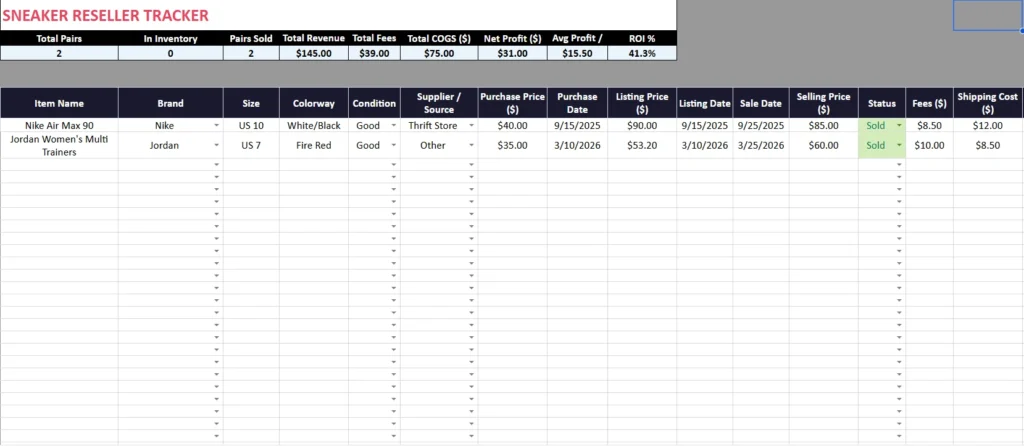
The Tracker sheet is where everything happens. Each row represents one pair of sneakers, and each column captures a specific detail about that transaction. The columns cover:
Item details: Item Name, Brand, Size, Colorway, and Condition. These help you stay organized when you have a lot of inventory and need to quickly identify a specific pair. For example, you might have three pairs of Nike Air Max 90s in different sizes and colorways, and having those details in separate columns makes filtering and sorting much easier.
Sourcing info: Supplier or Source and Purchase Type tell you where the pair came from and how you acquired it. Options include Thrift Store, eBay, StockX, Liquidation Lot, Raffle, and more. Tracking this over time helps you figure out which sourcing channels consistently produce the best margins.
Financial columns: Purchase Price, Listing Price, Selling Price, Fees, and Shipping Cost are the core numbers. The Profit column calculates automatically using the formula: Selling Price minus Fees minus Shipping Cost minus Purchase Price. So if you bought a pair for $40, sold it for $85, paid $8.50 in fees, and spent $12 on shipping, your profit shows as $24.50 without you having to do any math.
Date columns: Purchase Date, Listing Date, and Sale Date are included. These feed into the Days to Sell column, which automatically calculates how long each pair took to move from listing to sale. This is useful data if you want to understand which brands or platforms sell fastest.
ROI %: Each row includes a per-pair return on investment percentage, calculated as profit divided by purchase price. A pair bought for $35 and sold for a $6.50 profit has an ROI of about 18.6%. Tracking this column helps you compare deals and recognize patterns in what is worth buying.
Status and Store or App: The Status column uses a dropdown (Sold, Listed, Unlisted, Returned, Donated) so the summary totals stay accurate. The Store or App column tracks which platform the sale happened on, which feeds directly into the Dashboard.
The Dashboard Sheet
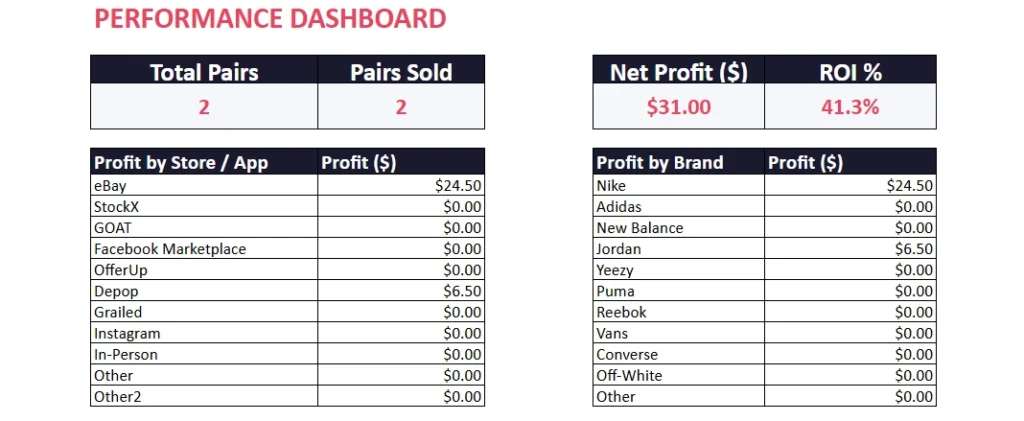
The Dashboard gives you a snapshot of your business performance without digging through individual rows. At the top, you get four KPI tiles: Total Pairs, Pairs Sold, Net Profit, and ROI %. These pull live from the Tracker, so they update the moment you add or change data.
Below the KPIs, there are two breakdown tables. The first is Profit by Platform, showing how much you have earned on each selling channel. If you are moving product on eBay and Depop, you can see at a glance which platform is actually putting more money in your pocket. A reseller running the same sneakers across multiple apps might discover that their Depop sales consistently outperform eBay after fees, which would be a useful signal for where to focus listing time.
The second table is Profit by Brand, which breaks down your earnings by sneaker brand. Over time, this tells you whether your Nike pickups are outperforming your Adidas flips, or whether a newer brand in your rotation is punching above its weight.
The Dropdowns Sheet
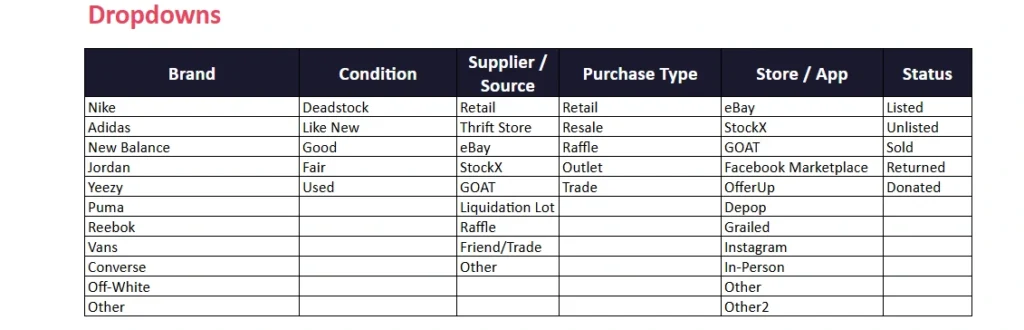
The Dropdowns section lives on the same tab as the Dashboard and serves as the source list for all the dropdown menus throughout the Tracker. Brands include Nike, Adidas, New Balance, Jordan, Yeezy, Puma, Reebok, Vans, Converse, Off-White, and Other. Condition options run from Deadstock to Used. Status choices cover Listed, Unlisted, Sold, Returned, and Donated.
Having a centralized list like this keeps your data clean. If every sale shows “eBay” spelled the same way, the Dashboard formulas can accurately group and total them. Inconsistent entries like “ebay” or “E-Bay” in the same column would break those calculations.
How to Use the Template
Using the template is straightforward. After downloading and opening it in Google Sheets, you will see the Tracker sheet by default with one sample row already filled in. You can either clear that row and start fresh, or use it as a reference while you add your own data.
Start by entering your oldest or most recent purchase at the top of the table. Fill in the item name, brand, size, colorway, and condition. Then move through the financial columns: purchase price, listing price, and your selling details once the pair moves.
The Profit, Days to Sell, and ROI % columns will calculate on their own. You do not need to enter anything in those cells. Similarly, the summary bar at the top of the Tracker and the KPI tiles on the Dashboard will update automatically.
For ongoing use, just add a new row each time you acquire a pair. Update the Status dropdown when a listing sells. The Dashboard will reflect your latest numbers in real time.
If you want to filter your data, use the column headers in the Tracker table. You can filter by Brand to see all your Jordan inventory, or by Status to view everything currently listed. Sorting by Profit or ROI % is a quick way to identify your best and worst deals at a glance.
Why Choose This Template
There are plenty of generic expense trackers and sales logs out there, but most of them were not built with sneaker reselling in mind. This template includes the columns that actually matter for this specific business model: sourcing channels, platform fees, shipping costs, days to sell, and per-pair ROI. You are not adapting a one-size-fits-all template to your workflow. The workflow is already built for you.
It runs entirely in Google Sheets, so there is nothing to install and no subscription to manage. You can access it on your phone after a thrift store pickup, update a sale from your laptop, and share it with a partner or accountant without any extra steps.
The formulas are clean and transparent. You can see exactly how every number is calculated. If you ever want to customize a column or add a new platform to the dropdown list, the structure makes that easy to do without breaking anything.
Resellers who track their numbers closely make better buying decisions. When you can see that your average ROI on Thrift Store sourcing is 45% versus 18% on eBay resale purchases, you start spending your sourcing time more strategically. When you notice that pairs on GOAT take three times as long to sell as pairs on Facebook Marketplace, you can factor that into your pricing and cash flow planning.
Download Your Free Sneaker Reseller Spreadsheet
- Free Template
- Fully Editable
- Instant Access
- Organize your information
How to Access Your Copy
- Enter your email for instant access
- Open the link we send you
- Start using the spreadsheet right away