Managing recurring payments has become a monthly challenge for most people. Between streaming platforms, software tools, cloud storage, and memberships, it’s easy to lose track of what you’re paying for—and when. To make things easier, we created a Subscription Tracker Spreadsheet for Google Sheets that keeps everything organized in one place. It helps you see all your subscriptions, their costs, renewal dates, and total spending without needing extra apps or manual math.
This guide explains exactly how the spreadsheet works, what’s inside it, and how you can use it to stay on top of every renewal and expense.
Overview of the Template
The Subscription Tracker Spreadsheet is built to simplify the process of tracking monthly and annual payments. It’s clean, automated, and designed for anyone who wants to manage their subscriptions efficiently—whether it’s for personal budgeting, family accounts, or small business tools.
The template is divided into two main sheets:
- Subscriptions – the central tracking page where you record every service you use.
- Dashboard – an automatically updating summary that shows your total spending and upcoming renewals.
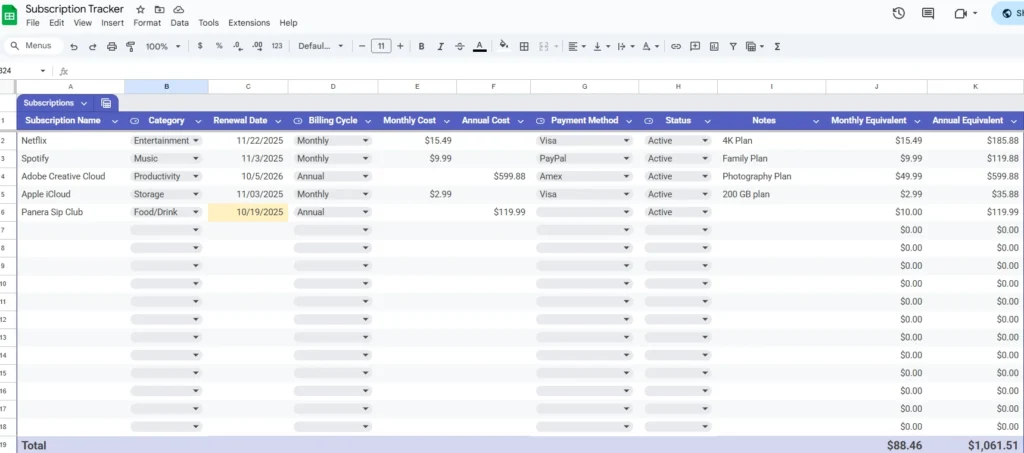
The Subscriptions sheet includes all the details that matter most—such as the subscription name, category, billing cycle, renewal date, monthly and annual cost, payment method, and account status. It even includes formulas to automatically calculate your total spending per month and per year.
Meanwhile, the Dashboard pulls information from the Subscriptions sheet and displays it in an easy-to-read summary. It shows your total monthly equivalent cost, total annual equivalent cost, your next renewal date, and a category-based breakdown of where your money goes.
Together, these two sheets give you a complete picture of your recurring expenses and help you make smarter financial decisions.
Key Features and Sections
The spreadsheet was designed to be both functional and user-friendly. Every section serves a specific purpose, and all calculations happen automatically so you can focus on reviewing insights instead of entering formulas.
Comprehensive Subscription List:
In the main sheet, you’ll find columns for the subscription name, category, renewal date, billing cycle, and costs. The category column includes dropdown options like Entertainment, Music, Productivity, Storage, and Utilities—making it easy to organize and filter your data.
Automatic Monthly and Annual Calculations:
You only need to enter either a monthly or annual cost, and the spreadsheet fills in the rest. For example, if you mark “Annual” and enter $120, the sheet automatically calculates the equivalent $10 monthly cost. The formulas ensure accuracy without requiring manual adjustments.
Payment and Status Tracking:
You can select your payment method (Visa, PayPal, Amex, etc.) and the subscription’s status (Active, Paused, or Cancelled). This is especially useful for people who manage multiple cards or share family subscriptions, as it helps you remember which card is linked to each account.
Total Row for Quick Insights:
At the bottom of the Subscriptions sheet, a total row adds up your monthly and annual equivalents. If you ever wonder how much you’re spending per month across all your subscriptions, the total is calculated instantly.
Dashboard Summary:
The second sheet, titled “Subscription Tracker Dashboard,” displays all your key metrics in one place. It includes your total monthly cost, total annual cost, and the next upcoming renewal date. It also lists each category along with its total monthly and annual spending, giving you a clear view of where your budget goes.
Conditional Formatting:
Renewals within the next seven days are automatically highlighted, so you’ll always know which charges are coming soon. This small detail helps prevent surprise renewals or overdraft issues.
How to Use the Template
Using the template is simple, even if you’re new to spreadsheets. It’s designed so anyone can get started immediately.
- Open and copy the template:
Upload the file to Google Sheets and make your own copy by clicking File → Make a Copy. This ensures you can edit and personalize it freely. - List your subscriptions:
In the Subscriptions sheet, add one service per row. Enter details such as the subscription name, billing cycle, renewal date, and payment method. You can include anything from entertainment apps like Netflix and Spotify to business tools like Canva or Adobe Creative Cloud. - Add your costs:
If your plan is billed monthly, fill in the monthly cost; if it’s billed annually, enter the annual cost. The other field will fill automatically based on formulas. - Review your totals:
Scroll to the bottom to see your total monthly equivalent and annual equivalent spending. This instantly tells you how much you’re paying overall. - Use the dashboard:
Switch to the Dashboard tab to see summarized totals, category breakdowns, and the next renewal date. This section updates automatically every time you change something in the main sheet.
Example:
Let’s say you pay $15.49 for Netflix (monthly), $9.99 for Spotify (monthly), $599.88 annually for Adobe Creative Cloud, and $2.99 monthly for Apple iCloud. The spreadsheet will show your total monthly equivalent as $78.46 and your total annual equivalent as $941.52. Your dashboard will also highlight that Spotify renews next on November 3, giving you a clear timeline for upcoming payments.
This level of automation makes it easy to stay organized without constantly recalculating totals.
Why Choose This Template
There are many ways to track subscriptions, from mobile apps to budgeting software, but a spreadsheet offers flexibility and transparency that most apps don’t provide. Here’s why this Google Sheets template stands out:
1. It’s 100% customizable.
You can edit categories, change formatting, or even add new columns for things like login emails, notes, or plan details. Unlike apps, you’re not limited by someone else’s interface.
2. It keeps your data private.
All your information stays in your Google account. There’s no need to link bank accounts or give third-party apps access to your financial details.
3. It’s free and easy to use.
There are no subscription fees, no sign-ups, and no hidden restrictions. You can make as many copies as you want for personal, family, or business use.
4. It helps reduce unnecessary spending.
By seeing all your subscriptions side by side, you’ll quickly spot duplicates or services you no longer use. Many users find they save hundreds of dollars per year by simply canceling unused subscriptions.
5. It’s ideal for individuals and teams.
Freelancers can use it to track professional tools like Adobe or Notion. Families can use it for shared streaming accounts. Even small businesses can track software licenses or online memberships in one centralized place.
This template isn’t just a tracker—it’s a small budgeting system that helps you make informed decisions about recurring expenses.
Get Your Free Subscription Tracker Spreadsheet
- Free Template
- Fully Editable
- Instant Access
- Organize your information
How to Access Your Copy
- Enter your email for instant access
- Open the link we send you
- Start using the spreadsheet right away