Managing multiple projects or responsibilities can get overwhelming—especially when tasks are scattered across emails, chat threads, and sticky notes. The task management template from Sheetrix brings structure and visibility to your workflow by turning your daily to-do list into an interactive dashboard. Built in Google Sheets, this template lets you track assignments, deadlines, progress, and team performance in one organized space.
Unlike many complex project management tools, this spreadsheet is intentionally simple and flexible. You don’t need to learn new software or deal with extra setup steps. Just open the sheet, add your tasks, and start managing your projects right away. Whether you’re a freelancer juggling clients, a manager overseeing multiple departments, or a student tracking coursework, this task management template helps you stay on top of every deadline without the clutter.
By combining dropdowns, color indicators, and visual progress bars, this spreadsheet gives you a quick overview of what’s pending, in progress, or completed. It’s the perfect lightweight alternative to expensive project management apps—designed to keep your workflow visual, clear, and productive.
Key Features and Sections of the Template
The template is divided into two main sheets that work together to make task tracking effortless: the Task Manager Sheet and the Dropdowns Sheet. Each serves a distinct purpose but connects seamlessly, allowing you to manage data efficiently.
Task Manager Sheet
The Task Manager Sheet is the heart of the template. It’s where you’ll enter and update all your ongoing tasks. Every row represents a task, and each column captures specific details—allowing you to see the full picture at a glance.
Here’s what you’ll find in this sheet:
- Task ID: A simple numeric identifier for quick referencing and sorting.
- Task Name: The title or description of your task, such as “Design homepage layout” or “Submit project report.”
- Category: Classifies tasks by type (e.g., Work, Admin, Personal, or Marketing). This makes it easy to group related work.
- Priority: Dropdown choices like Low, Medium, High, or Critical help you focus on what matters most.
- Team: Identifies which department or group is responsible, such as Sales, Design, HR, or Engineering.
- Assigned To: Lists the person in charge, making accountability clear.
- Start Date and Due Date: These fields define your task timeline and make it easier to monitor deadlines.
- Status: A color-coded dropdown that shows task progress—Not Started, In Progress, Stalled, or Completed.
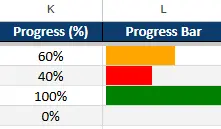
- Progress (%): A numeric entry (like 40%, 80%, or 100%) that visually aligns with the next column.
- Progress Bar: A colored bar that visually represents how close a task is to completion. This helps spot bottlenecks quickly.
- Notes: A flexible field for comments or details—for instance, “waiting on client feedback” or “UI changes approved.”
- Days Left: Automatically shows how many days remain until the due date or “Completed” if the task is done.
- Completion Date: The actual date a task was finished, providing a record of completed work.
Each of these columns works together to give you an instant snapshot of your project’s health—what’s running smoothly, what’s late, and where you need to focus next.
Dropdowns Sheet
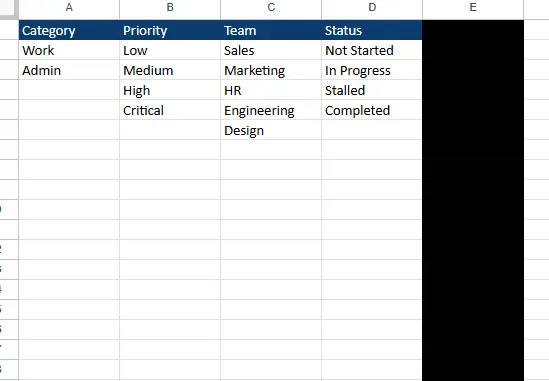
The Dropdowns Sheet keeps your data consistent and easy to manage. It’s where you define the lists that populate the dropdown menus in your main task tracker.
The available lists include:
- Category: Examples include Work, Admin, or other custom categories depending on your organization’s structure.
- Priority: Low, Medium, High, and Critical—allowing you to emphasize urgency levels clearly.
- Team: Lists departments such as Sales, Marketing, HR, Engineering, and Design.
- Status: Standard workflow stages—Not Started, In Progress, Stalled, and Completed.
You can expand or adjust these dropdowns to match your business or personal needs. For instance, a freelance designer might add “Client Review” as a custom status, while a marketing team might add “Scheduled” or “Published.” This structure gives you full control without breaking the template.
How to Use the Template Effectively
One of the main strengths of this task management template is its simplicity. You don’t need advanced spreadsheet skills—just a few minutes to set up your workflow.
- Add Your Tasks: Enter your first set of tasks into the “Task Manager” sheet. Fill in each column with relevant details like task name, priority, due date, and assigned person.
- Use Dropdowns for Consistency: Select categories, priorities, teams, and statuses using the predefined dropdowns. This keeps your data clean and makes filtering easier.
- Track Progress: Update the “Progress (%)” column as work moves forward. The visual progress bar will automatically reflect changes, giving you a quick performance snapshot.
- Update Status Regularly: Switch from “In Progress” to “Completed” when a task finishes. The sheet automatically reflects this with color-coded visuals.
- Add Notes for Clarity: Use the Notes column to log updates, client feedback, or internal reminders.
- Review Deadlines: The “Days Left” column highlights how many days you have before a task is due—ideal for managing upcoming work.
Example:
Let’s say you’re managing a small marketing campaign. You can list tasks like “Write ad copy,” “Design banner,” “Schedule social posts,” and “Monitor campaign results.” By assigning team members, setting due dates, and tracking completion, you’ll have an instant overview of progress across your entire project.
For larger teams, this sheet works perfectly as a shared Google Sheet. Each team member can update their own tasks, allowing managers to review project health in real time.
Why This Task Management Template Stands Out
There are countless task management tools out there—but this spreadsheet strikes the perfect balance between simplicity and functionality. Here’s why it’s a great choice for individuals and teams:
- No sign-ups or software needed: Everything runs on Google Sheets or Excel, which most users already have access to.
- Highly customizable: You can easily rename categories, adjust dropdowns, or add new columns as your projects evolve.
- Visual tracking: Color indicators and progress bars make it easy to see project status at a glance—no formulas or coding required.
- Ideal for any workflow: Whether you’re managing client deliverables, event planning, construction timelines, or school projects, the layout adapts easily to your needs.
- Improves accountability: With assigned team members and clear due dates, everyone knows their role and deadline.
- Perfect for remote teams: Since it’s built in Google Sheets, multiple people can collaborate and edit simultaneously without overwriting each other’s work.
Real-world examples of use:
- A project manager tracking multiple design and development sprints.
- A marketing coordinator managing campaign content and deadlines.
- A freelancer juggling several client deliverables at once.
- A small business owner organizing admin tasks, operations, and follow-ups.
- A student planning coursework or team projects.
Every professional benefits from having a single place where tasks, deadlines, and progress come together in one visual format.
Get Your Free Task Management Spreadsheet
- Free Template
- Fully Editable
- Instant Access
- Organize your information
How to Access Your Copy
- Enter your email for instant access
- Open the link we send you
- Start using the spreadsheet right away
Take control of your workflow today with the Sheetrix Task Management Template. It’s the simplest way to keep your projects organized, monitor progress, and ensure nothing slips through the cracks. Whether you’re working solo or leading a team, this template will help you stay focused, efficient, and confident in your day-to-day productivity.