Managing tax expenses throughout the year is one of those tasks most people intend to stay on top of but often postpone until tax season arrives. Receipts get lost, deductions are forgotten, and totals have to be reconstructed at the last minute. This tax expense spreadsheet was designed to solve that problem by giving you a simple, structured way to track deductible expenses as they happen.
This Google Sheets tax expense spreadsheet is built for freelancers, self-employed professionals, side-hustlers, and small business owners who want clarity and accuracy without using complex accounting software. Instead of guessing what you spent or scrambling through bank statements, everything is logged in one place and summarized automatically.
The template focuses on practical tracking. You enter expenses once, select from dropdowns, and the spreadsheet handles the calculations. Monthly totals, annual summaries, deductible versus non-deductible expenses, and category breakdowns all update automatically based on the data you enter. There is no setup required beyond entering your expenses and adjusting categories if needed.
Because it is built in Google Sheets, the spreadsheet works on any device, updates in real time, and can easily be shared with an accountant or tax professional when needed. It is intentionally designed to be easy to understand even if you are not comfortable with spreadsheets.
Key Features and Sections
This tax expense spreadsheet is organized into four clear sheets. Each one serves a specific purpose and works together to give you a complete picture of your tax-related spending.
Start Here Sheet
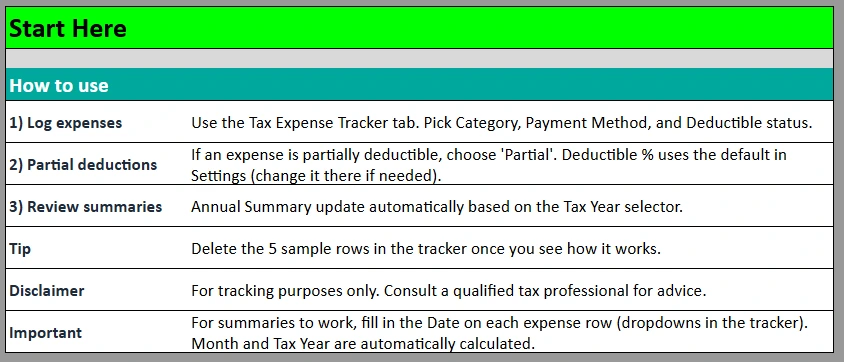
The Start Here sheet acts as a built-in guide for first-time users. Instead of guessing how the spreadsheet works, users see clear instructions at the top explaining how to log expenses, how partial deductions work, and how summaries are calculated.
This sheet explains that deductible percentages are automatically applied based on the default value set in the Settings sheet. It also clarifies that monthly and yearly summaries rely on the date entered for each expense. A short disclaimer reminds users that the spreadsheet is for tracking purposes and that professional tax advice should come from a qualified tax professional.
Including this guidance directly in the spreadsheet reduces confusion and makes the template feel approachable, especially for users who are new to tracking business expenses.
Expense Log Sheet
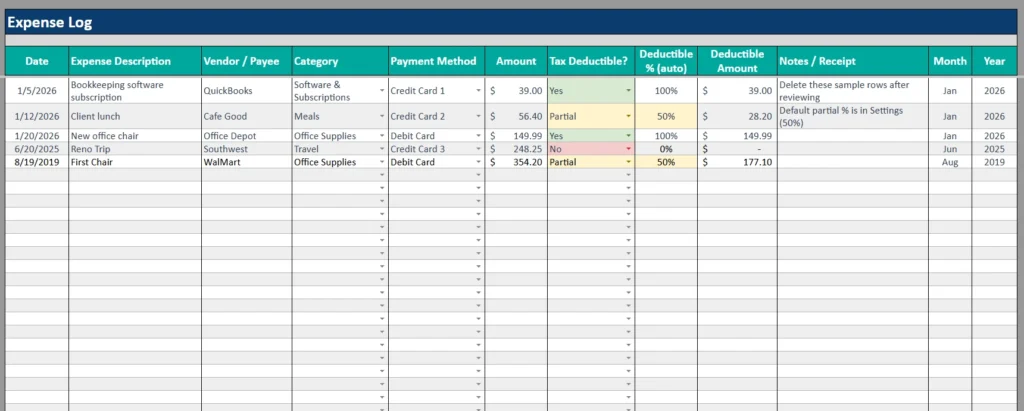
The Expense Log is the core of the tax expense spreadsheet. This is where users record each expense as it occurs.
Each row represents a single expense, with columns for date, description, vendor or payee, category, payment method, amount, deductible status, deductible percentage, deductible amount, notes, month, and year. Dropdown menus make data entry faster and more consistent, reducing errors and formatting issues.
The deductible logic is handled automatically. When an expense is marked as fully deductible, the spreadsheet calculates the full deductible amount. If it is marked as partially deductible, the spreadsheet applies the default deductible percentage from the Settings sheet. Non-deductible expenses are clearly separated so they do not inflate deductible totals.
This design allows users to log everything in one place without having to decide upfront whether an expense will matter later. The spreadsheet keeps the data organized and ready for reporting.
Annual Summary Sheet
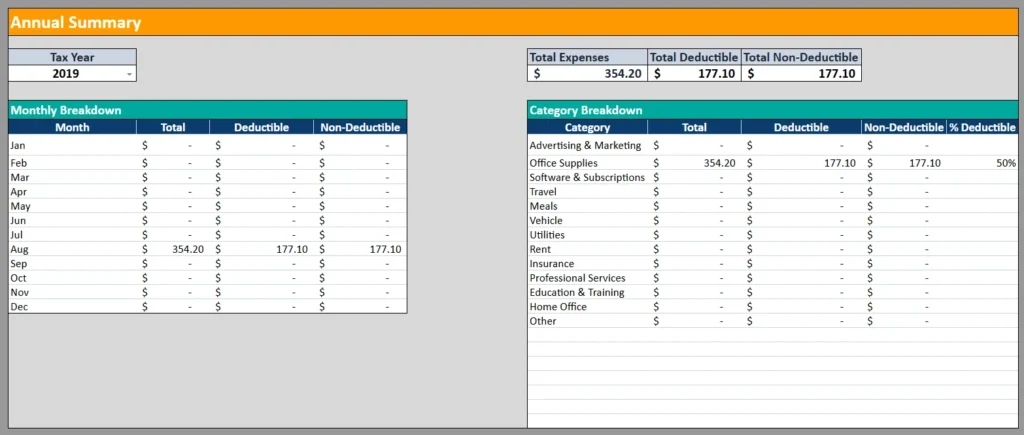
The Annual Summary sheet is where the spreadsheet becomes especially useful for tax preparation. A tax year selector allows users to view totals for a specific year without filtering or modifying the expense log.
At the top, the sheet displays total expenses, total deductible expenses, and total non-deductible expenses for the selected year. These numbers update automatically as new expenses are added or existing ones are edited.
Below the totals, the spreadsheet provides both a monthly breakdown and a category breakdown. This makes it easy to see spending patterns, identify high-expense categories, and understand where deductions are coming from. For example, a freelancer can quickly see how much was spent on software subscriptions or office supplies over the year.
This summary view is especially helpful when preparing estimated taxes, reviewing spending habits, or sharing clean totals with an accountant.
Settings Sheet
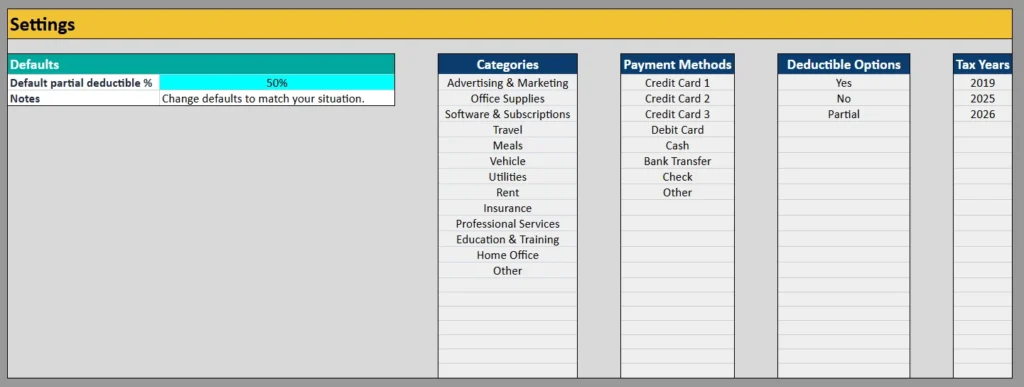
The Settings sheet controls the structure behind the spreadsheet while keeping it flexible.
Users can adjust the default partial deductible percentage, update categories, modify payment methods, and add or remove tax years. All dropdowns in the Expense Log are driven by this sheet, so changes automatically flow throughout the entire spreadsheet.
This approach allows the template to work for different business types without requiring formula changes. A consultant, online seller, or real estate professional can all adapt the spreadsheet to their needs by simply editing the lists in the Settings sheet.
How to Use the Template
Using this tax expense spreadsheet is straightforward and does not require advanced spreadsheet knowledge.
Start by opening the Expense Log sheet and entering expenses as they occur. Enter the date, describe the expense, choose a category and payment method, and enter the amount. Then select whether the expense is fully deductible, partially deductible, or not deductible.
If an expense is partially deductible, the spreadsheet automatically applies the default percentage from the Settings sheet. Users who need a different percentage can adjust it globally in Settings rather than changing formulas in individual rows.
As expenses are entered, the Month and Year columns are automatically populated based on the date. This ensures that summaries work correctly without additional input.
When it is time to review totals, users simply switch to the Annual Summary sheet and select the desired tax year. All totals and breakdowns update instantly. There is no need to filter rows or manually calculate totals.
Throughout the year, this process helps users stay organized and reduces the workload at tax time. Instead of reconstructing expenses months later, everything is already categorized and summarized.
Why Choose This Template
This tax expense spreadsheet is designed to strike a balance between simplicity and usefulness. It does not try to replace full accounting software, but it provides far more structure than a basic list of expenses.
For freelancers and self-employed professionals, the spreadsheet offers a reliable way to track deductions without committing to monthly software fees. For small business owners, it provides clarity and visibility into spending patterns that can inform better decisions throughout the year.
The spreadsheet is especially useful for people who want transparency. Every calculation is visible, every category is editable, and nothing is hidden behind complex systems. Because it lives in Google Sheets, it is accessible anywhere and easy to share.
Most importantly, this template encourages consistency. Logging expenses regularly leads to better records, fewer surprises at tax time, and more confidence when reviewing financial data.
If you are looking for a practical, easy-to-use tax expense spreadsheet that helps you stay organized all year, this template is designed to do exactly that. Download it, make a copy, and start tracking your expenses with confidence today.
Download Your Free Tax Expenses Spreadsheet
- Free Template
- Fully Editable
- Instant Access
- Organize your information
How to Access Your Copy
- Enter your email for instant access
- Open the link we send you
- Start using the spreadsheet right away