Planning a wedding is one of the most exciting moments in life—but it can also be one of the most financially stressful. Between venue deposits, catering quotes, attire, and guest lists, it’s easy to lose track of where your money is going. That’s why this Wedding Budget Template for Google Sheets was designed: to help you stay organized, make confident spending decisions, and see every detail in one clear, connected spreadsheet.
This all-in-one wedding planner lets you set budgets, log expenses, and track RSVPs in real time. It automatically calculates totals, updates costs as you add vendors or guests, and highlights any areas where you’re over or under budget. Whether you’re planning an intimate backyard ceremony or a large destination wedding, this spreadsheet makes it simple to manage the financial side of your big day.
Video Walkthrough
A Clear Overview of How the Template Works
This Google Sheets template includes three connected sheets that work together to cover your entire event: Budget, Guest Invitations, and Dropdowns. Each section has automated formulas, dropdown menus, and visual summaries that make the process intuitive—even for users new to spreadsheets.
You can update the numbers and options freely; the structure adapts automatically. The Budget sheet shows exactly how much you’ve spent in each category, while the Guest Invitations sheet handles attendance tracking and guest costs. Behind the scenes, the Dropdowns sheet powers all the lists that keep your data consistent.
Here’s a closer look at what each sheet does and how they connect.
Get Your Free Wedding Budget Template (Google Sheets)
- Free Template
- Fully Editable
- Instant Access
- Organize your information
How to Access Your Copy
- Enter your email for instant access
- Open the link we send you
- Start using the spreadsheet right away
Plan your wedding with clarity, stay on budget, and eliminate last-minute surprises.
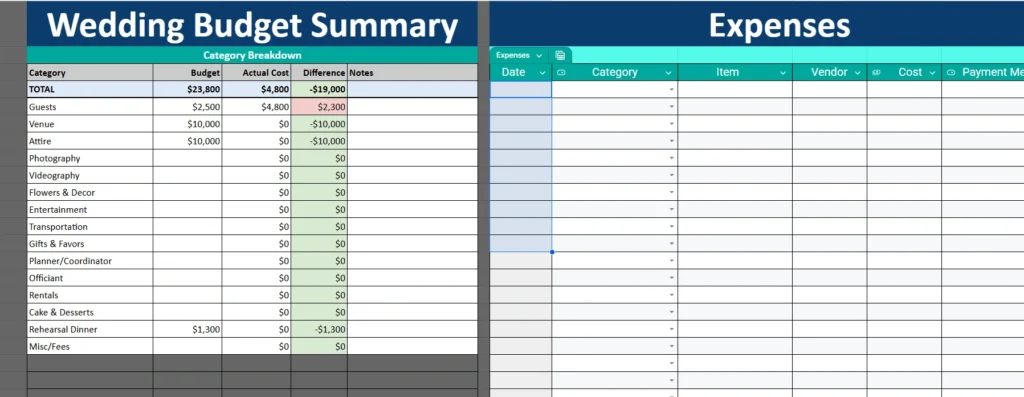
Budget Sheet
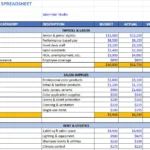
The Budget tab is the heart of the template and where most of your financial tracking happens. It’s divided into two main sections:
- Wedding Budget Summary (left half):
This table lists each spending category—like Venue, Guests, Attire, Photography, Flowers, and Entertainment. You can enter your budgeted amounts for each category in the “Budget” column. The “Actual Cost” column updates automatically as you enter transactions in the Expenses section. For example, if you set a $10,000 budget for your venue but log $8,500 in payments to the venue vendor, the spreadsheet instantly shows that you’re $1,500 under budget. The “Difference” column displays color-coded results, with green indicating savings and red showing overspending. The “Guests” line in your summary is also linked directly to your Guest Invitations sheet. Instead of manually typing how much your guests cost, this value is automatically calculated based on your number of attendees and your set cost per guest. - Expenses Section (right half):
This part of the sheet is where you record every expense. Each row represents a transaction and includes:- Date – when you made the payment or received an invoice.
- Category – selected from a dropdown list matching your budget categories.
- Item – a short description of the purchase (for example, “Florist deposit” or “DJ booking”).
- Vendor – the supplier or service provider.
- Cost – the amount paid.
- Payment Method – a dropdown populated from the Dropdowns sheet (e.g., Credit Card 1, Cash, Bank Transfer).
- Notes – an optional field for reminders or payment details.
This setup works well for couples who want both a quick overview and detailed tracking. For example, if your planner asks how much you’ve already paid for catering, you can find that instantly.
Guest Invitations Sheet
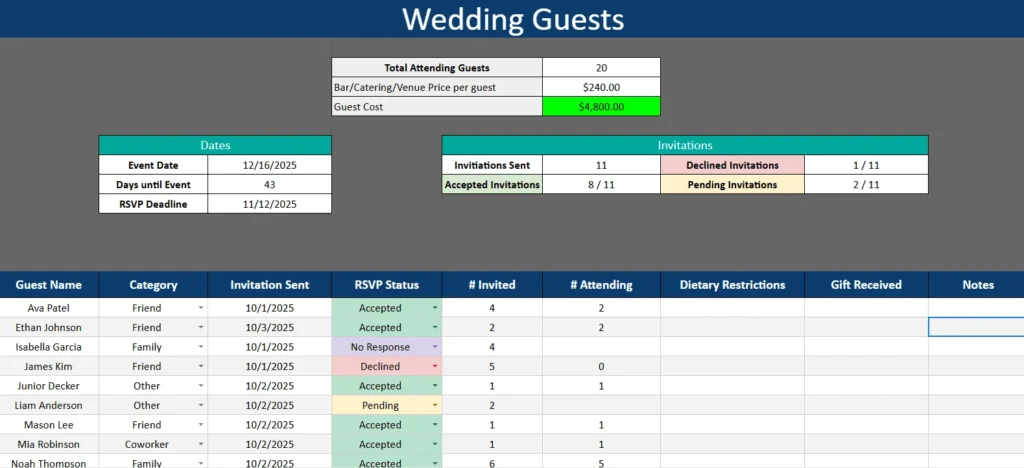
The Guest Invitations sheet focuses entirely on guest management—something many wedding budget tools overlook. It tracks invitations, RSVPs, dietary restrictions, and even calculates your total cost per guest.
At the top of this sheet, you’ll find an automated dashboard that gives you an instant overview of your event’s progress. It includes:
- Event Date and RSVP Deadline – with built-in formulas that show how many days are left until the big day.
- Invitations Summary – showing how many invitations were sent, how many were accepted, declined, or are still pending.
- Total Attending Guests – automatically updated based on the RSVP column.
- Bar/Catering/Venue Price per Guest – an editable cell where you enter your per-person cost for food, drinks, or seating.
- Guest Cost – calculated automatically by multiplying total attending guests by the price per guest.
This design helps you understand exactly how your guest count affects your budget. For example, if your price per guest is $240 and you have 20 confirmed attendees, your total guest cost of $4,800 will automatically appear in the Budget sheet under the “Guests” category.
Below the summary, you’ll find the detailed guest table. Each row includes:
- Guest Name
- Category (Friend, Family, Coworker, etc.)
- Invitation Sent Date
- RSVP Status (Accepted, Declined, No Response, or Pending)
- Invited and # Attending
- Dietary Restrictions
- Gift Received
- Notes
All the dropdowns for Category and RSVP Status are powered by the Dropdowns sheet. You can add, remove, or rename options there to customize them for your event.
This layout works perfectly for couples who want to personalize their planning. For instance, you could track which guests are vegetarian, who’s bringing a plus-one, or who has sent gifts—all without cluttering your budget view.
Dropdowns Sheet
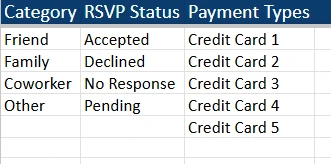
The Dropdowns sheet is the engine behind the entire template. It might not be the most glamorous part, but it ensures your data stays clean and consistent across all sheets.
It contains three columns:
- Category – used in both the Budget and Guest Invitations sheets to categorize spending and guest types.
- RSVP Status – populates the RSVP dropdown in the Guest Invitations sheet.
- Payment Types – provides options for the Payment Method dropdown in the Expenses section.
For example, if you add “Gift” under Category or “Zelle” under Payment Types, those options will instantly appear in your dropdown menus elsewhere in the file.
Keeping these lists centralized prevents spelling errors and keeps all data entries consistent—something that’s especially helpful when you’re filtering or analyzing totals later.
How to Use the Wedding Budget Template
Getting started with this template is straightforward, even if you’ve never used Google Sheets before. Here’s how you can make the most of it:
- Set your total budgets: Go to the Budget sheet and enter your estimated amounts for each category. Start with big items like Venue and Catering, then fill in smaller categories like Décor or Favors.
- Add your payment methods and guest types: Visit the Dropdowns sheet and edit any lists you want customized for your event. For example, you might add “Vendor Check” or “Bank Transfer” under Payment Types.
- Track actual expenses: Each time you pay a deposit or get an invoice, record it in the Expenses section. The template automatically updates your totals and the “Difference” column in your summary.
- Manage guests and RSVPs: On the Guest Invitations tab, update the RSVP Status column as guests respond. Adjust the “Price per Guest” to see how your catering costs change in real time.
- Review totals and stay on track: As you enter more data, check your Wedding Budget Summary to see how you’re performing against your goals.
By following these steps, you’ll have a living document that always reflects the current state of your wedding finances.
Why This Template Is Perfect for Wedding Planning
This template was designed for real couples and event planners who need more than a simple checklist. It gives you flexibility, transparency, and automation—all without requiring expensive wedding software.
- For engaged couples: It’s an all-in-one organizer that helps you track everything from guest meals to vendor deposits.
- For wedding planners: It simplifies reporting and makes it easy to show clients exactly where their money is going.
- For budget-conscious couples: It’s completely free and built with formulas that do the math for you—no manual calculations needed.
Beyond budgeting, it’s a tool for reducing stress. You’ll know how many guests are coming, what you’ve paid, and what’s left to handle—all in one place.
This simple yet powerful spreadsheet helps you plan smarter, spend wisely, and focus on what matters most—celebrating your wedding without financial surprises.