Keeping accurate mileage records can be a hassle—especially when you’re juggling business trips, deliveries, or client visits. That’s exactly why the Sheetrix Mileage Spreadsheet was designed. Built in Google Sheets, this free, customizable template gives you a simple way to record every trip, calculate mileage automatically, and generate totals for reimbursement or tax reporting.
Whether you’re a freelancer who drives between clients, a delivery driver logging daily routes, or a small business owner managing multiple vehicles, this spreadsheet gives you full control of your travel data without needing to pay for expensive tracking apps. It’s efficient, transparent, and ready to use right away.
A Complete Overview of the Mileage Spreadsheet Template
The Sheetrix Mileage Spreadsheet is a ready-to-use template that lets you track travel information in an organized, automated way. It’s divided into clear sections that handle different aspects of mileage tracking—logging trips, setting rates, and viewing summaries.
When you open the file in Google Sheets, you’ll find three main tabs:
- Mileage Log – where you record each trip with details like the date, purpose, start and end odometer readings, and automatic mileage totals.
- Settings – where you can set your reimbursement rate, mileage unit (miles or kilometers), and customize your list of trip purposes.
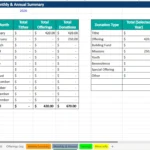
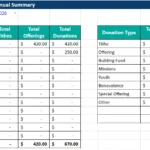
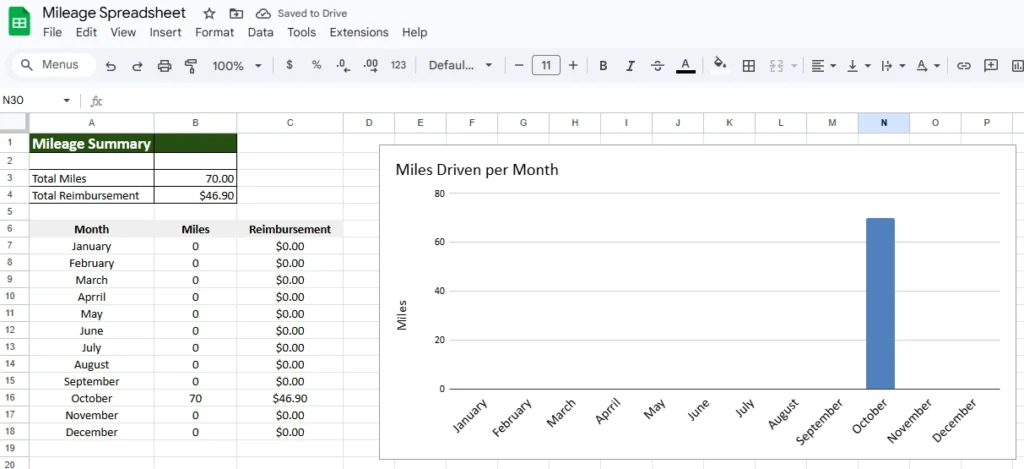
- Summary – a dashboard that calculates your total miles and total reimbursement for the year, plus monthly breakdowns.
The layout is designed to be intuitive even for beginners. Each entry requires only a few inputs—date, purpose, start and end points, and odometer readings. The spreadsheet handles the rest. Because it’s built in Google Sheets, you can access it from anywhere, share it with others, and print reports easily.
This spreadsheet is ideal for people who drive regularly for business or personal tax-deductible activities. For instance, consultants who visit multiple client locations, nonprofit volunteers tracking charitable miles, or real estate agents touring properties can all benefit from the same structure.
Inside the Template: Key Features and Sections That Make Tracking Easy
Mileage Log
The Mileage Log is the core of the spreadsheet. It includes the following columns:
- Date – When the trip occurred.
- Description – A short note about the trip’s purpose, like “Client Meeting” or “Delivery Run.”
- Purpose – A dropdown field linked to preset options such as Business, Charity, Medical, or Personal. You can edit or add your own categories from the Settings sheet.
- Start and End Locations – The origin and destination of your trip.
- Odometer Start and End – The readings before and after your drive.
- Miles Driven – Automatically calculated using a formula that subtracts start from end.
- Rate per Mile – Pulled directly from your Settings tab.
- Reimbursement – Automatically calculated by multiplying miles driven by the rate per mile.
At the bottom of the log, automatic totals display your total miles and total reimbursement. These totals update dynamically as you add new entries.
Settings Sheet
The Settings tab keeps your key variables in one place. Here, you can:
- Update your Mileage Rate, such as $0.67 per mile (the current IRS rate).
- Choose your unit of measurement—Miles or Kilometers.
- Edit your Purpose Options, allowing you to match your specific needs.
This makes the spreadsheet reusable year after year without having to edit formulas or rebuild layouts.
Summary Dashboard
The Summary sheet provides a snapshot of your activity. It automatically pulls totals from your Mileage Log and shows your total miles and reimbursement amount for the entire year. You’ll also find a month-by-month breakdown that helps you see which months had the highest driving activity.
This view is especially useful for professionals who submit mileage reports quarterly or annually. It saves time by doing the calculations for you, and the layout is print-friendly for accountants or HR teams.
Step-by-Step: How to Use the Mileage Spreadsheet
Using this spreadsheet is straightforward. Here’s how to get started:
- Adjust Your Settings: Go to the Settings tab to confirm or update your mileage rate. For example, U.S. users may use $0.67 per mile, while Canadian users might prefer a per-kilometer rate.
- Add Your First Trip: In the Mileage Log, enter the trip date, purpose, start and end locations, and odometer readings. The spreadsheet automatically calculates miles driven and reimbursement.
- Continue Logging Trips: Each new row represents a new trip. Filters make it easy to sort by date, purpose, or location.
- Review Your Totals: The Summary sheet updates instantly, giving you total mileage, total reimbursement, and a visual sense of your driving activity by month.
- Export or Print Reports: When you’re ready to share your log, go to File → Download → PDF or Excel. You can also share the sheet directly with your accountant or manager using a view-only link.
Here’s an example: Suppose you start at an odometer reading of 20,300 miles and end your day at 20,345 miles after visiting a client site. The spreadsheet automatically calculates 45 miles for that trip and applies the reimbursement rate, giving you a total of $30.15 if the rate is $0.67 per mile. You simply repeat this process for each drive—no manual math required.
Why the Sheetrix Mileage Spreadsheet Stands Out
There are plenty of ways to track mileage, but most paid apps or subscription tools make the process overly complicated. The Sheetrix Mileage Spreadsheet keeps things simple, transparent, and completely customizable.
Full Control Over Data: Because it’s built in Google Sheets, you can see every formula, adjust every field, and modify it however you like. Nothing is hidden or locked behind a paywall.
No Extra Software Needed: You don’t need to download an app or sync with GPS. You simply enter your odometer readings and the spreadsheet does the rest.
Perfect for Different Professions:
- A real estate agent can log property visits and calculate annual mileage deductions.
- A freelance consultant can record client meetings and submit monthly reports for reimbursement.
- A delivery driver can track each delivery route to measure fuel efficiency.
- A nonprofit volunteer can document charitable trips for tax records.
Accurate Calculations: The built-in formulas ensure that every total is correct, whether you’re tracking 20 trips or 2,000.
Cloud Access: Since it’s stored in Google Drive, you can access it anywhere—from your phone in the car to your desktop at the office.
Customization Options: You can easily add columns, adjust colors, or insert a company logo to match your brand if you use it for professional reporting.
Get Your the Free Mileage Spreadsheet
- Free Template
- Fully Editable
- Instant Access
- Organize your information
How to Access Your Copy
- Enter your email for instant access
- Open the link we send you
- Start using the spreadsheet right away