Managing office equipment and supplies can quickly become overwhelming, especially as your business grows. Between computers, furniture, and everyday items like paper or coffee pods, it’s easy to lose track of what you have and what needs to be restocked. That’s why we created the Office Inventory Template for Google Sheets — a simple, flexible spreadsheet that helps you organize every item in your workspace while automatically tracking totals and reorder needs.
Whether you’re running a small business, managing a coworking space, or handling office administration for a large team, this template gives you the visibility you need to keep things running smoothly — without relying on expensive software.
A Complete Overview of the Office Inventory Template
At its core, this spreadsheet is designed to help you track all your office assets — from equipment and furniture to everyday supplies. It’s structured to be both simple and scalable, so it works equally well for a small team or a multi-department organization.
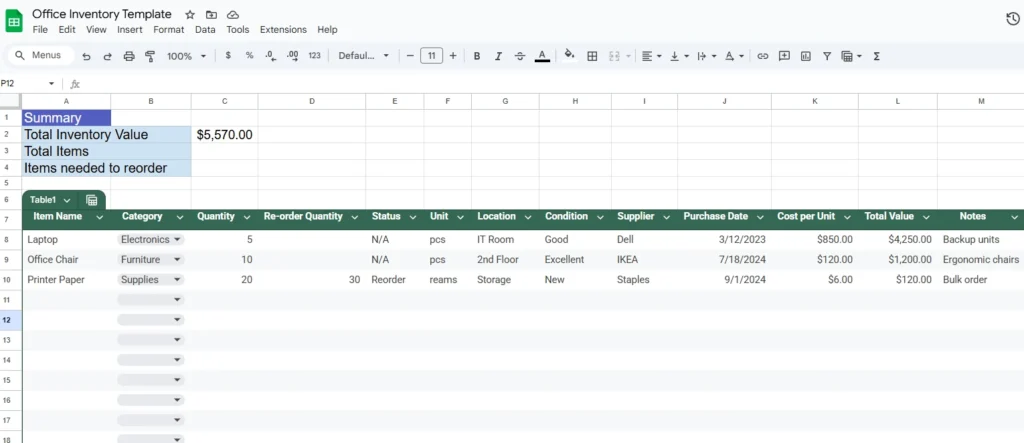
When you open the file, you’ll find a clean, well-organized layout that includes two main areas: the inventory table and the summary section. The summary sits at the top and automatically updates key totals, including:
- Total Inventory Value – the total worth of all listed items.
- Total Items – how many unique entries are currently being tracked.
- Items Needed to Reorder – how many products have dropped below their target stock level.
This quick snapshot helps you see the big picture at a glance — ideal for managers who just need a fast update on supplies and spending.
Below that, you’ll find the main inventory table, which lists each item and its details in a structured way. Every column has been carefully chosen to make data entry simple and meaningful.
For example, you can track the item name, category, quantity, location, condition, supplier, and purchase date. You can also specify the reorder quantity and the status (for example, “Reorder” or “N/A”). These two columns are especially useful for offices that frequently restock essentials like printer paper, toner, pens, and snacks.
The sheet uses built-in formulas to calculate each item’s total value (quantity × cost per unit) and to automatically update the summary totals at the top. It’s all handled seamlessly — no coding or advanced formulas required.
Key Features and How Each Section Works
This template isn’t just a table of numbers — it’s a lightweight inventory system designed for practical use. Here’s a closer look at how each section works and what makes it useful:
1. Summary Section
The blue summary box at the top of the sheet shows the three most important inventory metrics: total inventory value, total items, and how many need reordering. These values update automatically based on the data below. You can instantly tell if stock is running low or if your office’s total inventory value has changed significantly.
2. Item Tracking Table
This is the heart of the spreadsheet. Each row represents one item, such as a “Laptop,” “Office Chair,” or “Printer Paper.” The template includes these example entries so you can see how calculations work right away.
Columns include:
- Item Name – the name of what you’re tracking.
- Category – a dropdown list for grouping items like Electronics, Furniture, or Supplies.
- Quantity – how many units are currently available.
- Re-order Quantity – the minimum quantity you want to maintain.
- Status – a reminder if you need to reorder.
- Unit – measurement unit (pcs, reams, boxes, etc.).
- Location – where the item is stored, such as “IT Room” or “Storage Closet.”
- Condition – a simple description like “Good” or “New.”
- Supplier – where you purchased it from.
- Purchase Date – the date you acquired it.
- Cost per Unit – how much each item costs.
- Total Value – calculated automatically using a formula.
- Notes – any additional details.
3. Smart Formulas and Auto-Updates
The template uses built-in Google Sheets formulas to calculate total value and inventory metrics. For example, if you increase the quantity or change the cost per unit, the total inventory value updates instantly in the summary box. This automation saves time and prevents manual math errors.
4. Clean Visual Layout
Every column header includes a filter button, so you can quickly sort or search by category, supplier, or condition. The simple formatting makes it easy to scan large lists of items — whether you’re on a desktop or tablet.
Step-by-Step Guide on How to Use the Template
Using this spreadsheet is easy, even if you’re not a spreadsheet expert. Here’s how to get started:
- Make a Copy – Open the link and click File → Make a copy to add it to your Google Drive.
- Start Adding Your Items – Replace the sample rows with your own office inventory. Each row should represent one unique item.
- Enter Key Details – Add item names, quantities, purchase costs, and supplier info. Use consistent categories for easier filtering.
- Set Reorder Levels – Enter a reorder quantity for each item. When the current quantity falls below that level, mark “Reorder” in the Status column.
- Monitor the Summary Section – The totals at the top automatically adjust as you add or remove items.
- Share With Your Team – Google Sheets makes it easy to collaborate. You can give your admin staff or department heads editing access so everyone can keep stock levels accurate.
For example, if your IT team manages laptops, they can log updates directly in the sheet. If the kitchen runs out of coffee pods, the office manager can instantly see it marked as “Reorder.”
You can also filter the data to show only items from a specific supplier, or only those marked as “Reorder.” This makes it easy to plan purchases and stay on budget.
Why This Template Works Better Than Starting From Scratch
Many businesses try to track inventory with scattered notes, outdated Excel files, or even paper checklists. The problem is that these methods quickly fall apart once your office expands.
The Office Inventory Template from Sheetrix fixes that by combining structure, automation, and simplicity. It requires no setup — you simply open it and start entering your data.
Because it’s built in Google Sheets, you can:
- Access it from any device, anywhere.
- Share it securely with your team.
- Use built-in cloud backups (no lost files).
It’s also fully customizable. You can rename categories, adjust formulas, or add more fields for your specific needs. For example:
- Add a “Serial Number” column for electronics.
- Include “Department” to track who owns each item.
- Insert a chart that visualizes your total value by category.
This flexibility makes it ideal for office managers, startup founders, and administrative assistants who need a lightweight tool that doesn’t overcomplicate things.
Get Your Free Office Inventory Spreadsheet
- Free Template
- Fully Editable
- Instant Access
- Organize your information
How to Access Your Copy
- Enter your email for instant access
- Open the link we send you
- Start using the spreadsheet right away
Plan your wedding with clarity, stay on budget, and eliminate last-minute surprises.
If your current office inventory process feels scattered or outdated, this spreadsheet can help you regain control in minutes. With automatic totals, reorder tracking, and a clean interface, it’s designed to save time while keeping your workplace efficient and well-stocked.
Once you make your own copy, try entering a few of your current office items — like computers, chairs, and printer supplies. Within seconds, you’ll see your total inventory value, how many items you’re tracking, and which ones need to be reordered.
It’s a simple, reliable way to stay on top of your assets — and it’s completely free to use and customize.
Keep your workspace organized, your supplies in check, and your budget under control with the Office Inventory Template from Sheetrix.