Running a bar efficiently isn’t just about mixing great drinks — it’s about keeping your inventory tight and costs under control. Every missing bottle or overstocked case can eat into your profits. To help bar owners and managers streamline this process, we’ve created a free Bar Inventory Template for Google Sheets that gives you an instant view of what’s in stock, what’s low, and how much everything is worth.
Whether you manage a busy cocktail bar, a local pub, or a restaurant with a liquor section, this template helps you track products, manage par levels, and stay organized — all in one simple spreadsheet.
A Complete Overview of the Bar Inventory Template
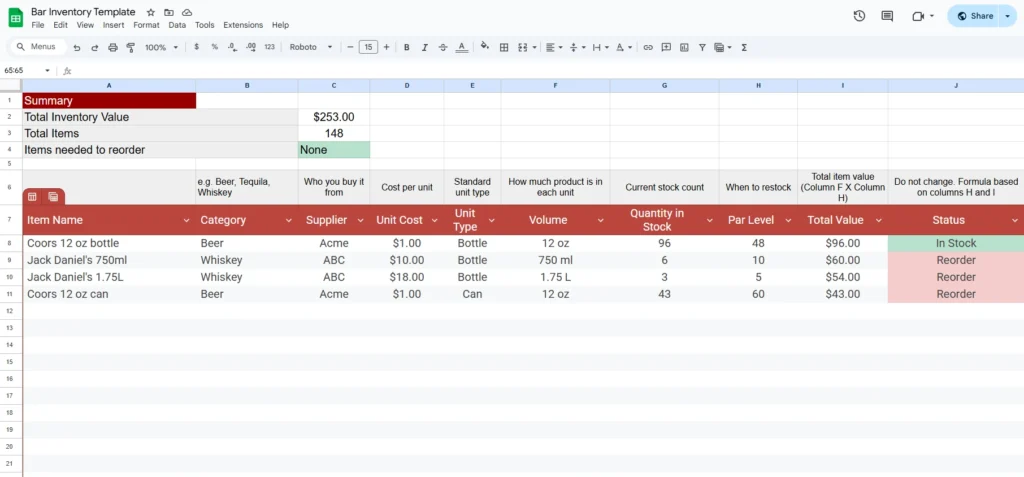
The Bar Inventory Template is designed for real-world use — practical, clear, and flexible. It organizes all your drink items into one easy-to-read list and automatically calculates totals and reorder needs.
At the top, there’s a summary section that instantly updates based on your data:
- Total Inventory Value: The sum of all items in stock
- Total Items: The count of unique inventory items you’re tracking
- Items Needed to Reorder: How many products have dropped below your set par level
Below the summary, you’ll find your detailed product list. Each column is built to simplify tracking and decision-making:
- Item Name: The specific name of each drink or product, such as “Coors 12 oz bottle” or “Jack Daniel’s 750ml.”
- Category: Groups your items by type — Beer, Whiskey, Wine, Tequila, or any other category you need.
- Supplier: Identifies where you purchase each product from, making reorders fast and traceable.
- Unit Cost: The price you pay for a single item, bottle, or can.
- Unit Type: Helps separate bottles, cans, or kegs for consistent data entry.
- Volume: Shows the size of each product — 12 oz, 750 ml, 1.75 L, or even custom units like “15.5 gal” for kegs.
- Quantity in Stock: The number of units you currently have available.
- Par Level: The minimum quantity you want to maintain in stock.
- Total Value: Automatically calculated as Unit Cost × Quantity in Stock.
- Status: A smart formula that shows “In Stock” or “Reorder” based on the par level you set.
- Notes: Space for comments, product details, or reorder reminders.
This simple structure keeps everything visible and reduces errors. Instead of managing complex software or point-of-sale integrations, you get a fast and transparent overview right in Google Sheets.
Exploring Each Feature in Detail
What makes this bar inventory spreadsheet so effective is its mix of automation and simplicity. Here’s how the built-in features work together.
The Status column is one of the most useful parts of the sheet. It uses a simple formula like =IF(I2<H2,"Reorder","In Stock") to automatically show when a product drops below its par level. You can also apply conditional formatting — green for “In Stock” and red for “Reorder” — so you can spot low items at a glance.
The Total Value column calculates automatically (=Unit Cost * Quantity in Stock), giving you the exact dollar value of your stock per product. Add up all of these, and you’ll have your Total Inventory Value, which updates as soon as you make any change in the list.
In the Summary section, all values update dynamically. For example:
- If you add more stock, the total value increases.
- If you sell out of an item, your reorder count adjusts automatically.
- When new products are added, your total item count updates instantly.
These small automations make inventory day faster and reduce manual entry errors — a common issue in busy bars.
How to Use the Bar Inventory Template Step by Step
Once you copy the template to your own Google Drive, you can start using it right away.
Step 1: Enter Your Products
List each drink or product you sell — bottles, cans, mixers, or kegs. For example:
- Coors 12 oz bottle
- Jack Daniel’s 750ml
- Jack Daniel’s 1.75L
- Coors 12 oz can
Step 2: Fill in Supplier and Cost Details
Add where you buy it from and the cost per unit. This helps calculate the total value and simplifies reordering from different suppliers.
Step 3: Set Your Par Levels
Decide how much of each item you want to keep in stock. If you usually go through five cases of beer per week, set your par level accordingly.
Step 4: Track Quantity in Stock
Enter your current count — either bottles, cans, or kegs. The sheet will automatically compare it to your par level and mark anything low as “Reorder.”
Step 5: Review the Summary
The summary at the top gives you a full snapshot: how many items you have, the total value, and what’s running low. You can print or share it with your team for weekly checks.
For busy bar managers, updating the sheet once a week (or even daily during events) can save hours and prevent costly shortages.
Customizing the Template for Your Bar or Restaurant
One of the biggest advantages of a Google Sheets inventory system is flexibility. You can easily customize this template to fit your specific needs without technical skills.
Need something more general? Start with the free inventory spreadsheet.
Here are a few ideas:
- Add More Categories: Include mixers, snacks, or non-alcoholic beverages.
- Use Filters and Sort Options: Filter by “Reorder” status or supplier to create instant order lists.
- Add a Date Field: Track when each product was last checked or received.
- Add Charts: Create a simple pie chart showing your inventory breakdown by category or supplier.
If you manage multiple locations, you can duplicate the sheet for each bar and use a master summary sheet that consolidates total values across branches.
Who Can Benefit Most from This Template
This bar inventory tracker isn’t just for full-time bar managers. It’s useful for a wide range of people and settings:
For concession stands, the snack bar inventory spreadsheet is a lighter option.
Running a full kitchen too? The restaurant inventory spreadsheet covers food stock as well.
- Small bars and pubs: Keep things organized without expensive software.
- Event coordinators: Track drinks for weddings, festivals, or private events.
- Restaurants with bars: Manage both food and beverage stock in the same format.
- Catering companies: Record alcohol quantities for off-site service.
Even home bar enthusiasts can use this to manage their liquor collection or calculate total value for insurance purposes.
By keeping your data centralized, everyone — from owners to bartenders — stays informed about what’s in stock and what needs restocking.
Why This Spreadsheet Is Better Than Other Inventory Tools
Most bar inventory systems come with monthly subscriptions or require manual syncing with point-of-sale data. This template keeps things lean. It’s easy to share, works on any device, and gives you full control of your data.
You can protect sensitive cells (like formulas or cost data), grant “view only” access to staff, and track updates in real time. Because it’s built in Google Sheets, there’s no installation or learning curve — just open, edit, and go.
It’s also adaptable for future growth. As your bar expands or your menu changes, simply add new rows or duplicate sections. No complicated setup required.
Get Your Free Bar Inventory Spreadsheet
- Free Template
- Fully Editable
- Instant Access
- Organize your information
How to Access Your Copy
- Enter your email for instant access
- Open the link we send you
- Start using the spreadsheet right away
Once you make a copy, you can begin adding your own data immediately. Update it regularly to make inventory day quick and painless. With just a few minutes each week, you’ll have complete control over your stock levels, supplier costs, and overall bar efficiency.