Do you know how many LEGO sets you own? Do you know what your collection is worth, how many pieces are sitting in boxes, or which retired sets you still want? A LEGO collection tracker spreadsheet built in Google Sheets can answer all of that in a few seconds.
LEGO collections grow fast. A few sets turn into a shelf, the shelf turns into storage bins, and soon you are buying a set you already own because you cannot remember what is sealed in the closet. This free template gives you one organized place to log every set, track what you paid and what it is worth now, and keep a wishlist for the sets you are hunting.
It also tracks build status and whether a set is retired, so your sealed investments, built display pieces, and retired grails can sit in the same sheet. Below is everything the template includes and how to use it.
Overview of the Template
This LEGO collection tracker spreadsheet has five tabs: a Start Here guide, a Collection log, a Summary page, a Wishlist, and a Settings tab that controls your dropdown lists. You type each set once, and the totals update on their own.
The template is a good fit if you want to:
- Keep a complete list of every set you own, with set number, name, theme, year, and piece count
- Know the total value of your collection and your gain or loss against what you paid
- Track which sets are sealed, built, or still waiting to be built, and which are retired
- Plan your next purchases with a wishlist that has priorities and target prices
Everything is editable. You can add your own themes or storage locations on the Settings tab, and the dropdowns on the other tabs update to match.
Key Features and Sections
Collection (Main Log)
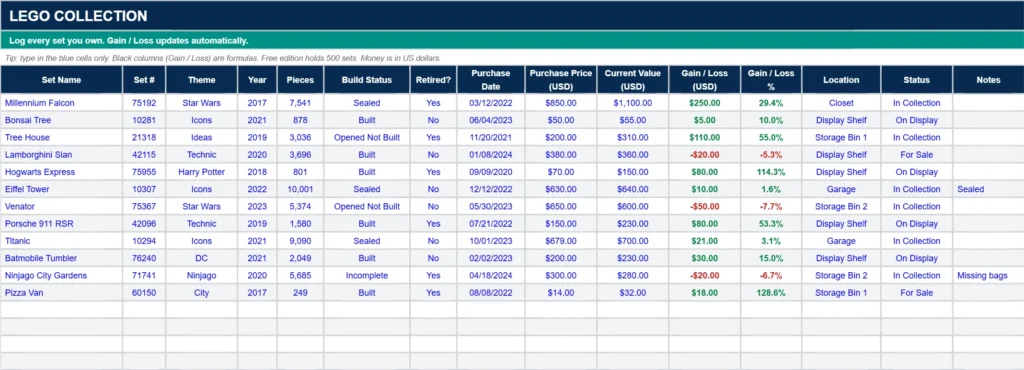
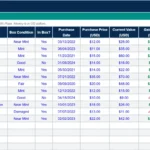
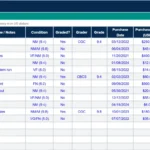
This is the heart of the LEGO collection tracker spreadsheet. Each row is one set. You enter the set name, set number, theme, year, piece count, build status, whether the set is retired, purchase date, what you paid, and what it is worth now. You also record where the set is stored and its status, such as On Display, In Collection, or For Sale. Gain / Loss and Gain / Loss % calculate automatically, and gains show in green while losses show in red.
The Collection tab is ready for up to 500 sets, and it includes example rows so you can see how the data should look before you replace it with your own.
Summary
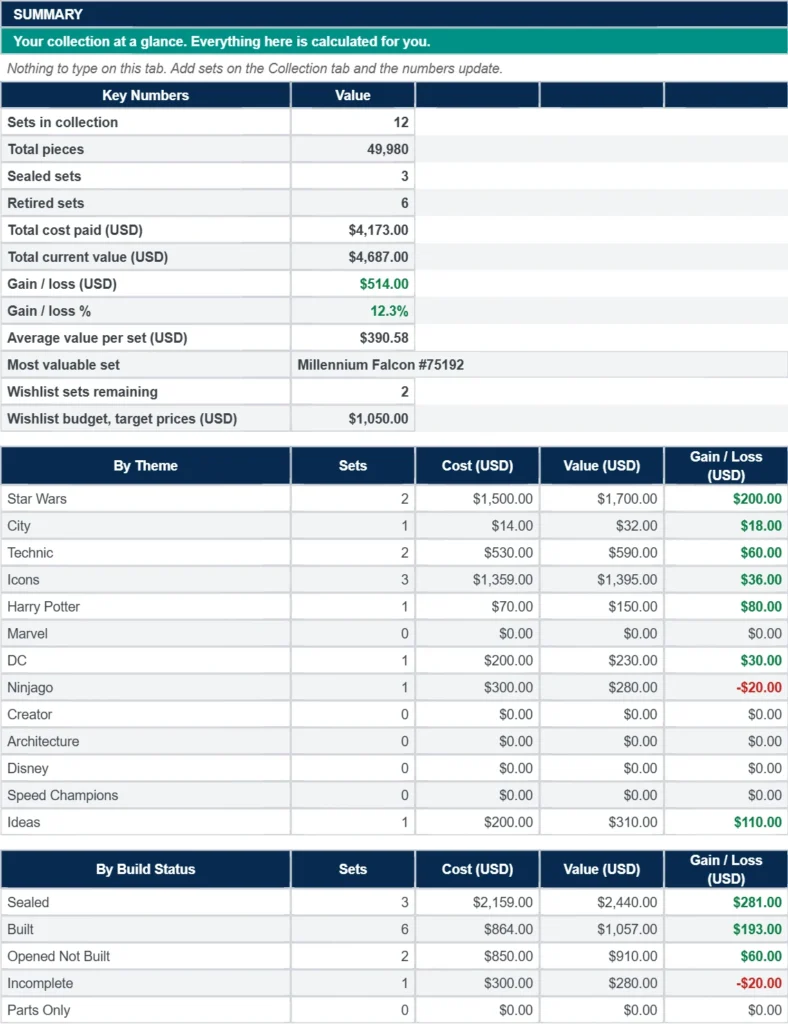
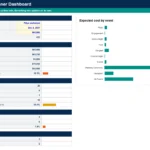
The Summary tab turns your log into numbers you can use. It shows your total sets, total pieces, how many sets are sealed, how many are retired, total cost, total current value, gain or loss in dollars and as a percentage, your average value per set, and your single most valuable set. It also breaks your collection down by theme and by build status, and shows how many wishlist sets you still want and the budget to finish the list.
Wishlist
The Wishlist tab holds the sets you are hunting. For each one you can record the set name, set number, theme, whether it is retired, priority, target price, estimated market price, and notes. An Over / Under Target column shows at a glance whether a set is priced above or below what you want to pay. Mark a set as Acquired and it drops out of your remaining count and budget.
Start Here and Settings
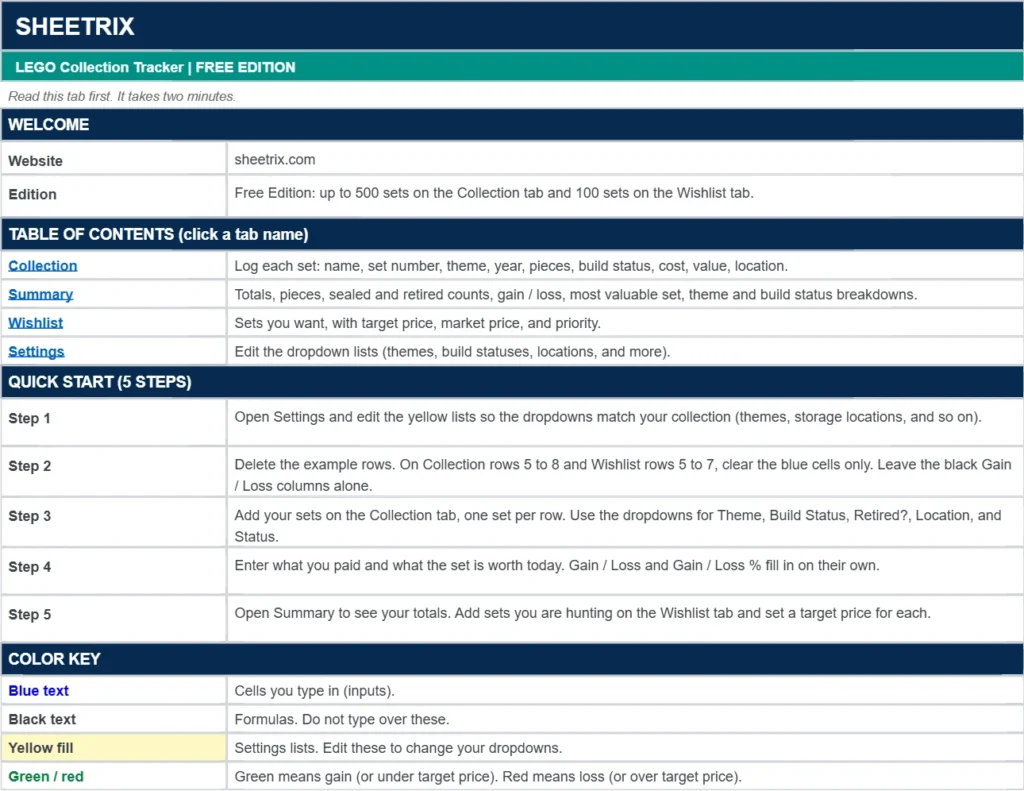
The Start Here tab walks you through setup in five steps and answers common questions. The Settings tab holds the lists behind your dropdowns: theme, build status, retired, status, storage location, and wishlist priority. Type a new option into the next empty row of any list and it appears in the dropdowns right away.
How to Use the Template
Step 1: Make Your Copy
Download the template using the form below, then open the link and choose Make a copy so the sheet saves to your own Google Drive.
Step 2: Clear the Example Rows
Go to the Collection tab and clear the four example rows. Do not delete the formula columns (Gain / Loss and Gain / Loss %). Those fill in by themselves.
Step 3: Add Your Sets
Type each set on its own row. Choose the theme, build status, retired flag, location, and status from the dropdowns. Enter the piece count, the price you paid, and the current value.
Step 4: Check Your Totals
Open the Summary tab to see your collection value, your gain or loss, your total piece count, and your breakdown by theme and build status.
Step 5: Update Values Now and Then
Set values move, especially for retired sets. When you want a fresh total, update the current value for the sets that matter most. Recent eBay sold listings and LEGO price guides are common places to check what a set is selling for.
Tracking Sealed, Built, and Retired Sets
Use the Build Status dropdown to mark each set as Sealed, Built, Opened Not Built, Incomplete, or Parts Only. Set Retired? to Yes when a set is no longer sold by LEGO. The Summary tab counts your sealed and retired sets so you can see how much of your collection is still in the box and how much is off the shelves for good.
This free version works in US dollars, so convert any foreign currency prices before you enter them.
Why Choose This Template
Built for LEGO Collectors
The columns match what collectors actually track: set number, theme, year, piece count, build status, and retired status. You do not have to adapt a generic inventory sheet.
Automatic Calculations
Gain or loss, total pieces, and the summary tables update the moment you change a price, so you never have to add anything up by hand.
Easy to Customize
Add your own themes or locations on the Settings tab. Add columns for minifigures, retail price, or purchase source if you want more detail.
Free and Works in Google Sheets
There is nothing to install. The template runs in Google Sheets, works on desktop and mobile, and your data stays in your own Drive.
Tips for Best Results
- Use one row per set. If you own two copies of the same set, give each its own row so you can track each one’s build status.
- Write the set number as printed on the box. The column is formatted as text, so entries stay exactly as typed.
- Use the Notes column for missing pieces, minifigures, box condition, or where you bought the set.
- Refresh the values for your most valuable sets first, since they move your total the most.
- Make a backup copy of your sheet before making big changes.
Who Should Use This Template?
New Collectors
If you are just starting out, a simple log keeps you from buying duplicates and shows you how your collection grows.
Adult Fans of LEGO
Track your Icons, Technic, and Star Wars sets, then use the Wishlist with target prices to plan your next builds.
Investors and Sealed Set Collectors
Record which sets are sealed and retired, and compare what you paid against current value.
Parents Tracking a Family Collection
A shared Google Sheet makes it easy to see which sets the kids own, which are built, and what is on their wishlist before birthdays and holidays.
Frequently Asked Questions
Does the template update LEGO set values automatically?
No. You enter the current value for each set yourself. This keeps the sheet simple and gives you full control over the numbers.
How many LEGO sets can I track?
The Collection tab is set up for 500 sets and the Wishlist for 100. The premium edition has room for 2,000 or more sets.
Can I track retired sets?
Yes. Use the Retired? dropdown to mark a set as retired, and the Summary tab will count them for you.
Is it really free?
Yes. The template is free for personal use. Enter your email in the form below and you will get a link to make your own copy.
LEGO is a trademark of the LEGO Group, which does not sponsor, authorize, or endorse this template. This template is an unofficial tool and is not affiliated with the LEGO Group.
Download Your Free LEGO Collection Tracker Spreadsheet
- Free Template
- Fully Editable
- Instant Access
- Track sealed, built, and retired sets
Inside the template: Start Here guide, Collection log, Summary, Wishlist, and Settings tabs.
How to Access Your Copy
- Enter your email for instant access
- Open the link we send you
- Start using the spreadsheet right away