Looking for a habit tracker you can open in Microsoft Excel? This free habit tracker Excel template is a real .xlsx file. Pick a month and a year, tick the days you complete each habit, and the totals update on their own. There are no add-ins, macros or subscriptions.
It is the Excel version of our habit tracker for Google Sheets: the same 12-habit grid, color-coded weeks and Total column, rebuilt so it works fully offline in Excel and prints on a single page. If you would rather work in your browser, use the Google Sheets version instead.
What You Get
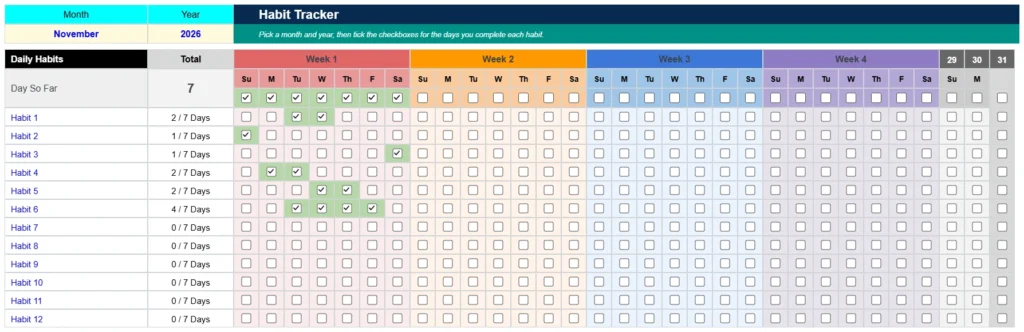
- A one-page monthly grid with room for 12 habits, one column per day and a column for each week.
- Month and Year dropdowns that set the weekday letters and the number of days, from 28 to 31, including leap years.
- A Day So Far row so your totals are measured against the days that have actually passed.
- A Total column that reads like 4 / 7 Days for every habit.
- Real in-cell checkboxes and color-coded weeks in red, orange, blue and purple, with ticked days highlighted in green.
- Landscape print setup so the whole month fits on one page.
Inside the Excel Template
The workbook has three tabs: Habit Tracker, Lists and Feedback. Almost everything happens on the first one.
Month and Year
The two cells at the top left set the month and the year. Choose a month from the dropdown and type the year. The weekday letters under each week update immediately, and the extra columns for days 29, 30 and 31 turn gray when the month is shorter. February in a leap year, for example, shows 29 days.
The Daily Habit Grid
Type your habits in column A, replacing the placeholder names. Each habit has a row of day cells, grouped into four color-coded weeks plus three spare columns for the end of longer months. To mark a day, click its checkbox. Ticked days turn green so you can see your streaks at a glance.
Day So Far and Total
The Day So Far row works as your calendar. Tick it for each day that has passed and the counter next to it shows how many days you are measuring against. The Total column then shows how many days you completed each habit out of those days, such as 4 / 7 Days, so a habit you started midweek is not unfairly penalized.
Lists Tab
The Lists tab holds the twelve month names behind the dropdown and two calculated cells, the month number and the number of days in the month, that drive the weekday letters. You do not need to change anything there.
How the Checkboxes Work in Excel
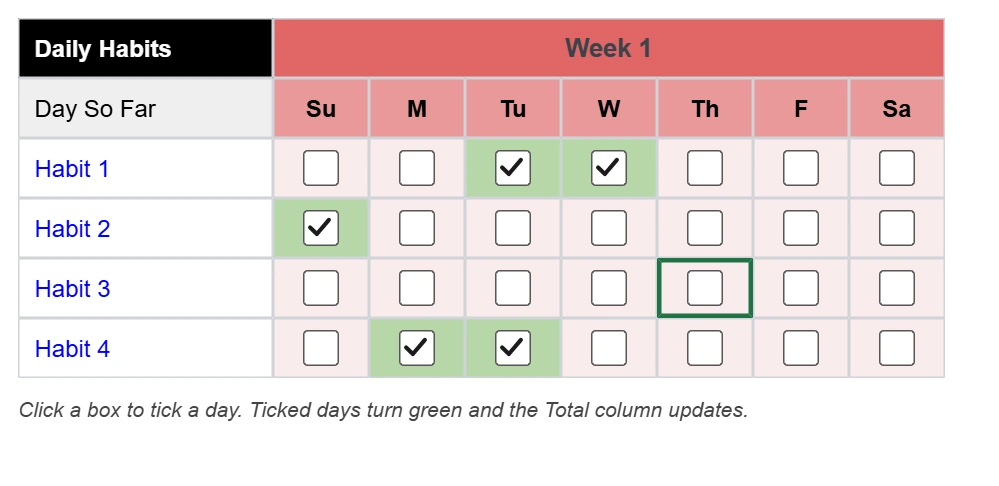
The day cells are real Excel checkboxes, the same kind you add from Insert, then Checkbox. Click a box to tick a day and click it again to clear it. Ticked days turn green and the Total column updates straight away. To reset the month, select the grid and press Delete.
Excel Version or Google Sheets Version?
| Excel version | Google Sheets version | |
|---|---|---|
| File | A .xlsx file you download | A Google Sheet you make a copy of |
| Marking a day | Click a checkbox (Microsoft 365 or Excel 2024 and later) | Click a checkbox |
| Month length | Weekday letters and 28 to 31 days adjust automatically | Weekday letters and the layout adjust automatically |
| Offline | Works offline in Excel | Needs a connection unless Drive offline mode is on |
| Sharing | Send the file | Share a link |
Both versions have the same layout and the same Total column, so pick whichever fits how you work. You can find the Google version here.
How to Use the Habit Tracker in Excel
- Download the file. Enter your email below and use the link we send you to get the .xlsx file.
- Choose the month and year in the cells at the top left.
- List your habits in column A. Examples: Exercise, Read 10 pages, No sugar, Meditate.
- Tick the Day So Far row for each day that has passed.
- Tick each habit on the days you complete it. Watch the Total column count up.
- Start the next month by selecting the grid, pressing Delete to clear the ticks, and changing the month. Your habit names stay.
Which Excel Versions Work
The checkboxes need Excel for Microsoft 365 or Excel 2024 or later. Everything else uses standard Excel functions and does not need an add-in or macros. In Excel 2021 and older, the day cells show TRUE and FALSE instead of boxes. The tracker still counts them, but our Google Sheets version is a better fit if you use an older Excel.
Habit Tracker Excel Template FAQ
Is this habit tracker Excel template free?
Yes. Enter your email and we send you a link to download the .xlsx file. There is no charge and no account is needed.
How do I tick a habit in Excel?
Click the checkbox in the day cell. It turns green and the Total column updates. Click it again to clear it.
Which versions of Excel show the checkboxes?
Excel for Microsoft 365 and Excel 2024 or later. In Excel 2021 and older, the day cells show TRUE and FALSE instead of boxes. The tracker still counts them, but the Google Sheets version is a better fit if you use an older Excel.
How do I start a new month?
Select the habit grid, which runs from the Day So Far row down to your last habit, and press Delete to clear the ticks. Then choose the new month and year. Your habit names in column A are not affected.
Does it handle 28, 29, 30 and 31-day months?
Yes. The weekday letters and the number of days follow the month and year you choose, including leap years. Columns for days that do not exist turn gray.
How many habits can I track?
The template has room for 12 habits. Rename them in column A. To track more, copy a habit row and insert the copy inside the grid, then check that the Total formula covers it.
What does Day So Far do?
It counts the days that have passed in the month, based on the boxes you tick in that row. Each habit total is measured against it, so 4 / 7 Days means you completed the habit on 4 of the first 7 days.
Can I print it?
Yes. The sheet is set to print on one landscape page, so the whole month fits on a single sheet of paper.
Can I use it in Google Sheets?
You can upload the file to Google Drive and open it in Google Sheets, but we also have a version built for Google Sheets with native checkboxes. See the Google Sheets habit tracker.
Download your Habit Tracker for Excel
The free version is an Excel file. Premium runs in Google Sheets.
- Monthly habit grid with checkboxes
- Color-coded weekly layout
- Up to 12 habits, prints on one page
- Progress bars and completion percentages
- Daily progress chart
- Everything in the free version
- Progress bars and completion percentages
- Daily progress chart
- Weekly and monthly routines
- Light and dark themes, unlimited habits
Final Thoughts
Building a habit takes consistency, not perfection. A month on one page, with a green tick for every day you showed up, makes that progress easy to see. Download the Excel file, set the month and start ticking.